Help Center › Phone & WhatsApp
Set up WhatsApp for your academy
What you need
- A MatPilot Phone number. See Get a phone number for your academy with MatPilot Phone.
- A Meta business (Meta Business Suite) that you are an admin of.
- A number that has never been on WhatsApp. A number already used in the WhatsApp Business app loses its chat history when it moves to the WhatsApp Business API, and stops working in the app. So WhatsApp goes on one of your academy's own new Phone numbers, where there is nothing to lose.
Only an owner can apply, connect Meta and type the code. Managers can change MatPilot AI. Everything happens in Settings, Phone, WhatsApp; if it says WhatsApp is not available for your academy yet, write to support@matpilot.io.
1. Apply
The application has two steps and saves as you go.
Your WhatsApp profile, what members see when they message you:
- Display name, shown at the top of the chat. Meta reviews it, so use your academy's real name, without the word WhatsApp, emoji or web addresses.
- Number: one of your MatPilot Phone numbers.
- About, Website and Email for your profile.
Your company details come from your Phone application, as the regulator approved them.
Meta and send: add your Meta Business Manager ID (in Meta Business Suite, open Settings, then Business info: it is the Business portfolio ID), confirm three things, and choose Send to MatPilot:
- the number has never been on WhatsApp or the WhatsApp Business app
- you are an admin of this Meta business
- you authorise MatPilot to set up the WhatsApp Business API for your academy on your behalf
2. MatPilot reviews it
MatPilot checks the details before anything goes to Meta, and you are notified when it moves on. If something needs fixing, you see Changes requested, with each problem marked on the form.
3. Connect your Meta business
Once approved, choose Continue with Facebook. Facebook opens a window where you pick your business and confirm. If that does not work, MatPilot can connect it with you: you get an access request in Meta Business Suite to approve.
4. Type the code
MatPilot registers your number with WhatsApp, then Meta sends a 6-digit code to it. Usually Meta calls the number: the call rings your academy's Phone line, so answer it in MatPilot. If nobody answers, it goes to voicemail and the transcript shows the code. Type it and choose Verify. When the code comes by text message instead, MatPilot reads it for you and this step usually finishes by itself.
5. Live
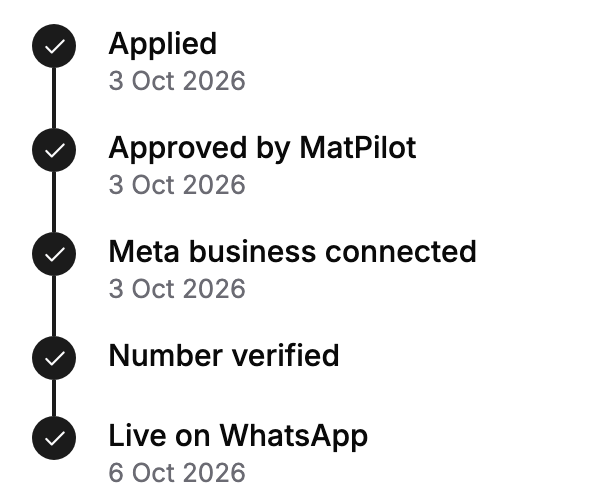
When it is live, members can message the number on WhatsApp and their messages land in your Inbox.
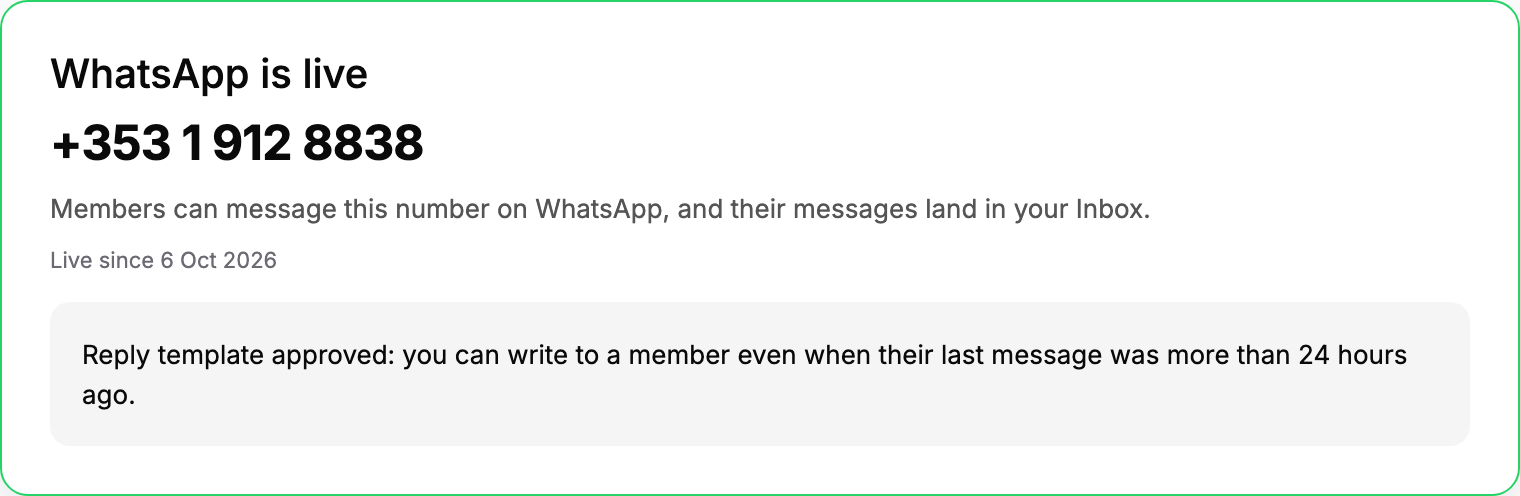
One more thing happens in the background: Meta reviews your reply template. Until it is approved, you can only reply within 24 hours of a member's last message. See WhatsApp replies in your Inbox and the 24-hour window.
If WhatsApp ever shows Offline, messages are not arriving. MatPilot is told automatically and looks into it.