Help Center › Phone & WhatsApp
WhatsApp replies in your Inbox and the 24-hour window
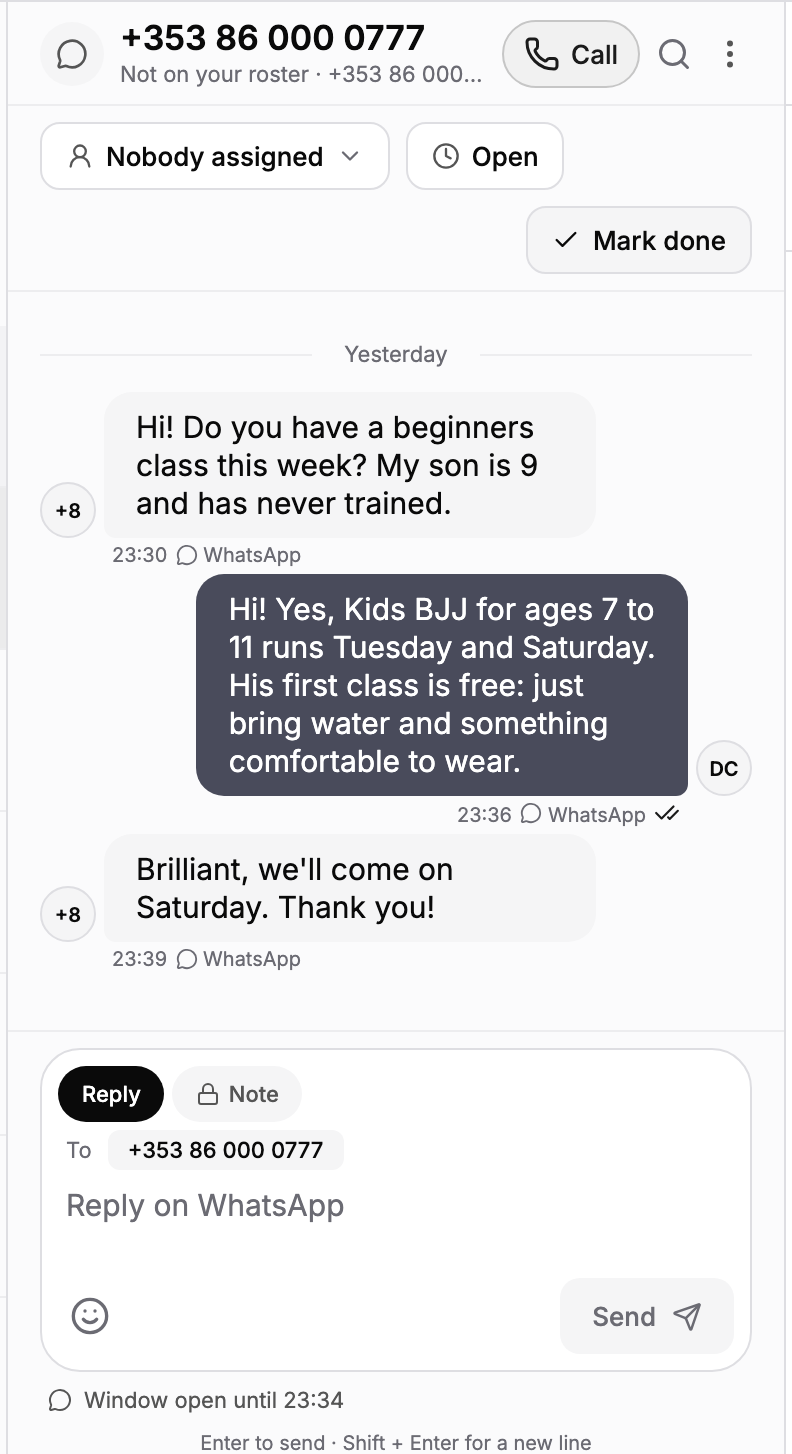
Who it is from
A number MatPilot knows shows that person's name and profile. A number it does not know shows as Not on your roster. Children are reached through their parent or guardian. Photos they send show in the conversation; other attachments are noted but not shown.
The 24-hour window
WhatsApp lets a business reply freely for 24 hours after the person's last message. Under the reply box, MatPilot shows how long the window stays open.
After that you can still write. Your reply waits until they answer: WhatsApp sends them a short note asking them to reply, and your words go as soon as they do. The message shows Waiting for them to reply, and if they have not replied within 7 days, it is not sent.
This needs your reply template, which Meta approves after you go live: Settings, Phone, WhatsApp shows whether it is approved. Until then you can only answer within the 24 hours.
Message status
Each reply shows Sending, Sent, Delivered or Read. When one does not go, it says why, for example Not delivered: outside the 24-hour window or Not sent: they opted out of WhatsApp.
Writing first
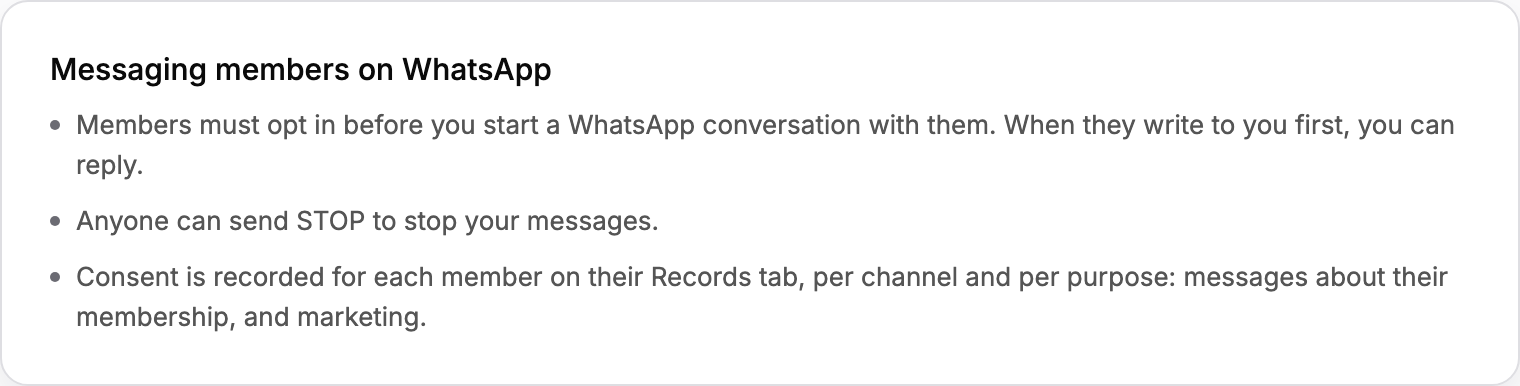
You can always reply to someone who wrote to you. To start a WhatsApp conversation, you need the person's recorded opt-in: add it on their Records tab, where consent is kept per channel and per purpose (messages about their membership, and marketing). Then start a new conversation in the Inbox and choose WhatsApp with their number. Until they reply, WhatsApp sends them the short note asking them to, and your message goes once they do.
STOP and START
Anyone can send STOP to stop your messages. After that MatPilot does not send them WhatsApp messages, and the reply box tells you why. Sending START lets messages about their membership through again. Members can also switch WhatsApp off in their own consent settings, which works the same as STOP.