Help Center › Xero Integration
Set up your Xero mapping
After connecting Xero, tell MatPilot where to record payments. Open Settings → Xero (accounting). There are three things to set, plus one that is optional. Tap the ? on any setting for a full explanation.
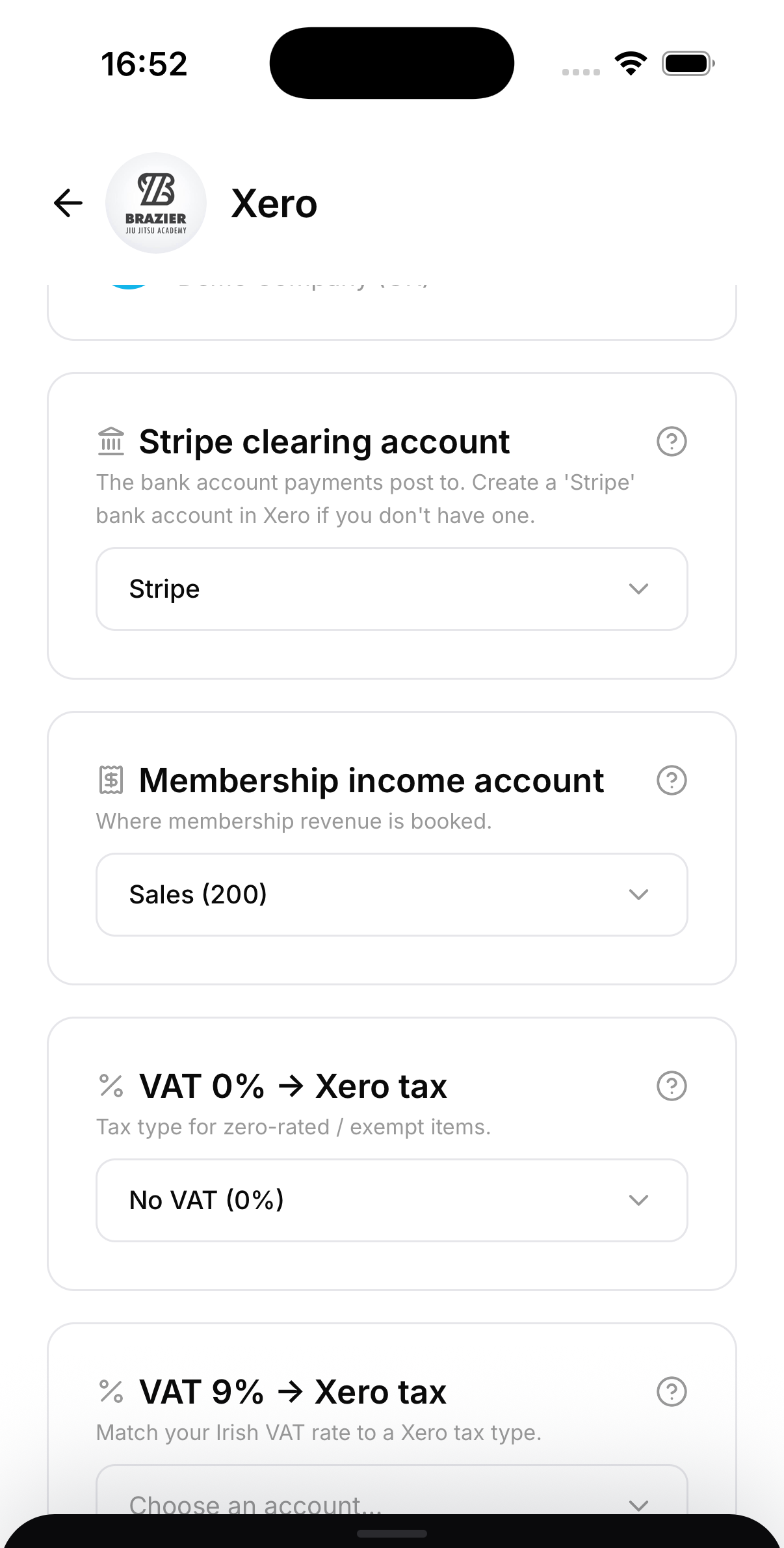
1. Stripe clearing account
Choose a dedicated bank account in Xero that member payments post into — name it "Stripe". Each payment creates an invoice marked paid into this account. When Stripe pays the batch out to your real bank, that single deposit reconciles the whole batch in one click, and the account nets back to zero.
Don't have one yet? In Xero go to Accounting → Chart of accounts → Add Bank Account, name it "Stripe", and add it without a bank feed (it's a virtual clearing account).
2. Default income account
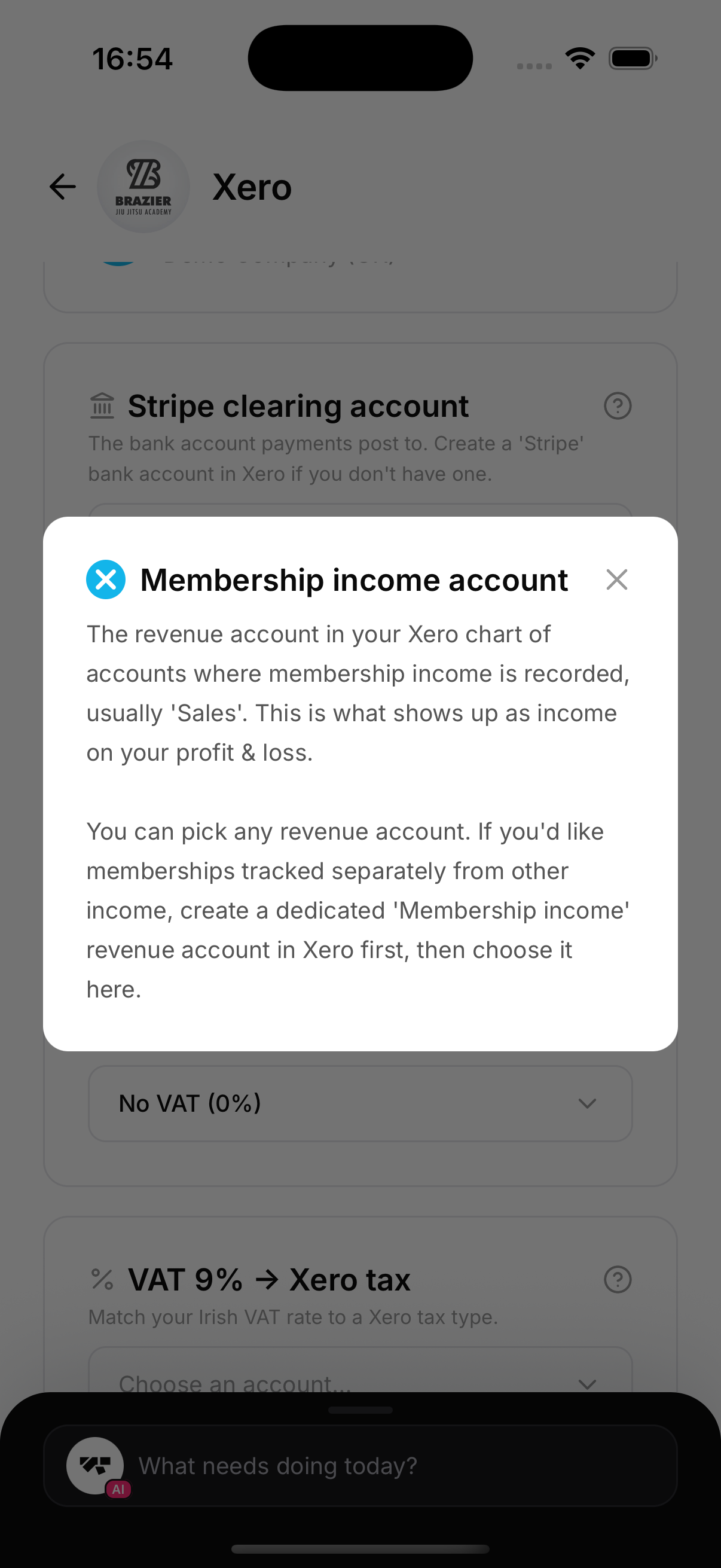
Choose the revenue account where income is recorded, usually Sales. Every sale books here unless you give a product an account of its own (see the optional step below), so memberships, seminars, store sales and everything else land here to begin with. This is what shows up as income on your profit and loss.
3. VAT rates
For each VAT rate you charge, pick the matching tax type in your Xero. MatPilot posts every invoice VAT-inclusive and sets the exact tax amount, so your VAT return is correct to the cent.
Ireland's rates: 23% standard, 13.5% and 9% reduced, and 0% / exempt. Which rate applies to which membership is a classification decision — check with your accountant.
Tap Save mapping and you're done. New member payments now flow into Xero automatically.
Optional: a separate income account for some products
If one kind of sale should show up apart in your books, for example seminar tickets kept out of the account your membership fees go to, give that product an income account of its own. Create the revenue account in Xero first, then:
- Plans, class packs, seminars, courses, session types, paid videos and Academy+: open the item's editor and pick an account under Xero income account.
- Graduation days: the same field is on the day's Money tab, and it saves as soon as you pick.
- Store products: the field is under More details on the product. You can also split store sales by category with Store sales by category on this screen. A product's own account wins over its category's.
- Drop-ins and session passes: pick an account under Drop-ins and session passes on this screen, then tap Save mapping.
The first choice, Default, books to your default income account (for a store product whose category has an account, to that category's), and leaving it there changes nothing. Choosing an account changes only where the income is booked: the VAT stays exactly as you mapped it. It applies to new sales only, so anything already in Xero stays where it is, and a refund always goes back to the account the original sale used.
The field only appears while Xero is connected, and only to people who can see the academy's finances.