Help Center › Marketing & Growth
Surveys: asking the people who train here, and reading the answers
Where it lives
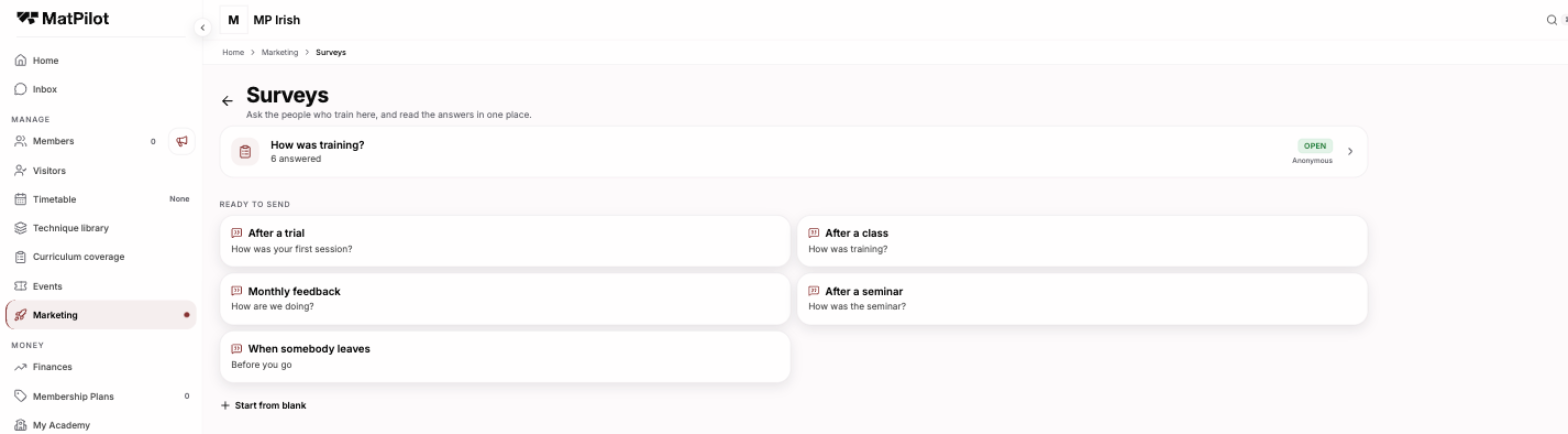
Open Marketing → Surveys. You will also arrive here two other ways, both with a seminar already in mind:
- the card on your Home screen after a seminar finishes, and
- the Ask how it went button on that seminar's own card under Events.
Both carry the seminar with them, so the survey you make opens on the people to ask rather than on a list you have to read.
Start from one of the five
A blank survey is a blank page, so the screen leads with five complete questionnaires instead. Each one is yours to edit the moment you pick it.
| Preset | Asks | Who answers |
|---|---|---|
| After a trial | How the first session went, and whether they are thinking of joining | Named |
| After a class | Five stars, and a box if they want it | Anonymous |
| Monthly feedback | Coaching, timetable, facilities and the people, each scored, plus what to fix and what never to change | Anonymous |
| After a seminar | How the seminar was, and whether to bring that guest back | Anonymous |
| When somebody leaves | Why, and what would have kept them | Named |
The two that need a name have one, because an answer you cannot act on for that person is not much use: a trialist you are trying to sign, or a member walking out the door. The other three are anonymous, because being named is exactly what stops people being honest about a coach or about the place they turn up to twice a week.
Start from blank is there too, at the bottom.
The questions
Six kinds, and you can mix them freely:
- Written answer: a box. Use it sparingly: one good open question beats four.
- Pick one: a list where one answer wins.
- Pick several: the same list, more than one allowed. You can cap how many.
- Dropdown: pick one, collapsed. For a long list, like which class time suits.
- Rating: out of 3, 4, 5, 7 or 10. Out of five draws as stars, because that is the rating everyone already knows. Sevens and tens draw as numbers. You can label the two ends ("Poor" and "Great", "Not at all" and "Very much").
- Grid: several rows scored on one shared scale, which is how the monthly survey asks about coaching, timetable, facilities and community in one go without feeling like four questions.
Any question can be required. A required question is only ever required of somebody who is actually shown it, which matters the moment you use the next two features.
Follow-ups that only fire when they need to
A question can be set to appear only when an earlier answer says so: only ask what went wrong when somebody scored the class three or less, only ask which class times suit when they said the timetable was a problem.
Two things worth knowing:
- It cascades. Hide a question and anything that depended on its answer goes too, so you cannot leave somebody staring at a follow-up to a question they never saw.
- An answer to a question they stopped being shown is dropped, not stored. If somebody types a complaint, changes their score to a five and the follow-up disappears, the complaint goes with it.
Quoting an answer back
A question can repeat an earlier answer inside its own wording, so "You said the 6am class. What would make it easier to get to?" reads as a conversation rather than a form. If the answer it quotes is missing, the sentence still reads properly.
Anonymous or named
This is the most important setting on the page, and it is a promise, not a preference.
Anonymous means anonymous. No name, no account, no reference back to the person, and nothing stored that could be worked backwards into one. Times are shown to the day and never the minute, because a comment stamped 19:42 sitting beside a coach who knows exactly who left at 19:42 is a name.
Named means you see who said what, so you can pick up the phone. A named survey needs to know who is answering, so it works from a per-person link or from somebody signed in to the app. If neither is true, it politely refuses rather than filing a nameless answer in a named survey.
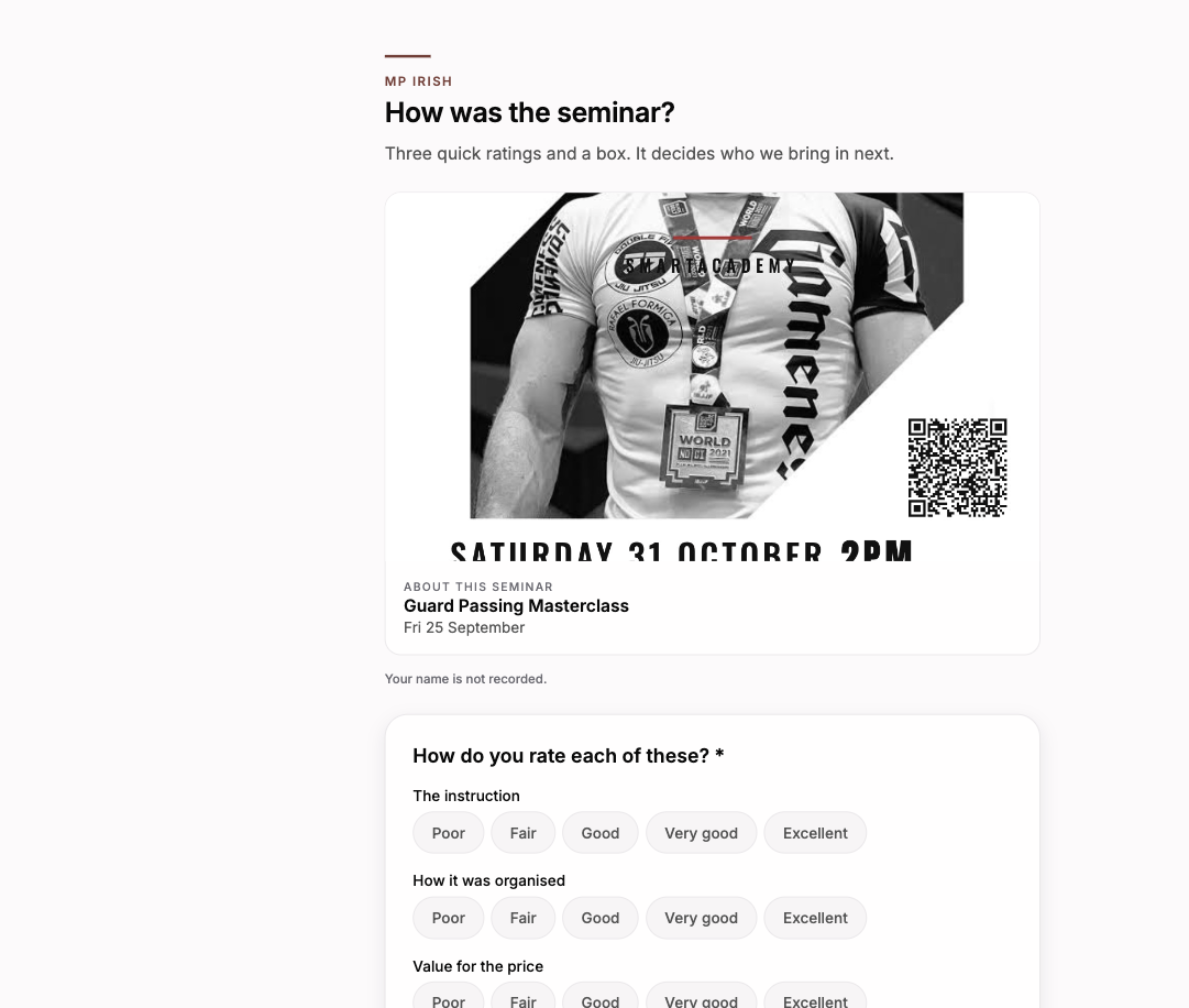
Whichever it is, the survey says so on the respondent's own screen, above the first question. A survey that claims anonymity without saying it is not anonymous in any way a member can rely on.
Saying what it is about
A survey sent after one particular seminar or class says so, at the top, above the questions and in front of the person the whole time they are answering: the name, the date, and the seminar's poster where you publish one. Somebody opening a link two days later off a message has no other way of knowing which night you mean, and "how was it?" on its own is a question nobody can answer well.
You get this without doing anything when you start the survey from Ask how it went on a finished seminar, or from the card on your Home screen. The name, the date and the poster are copied at that moment, so the survey still says what it was about even if you later rename or delete the seminar.
A poster you have chosen not to show on the seminar's public page stays off the survey too. A survey link is public, and that switch is the same decision.
How it looks to them
Two layouts:
- One page: every question at once. Faster for somebody who wants it over with.
- One question at a time: with a progress line. Slower, and it reliably gets more written answers.
Let people pause and finish later keeps what they typed on their own device until they send it, so a half-finished survey survives a closed tab. Nothing reaches you until they press send.
Sending it
Press Publish. Three ways out, and you can use all three at once:
- The link. Anyone holding it can answer. Put it in a message, in your group chat, on your website.
- A QR code. The same link as a code to print, stick on the wall by the mats, or drop on a poster.
- One link each. Pick people from your roster and you get a single-use link per person, so nobody can answer twice. Copy each one and send it however you already talk to your members.
Close survey stops new answers. Everything already answered stays exactly where it is.
After a seminar
This is the one thing that happens on its own. When a seminar finishes, you get asked once to send the satisfaction survey while it is still fresh: a card on Home naming the seminar, a notification, and an email. About six hours after it ends, never while it is still running, and never for a seminar nobody came to.
You can turn that off like any other notification, per channel, in Settings → Notifications under Seminar finished. The seminar's own card under Events keeps the button whether the notification is on or off.
Reading the answers
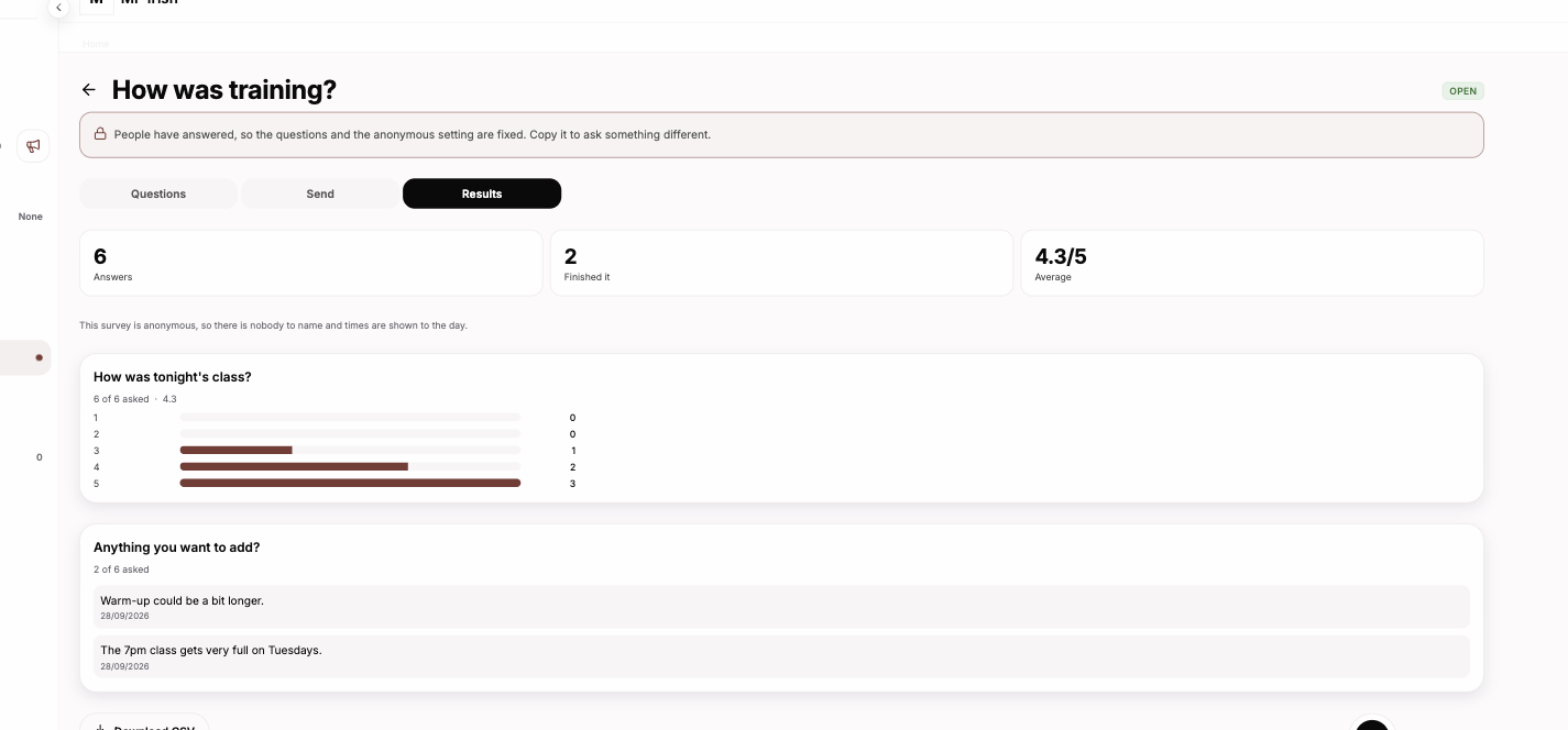
The Results tab leads with the three numbers worth knowing: how many answered, how many finished, and the average of your main rating question.
Then, per question:
- Choice and rating questions get a bar per option with the count beside it.
- A grid gets a row per line, each with its own average.
- Written answers are listed in full. That is the point of them.
Each question says how many answered out of how many were shown it. That distinction is the whole reason follow-ups are safe to use: a question only asked of unhappy people reading "3 of 3" is a question everybody answered, where "3 of 40" would look like a survey people gave up on.
Over time appears once you have more than one week of answers, so a monthly survey shows you a line rather than a number. Download CSV gives you every answer, one row per person, with the question titles as the column headings.
The switch
Surveys are on for your academy from the start. To turn them off, open My Academy → Settings and switch Surveys off. It asks first, because turning them off stops every open survey accepting answers immediately, including a link already printed on a poster or sitting in somebody's messages. Answers people already gave stay exactly where they are and come back when you switch surveys on again.