Help Center › Marketing & Growth
Visitors and drop-ins: the visitor form, session passes and the desk
Who a visitor is
The join form is for people signing up to a plan. The kiosk enrols walk-ins at the desk on your tablet. A visitor sits between them: a member's friend who wants to watch, an uncle in the stands, a black belt passing through for a week, a regular who prefers to pay each time. Every visitor has a profile in Visitors, under Members, from the moment they exist. Whether they get the app is your decision, per visitor.
Setting it up
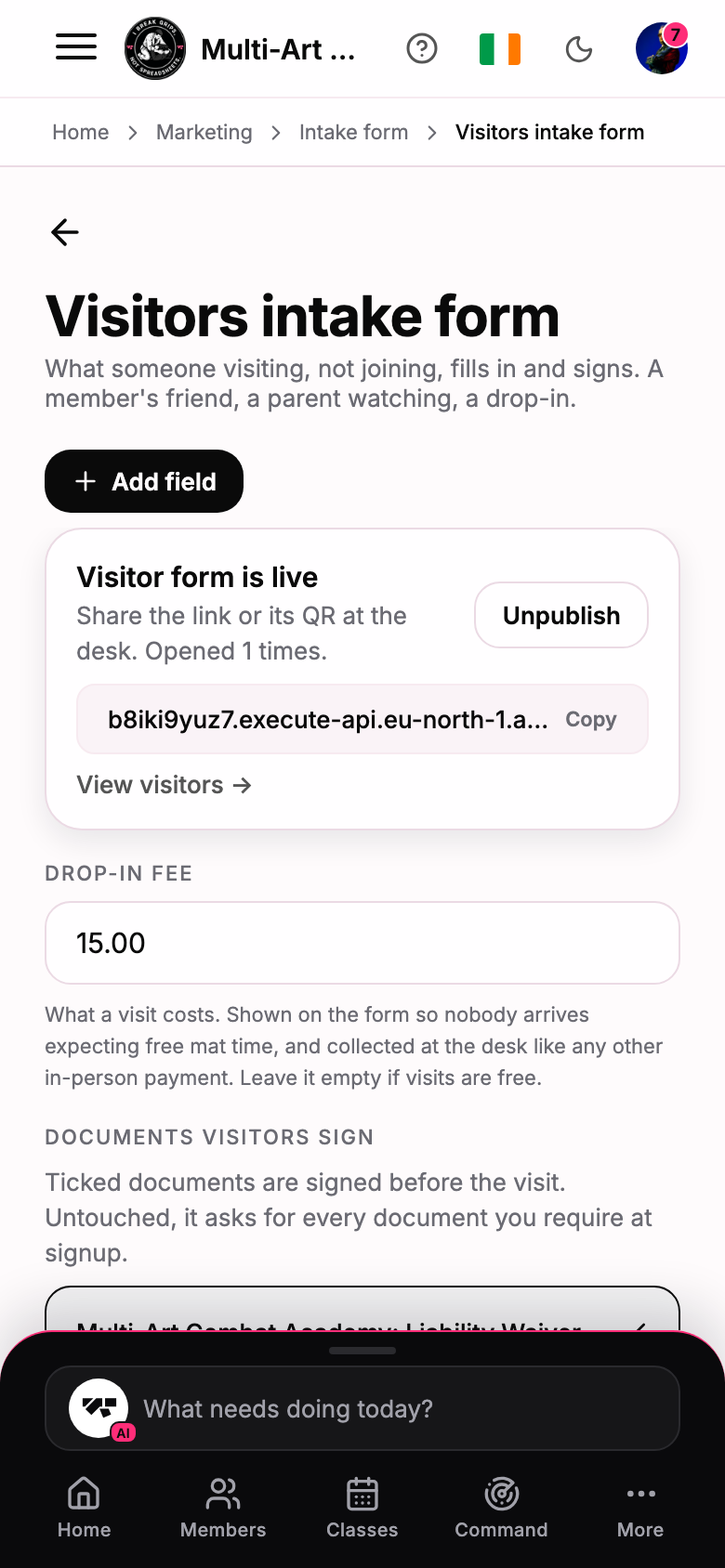
- Open Marketing → Visitors intake form.
- The form always collects a full name, an email and an optional date of birth. Add field for anything else you want to know: who they are visiting, whether they have trained before.
- Set the Drop-in fee. This is your academy's one drop-in price: it is paid on the form when the visitor picks a class, shown on the timetable a visitor with the app sees, and taken at the desk for anyone who did not pay ahead. Leave it empty if visits are free.
- Under Documents visitors sign, tick the documents a visitor must sign before the visit. Left untouched, the form asks for every document you already require at signup.
- Press Publish. You get a short link and a QR code to keep at the desk. Copy copies the link; View visitors opens the list.
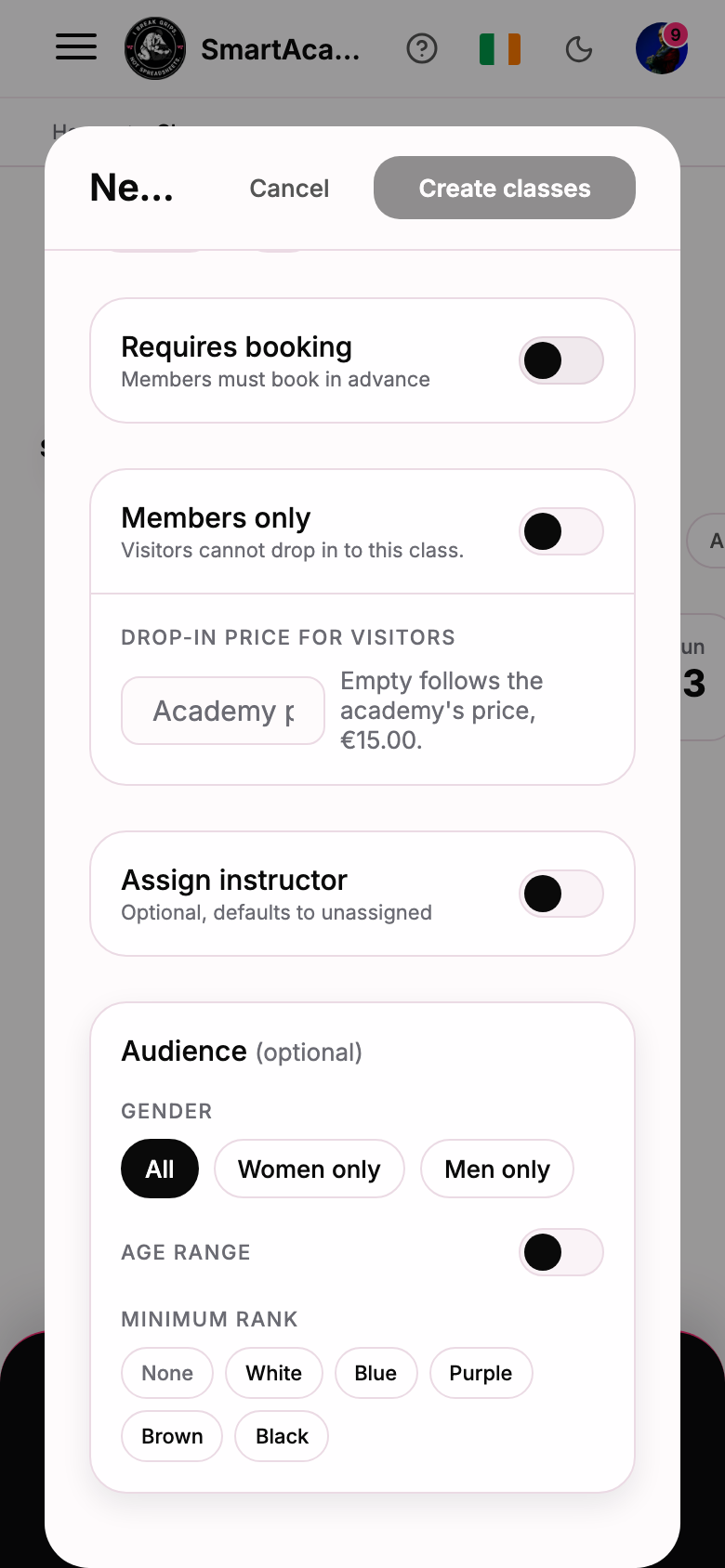
A class can have its own rule. On any class schedule, Members only turns drop-ins off for that class, and Drop-in price for visitors sets a price that beats the academy's for that class alone. Leave it empty to follow the academy's price; 0 makes it free. Both show on the class card on your timetable.
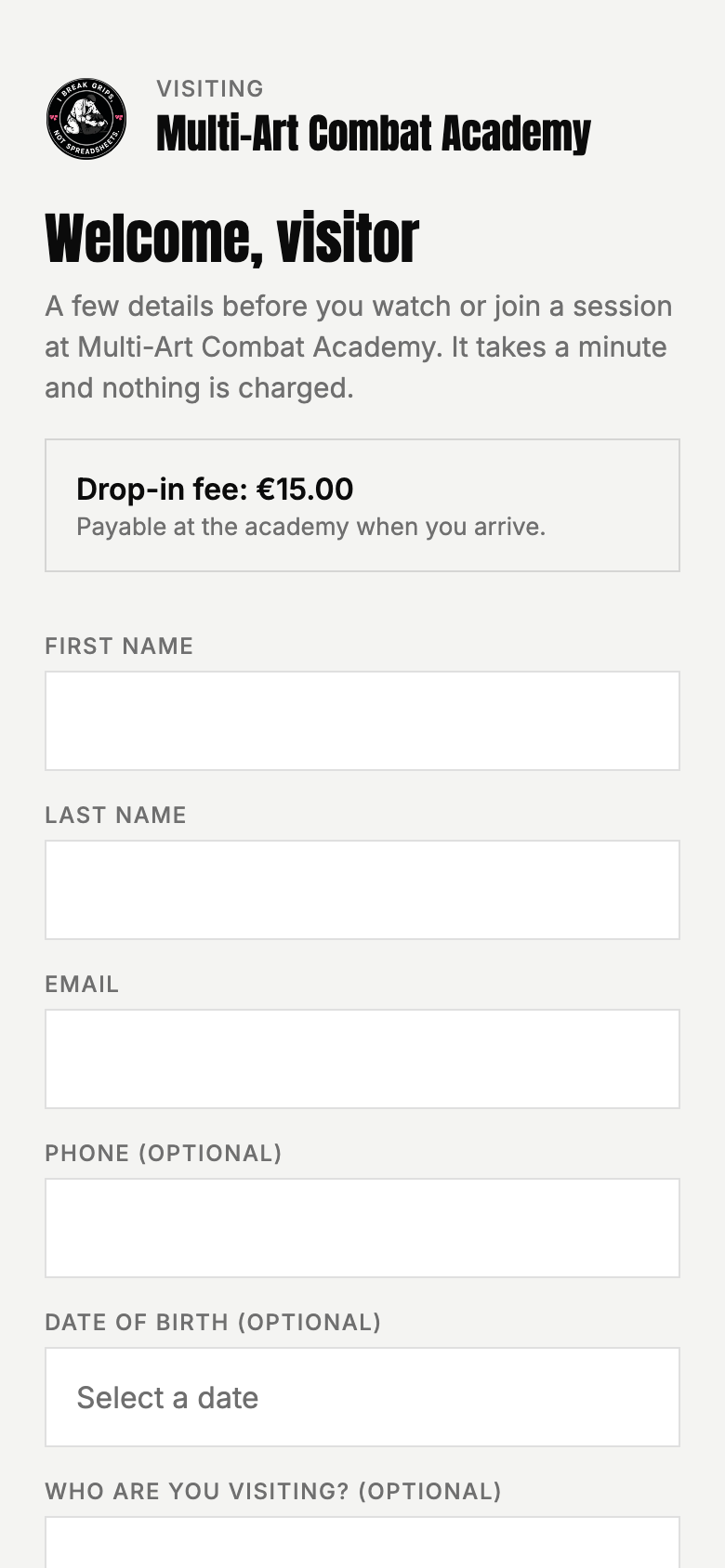
What the visitor sees on the form
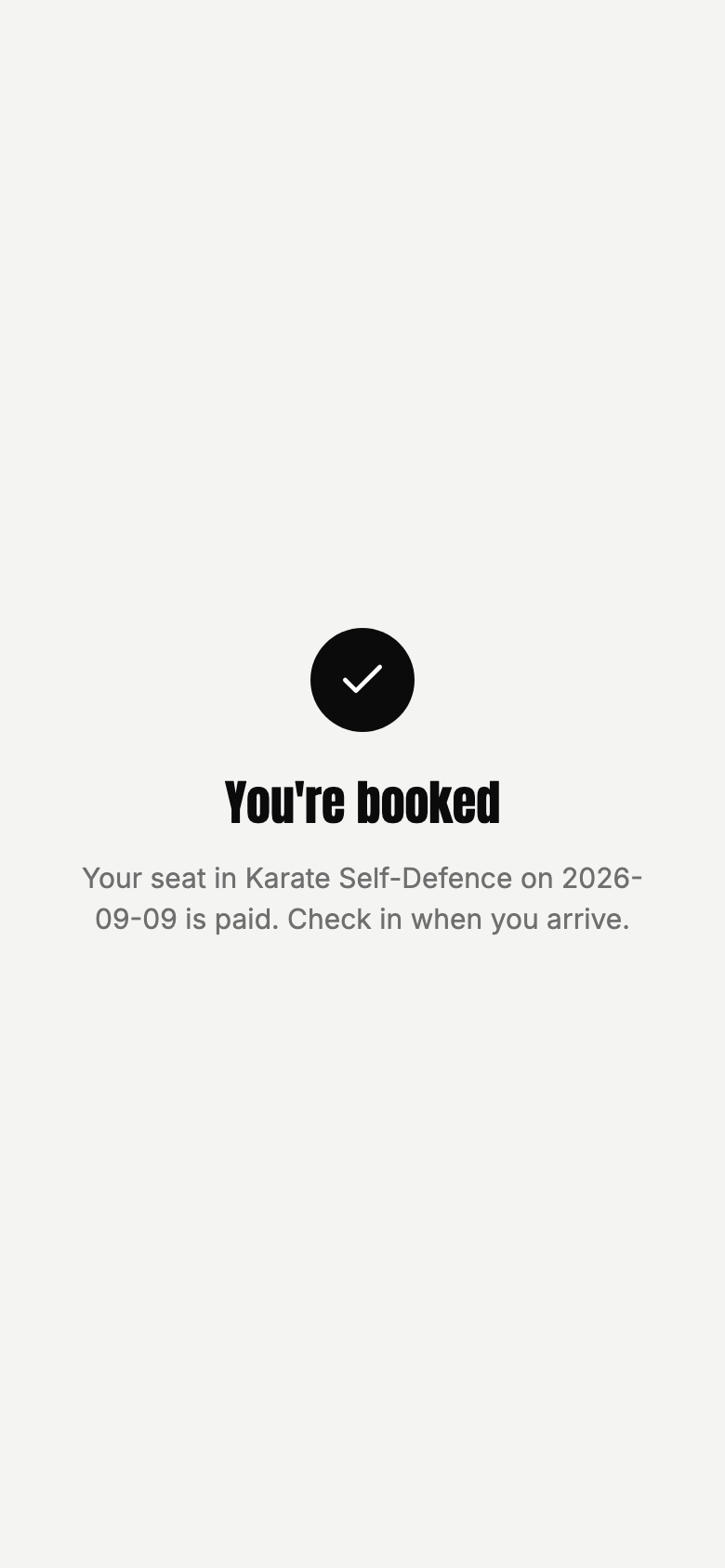
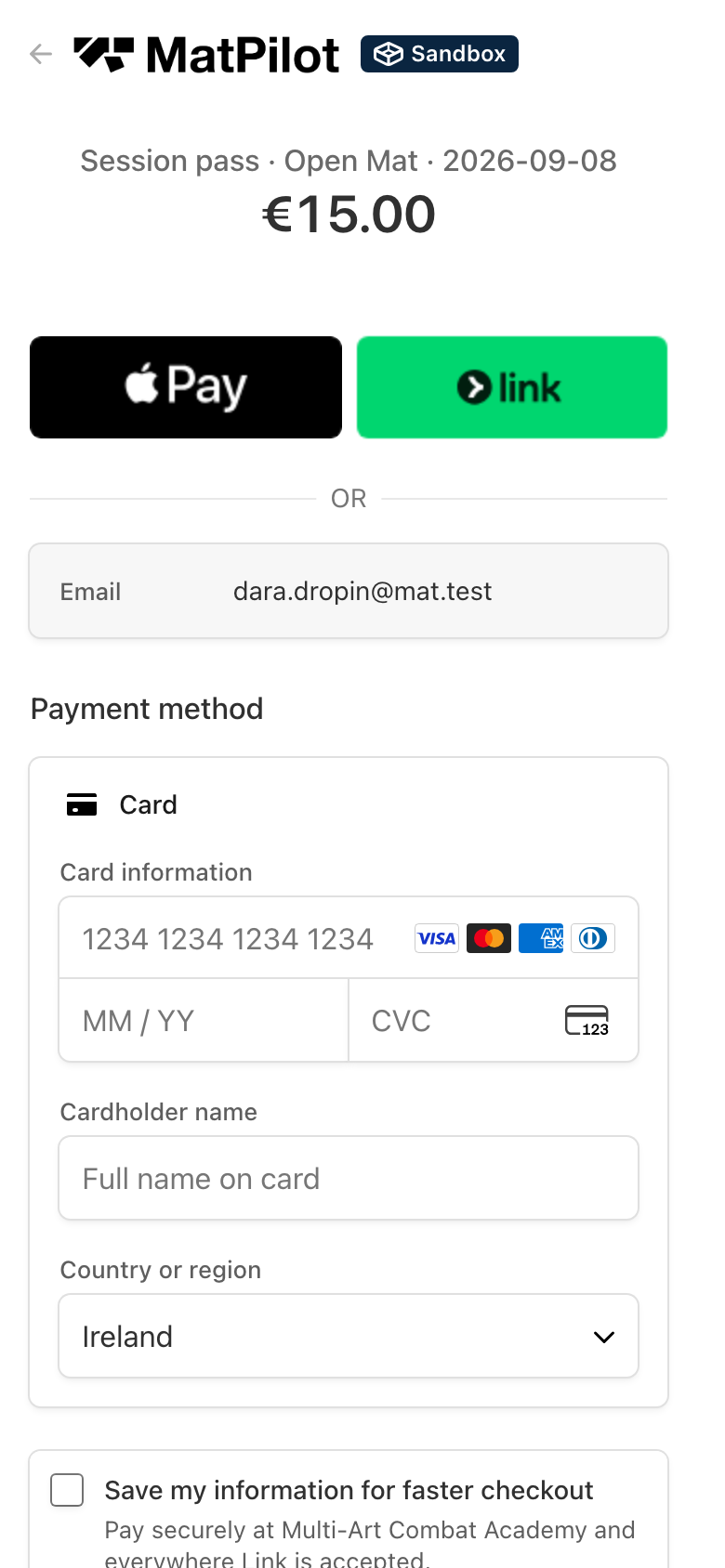
The form opens on their phone in your academy's colours. It asks for their details, your questions, and shows the drop-in fee up front. Under Which class are you coming to? it lists the drop-in classes on your timetable for the next two weeks with the price beside each. Picking one turns Finish into Finish and pay: the pass is booked, the seat is held, and they pay on Stripe on your academy's own account before coming back to the form, which names the class they paid for. Not sure yet, or just visiting skips the payment; they can pay at the desk or in the app later. If you have not connected Stripe, the form shows the price and says it is payable at the desk.
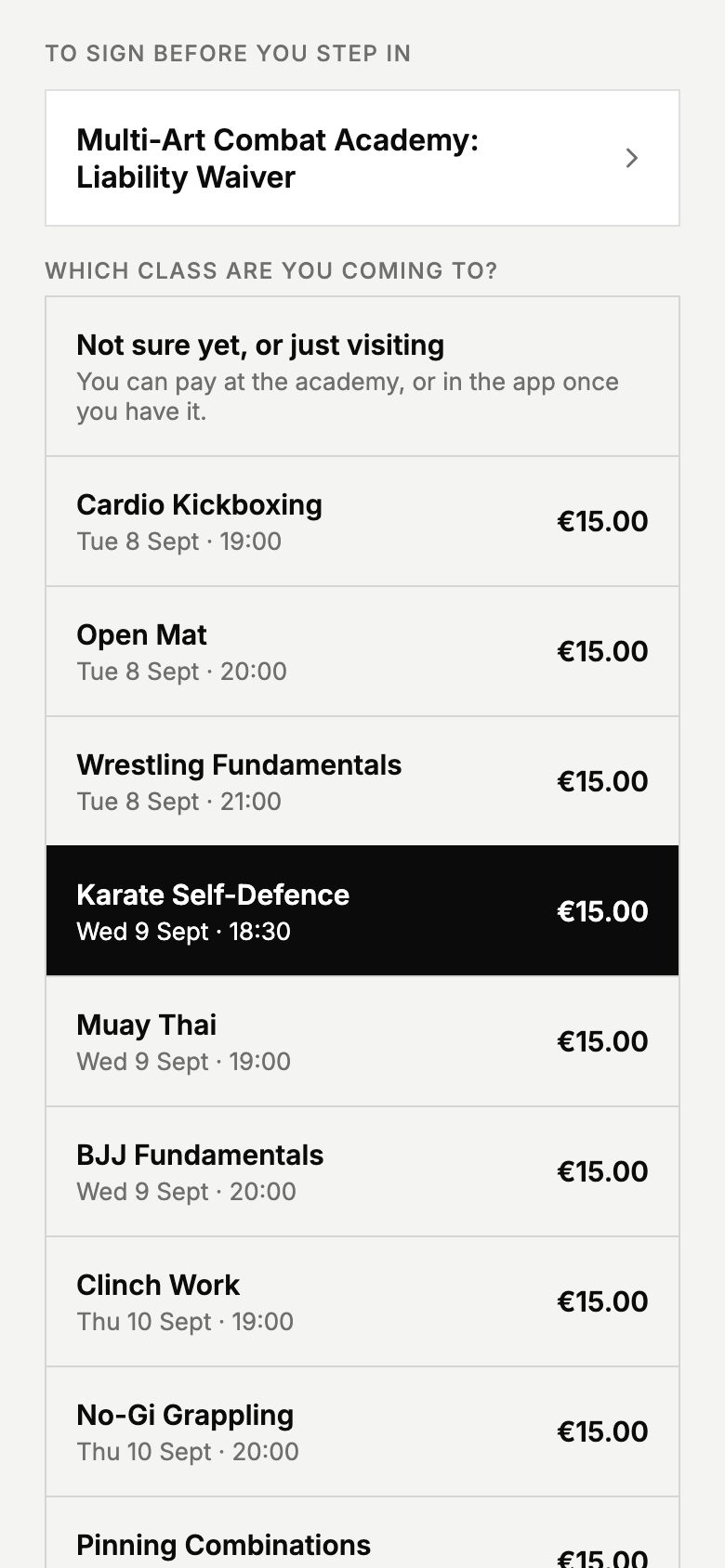
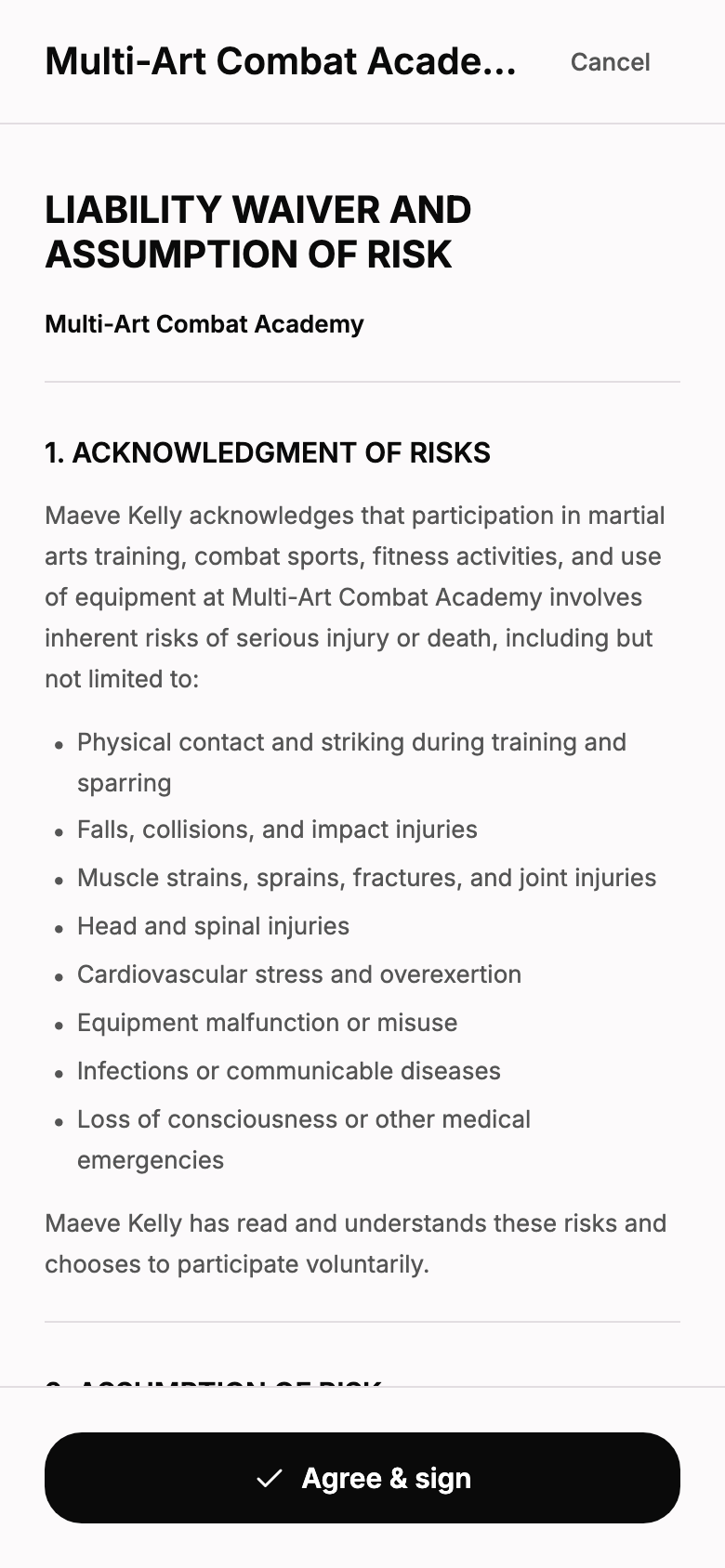
Each document they must sign opens in full. They read it, press Agree & sign, and the document is marked signed. Finish sends everything and shows You're all set, or You're booked when a class was paid for. If they are under 18, the form asks for a parent or guardian's name and the guardian signs instead.
The Visitors screen
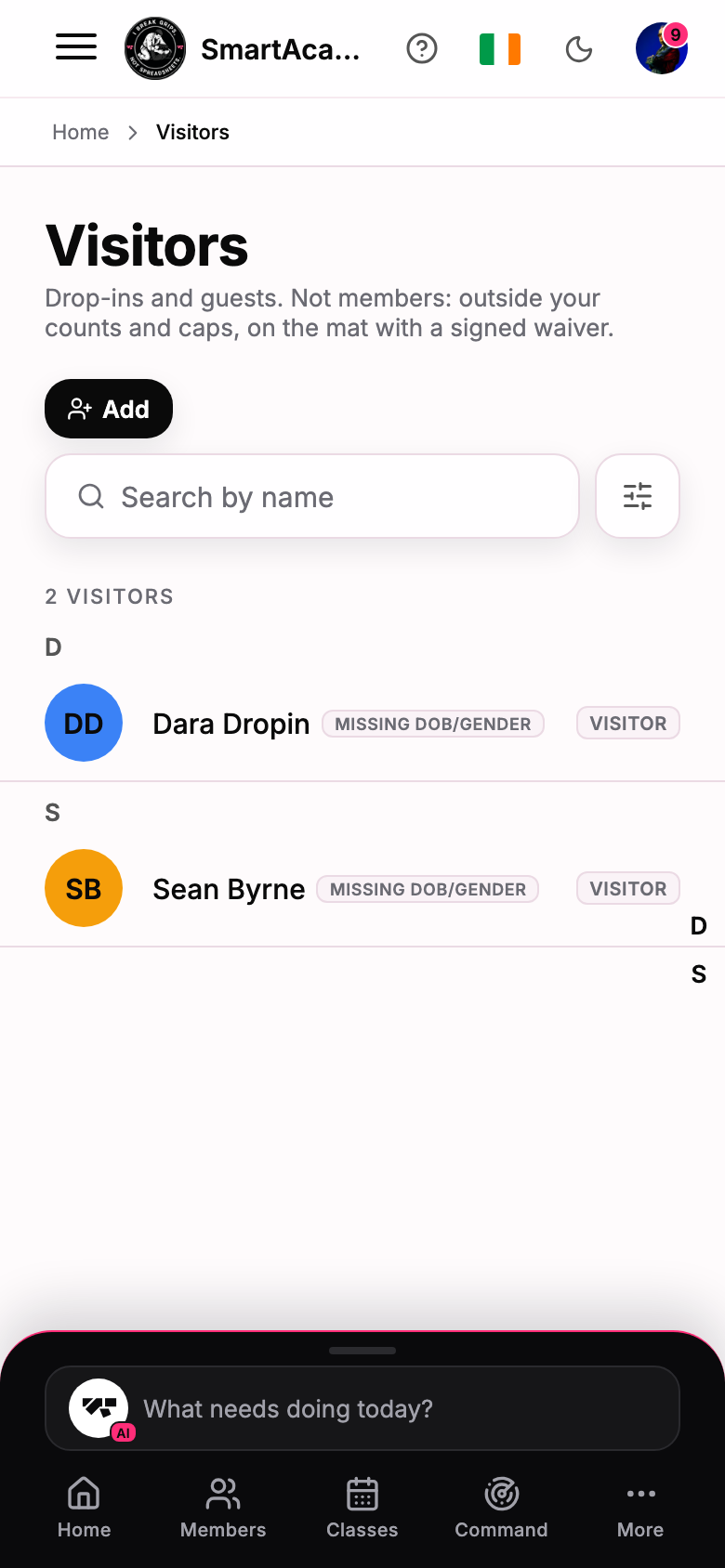
Visitors (under Members) lists everyone the form created and everyone you added yourself, with the same rows and search as Members. Visitors never appear on the Members list, and they never count toward your member numbers or the free plan's member cap.
- Add creates a visitor at the desk with a name and an email. No trial, no rank. It is silent unless you switch on Give them the app now.
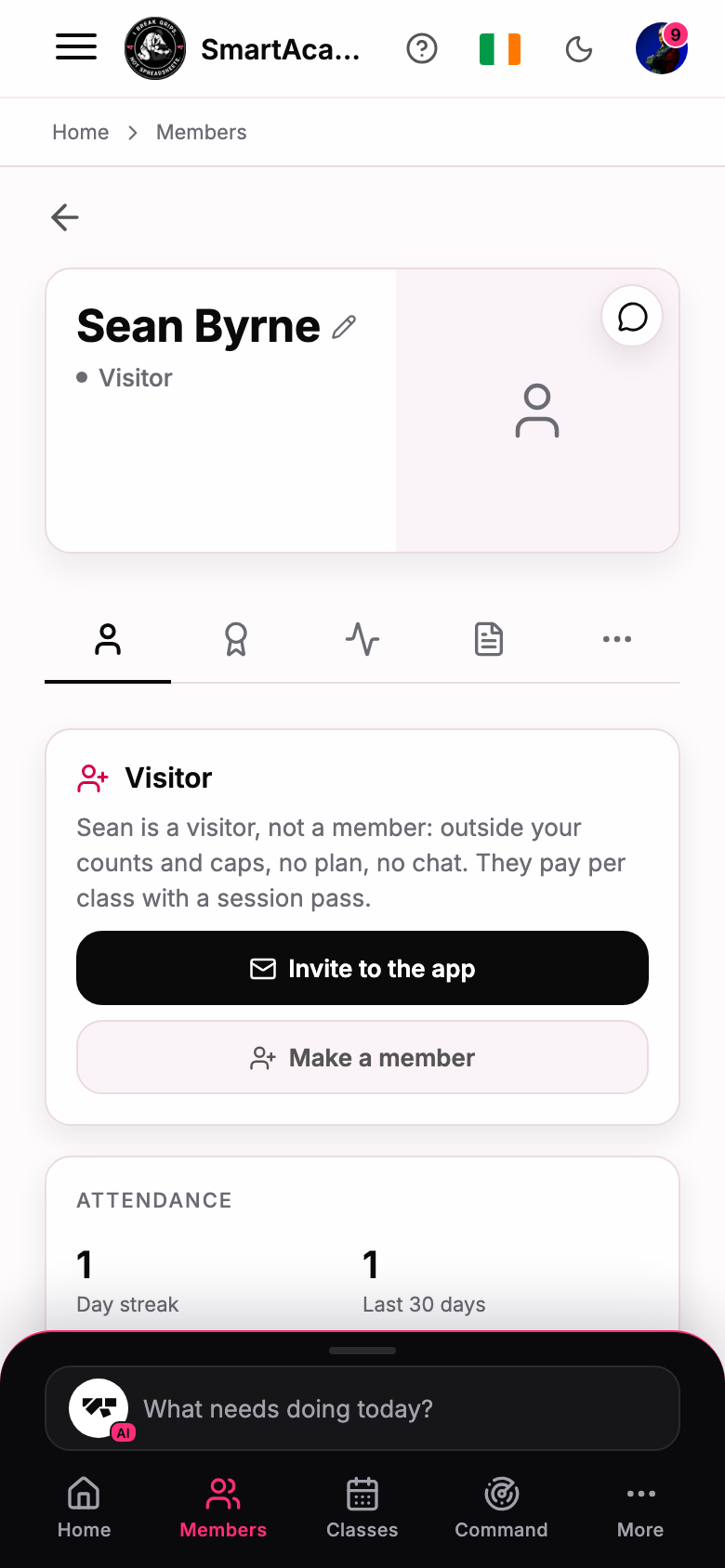
- Open a profile for the Visitor card. Invite to the app emails them a setup link. Make a member turns the same profile into a member and opens Assign plan; their waiver, passes and attendance come with them. A visitor under 18 becomes a child in a household.
- The signed document is emailed to the visitor as a PDF and, if you use OneDrive, filed there like any other signed document.
The visitor's app
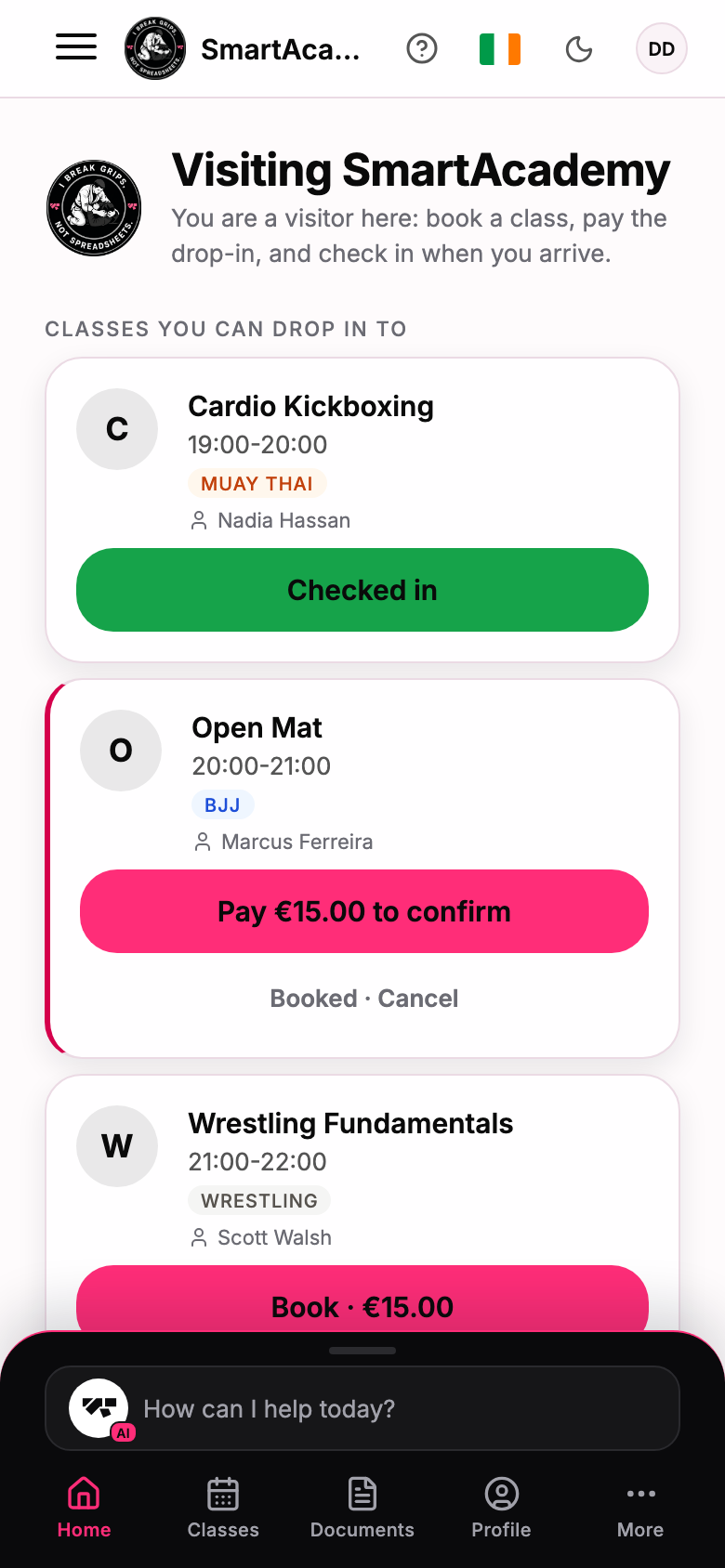
A visitor you have invited gets a small app of their own: Home, Classes, Documents and Profile. No chat, no progress, no store.
- The timetable shows every class with the drop-in price on the Book button, and Members only where you said so.
- Booking a priced class holds the seat for twenty minutes and opens the payment on your academy's own Stripe account. Paying confirms the booking and sends the confirmation, with Stripe's receipt behind it. If nobody pays, the seat is released and the visitor is told it was not held. Full is full: visitors do not join a waitlist.
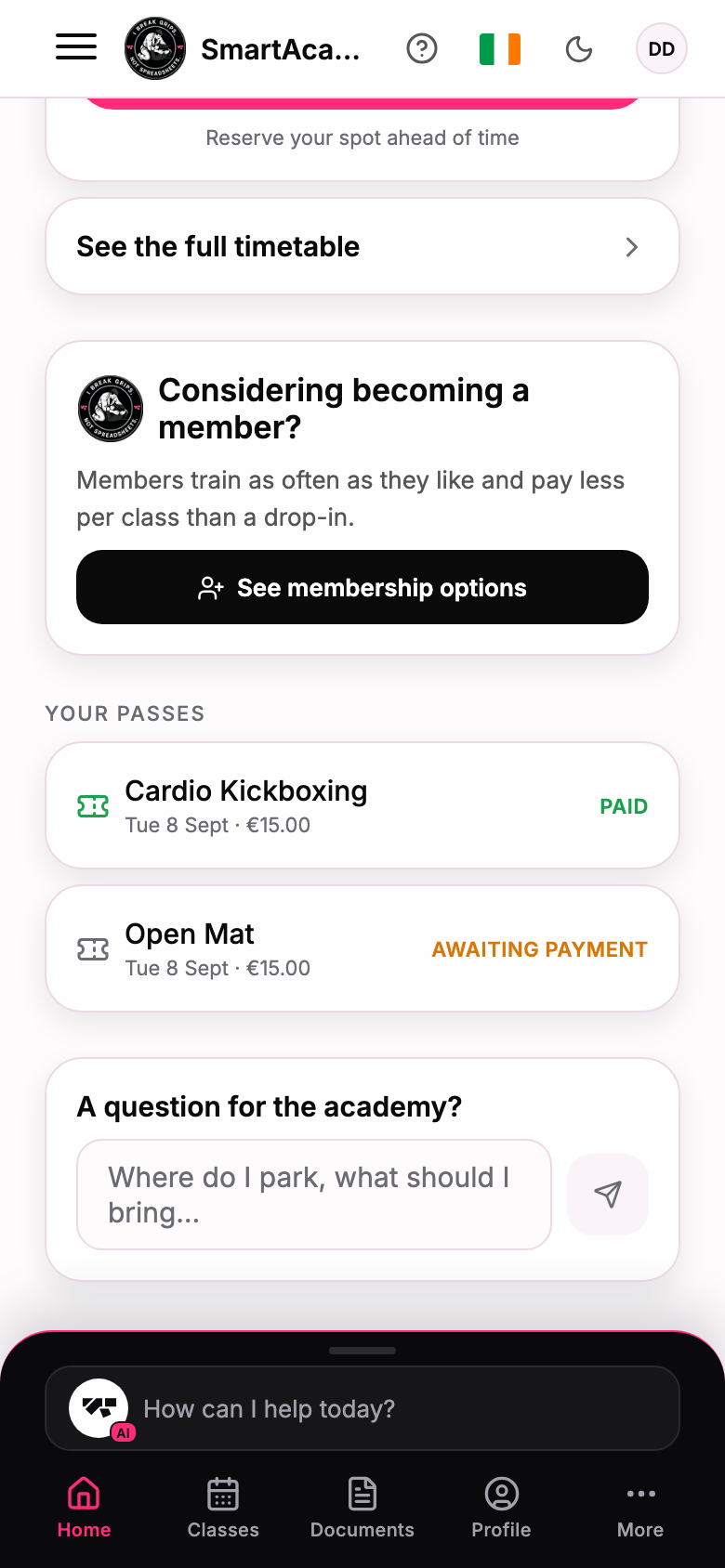
- Home carries a card asking whether they are considering membership. If you have a published join form, the card opens it. If not, Register interest creates a lead marked Visitor on your Leads screen with how long they have been coming and how many passes they paid.
- A message line on Home reaches your Booking requests inbox, so "where do I park" is answered without opening chat.
Check-in and the desk
Checking in, in the app or at the kiosk, needs a paid pass for that class.
- At the kiosk, a visitor without a pass sees the price and is asked to pay at the desk.
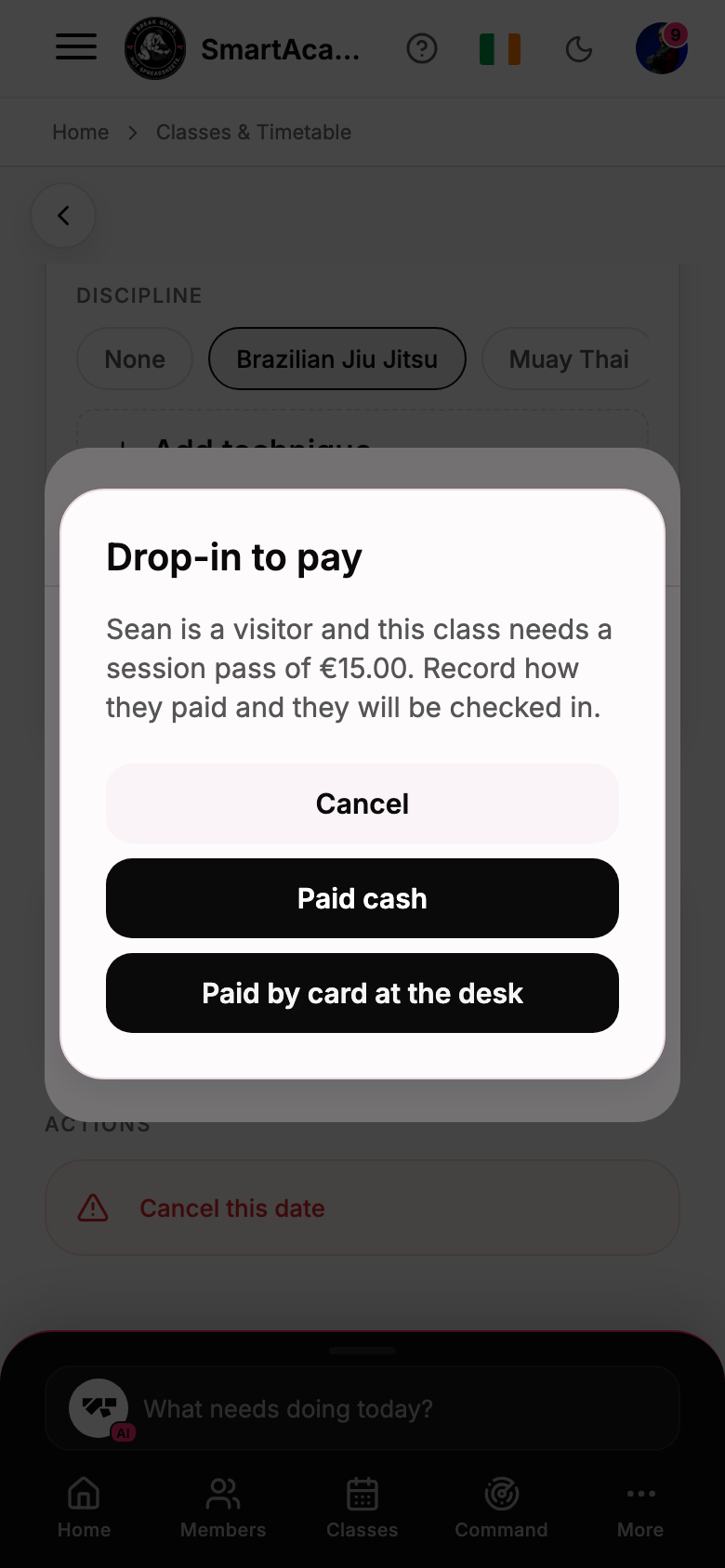
- On your roster, checking in a visitor without a pass asks how they paid: Paid cash, Paid by card at the desk, or Free pass when the class is free. The pass is recorded and they are checked in. Nothing charges a card here; this records money already taken.
- A pass pays for one class. It never turns into a credit.
Refunds
A pass is refunded by hand, from the payment row on the visitor's profile, like any other payment. The visitor is told, and the class reads as no longer paid. Cancelling a booking does not refund by itself.
Where the money shows
Every session pass, paid online or at the desk, is a line in the visitor's Payments and in your Finances, where drop-in passes have a line of their own so money from people who are not members is never mistaken for membership revenue.
When a visitor becomes a member
Nothing to migrate. Make a member on their profile keeps everything they already have, and the join form does the same when a visitor signs up through it with the email you have for them.