Help Center › Membership Plans
Running two martial arts under one roof
Nothing here switches itself on. Until you tag a plan with an art, every plan covers everything, exactly as it does today.
1. Which arts a plan includes
Academy → Plans → tap a plan → Martial arts, or set it when you create one.
Leave it blank and the plan covers every art you run. That is what all your existing plans do, and they keep doing it until you change one.
Pick one or more arts and the plan covers only those. From that moment:
- Classes tagged with another art disappear from that member's timetable. They are not shown and then refused, they are simply not their classes.
- If they try to book one anyway, the booking is refused with "Your membership doesn't include this class."
- Your public timetable is unchanged. It is public, and it still shows everything you run.
The important detail
This is decided by what the member pays for, not by what they hold a rank in.
Before, a Jiu Jitsu member who once tried a Yoga class and was given a level in it kept Yoga access for good. That is fixed. Ranks are what somebody is graded in. The plan is what they are allowed to train.
Selling one art on top of another
The common case: "Unlimited Yoga, €60 a month, on top of your Jiu Jitsu membership."
Set that up as an add-on, not a second plan: Plans → Add-ons → New, then give the add-on the Yoga art. A member on a Jiu Jitsu plan who takes it can now book both, and their Jiu Jitsu is untouched.
Add-ons only ever add. Taking one can never narrow what somebody already had.
Who is never restricted
- You, your managers, your instructors and your reception staff. Staff reach every class.
- Anyone with no plan at all: a new member, an invited one, someone on a free trial, someone you comp.
- Anyone on a plan you have not tagged.
2. Class passes that count down
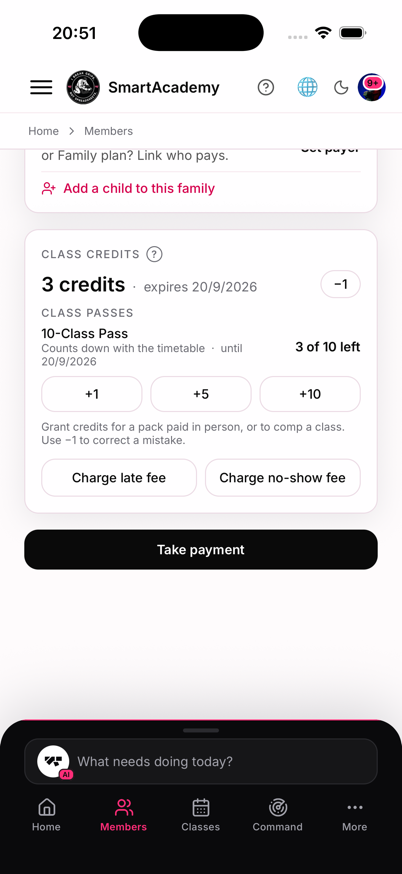
A "10-class pass" is not ten credits to spend whenever. It is five weeks of an art that runs twice a week, and MatPilot now treats it that way. Full detail in Class packs and credit bundles.
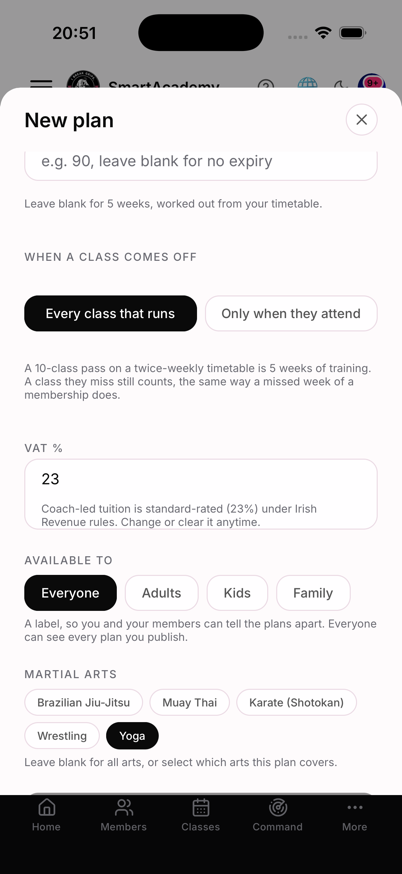
The short version:
- Plan type → Class pack.
- Classes included. 10 for a ten-pass, 1 for a drop-in.
- Valid for (days). Leave it blank. Underneath, MatPilot tells you what blank means: "Leave blank for 5 weeks, worked out from your timetable."
- When a class comes off. "Every class that runs" is the default, and it is what makes a pass a pass.
- Martial arts. A Yoga pass only ever comes off for Yoga classes.
3. Keeping each art's chat to itself
Off by default. Your chat works exactly as it does today until you turn this on.
Academy → Settings → Separate chat by martial art. It only appears when you run more than one art.
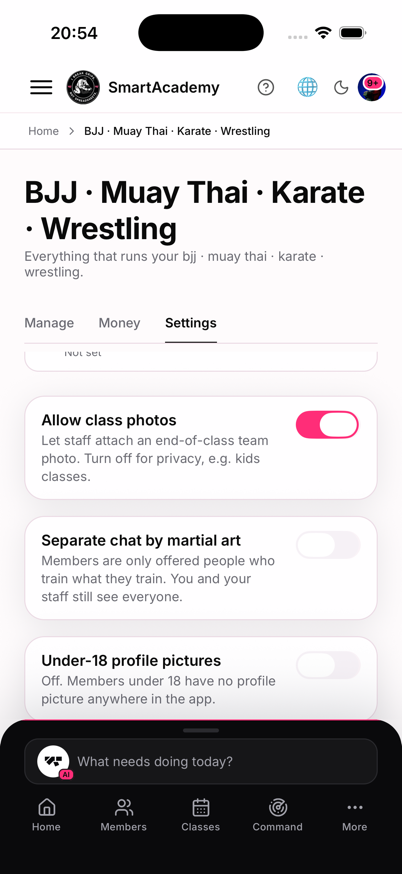
On, a member is only offered people who train what they train. Someone on a plan covering both arts is offered both groups.
What does not change: you and your staff still see everyone, coaches stay reachable from every group, and a conversation that already exists is never taken away.
Chat remains adults only. To raise something about a child, open the child's profile and use the message button: it opens a conversation with their guardian.
4. A manager for one art
Until now a manager ran the whole academy. That is still what a manager is, and none of your existing managers change. You can now narrow one.
A member's profile → More → Manage → What they manage.
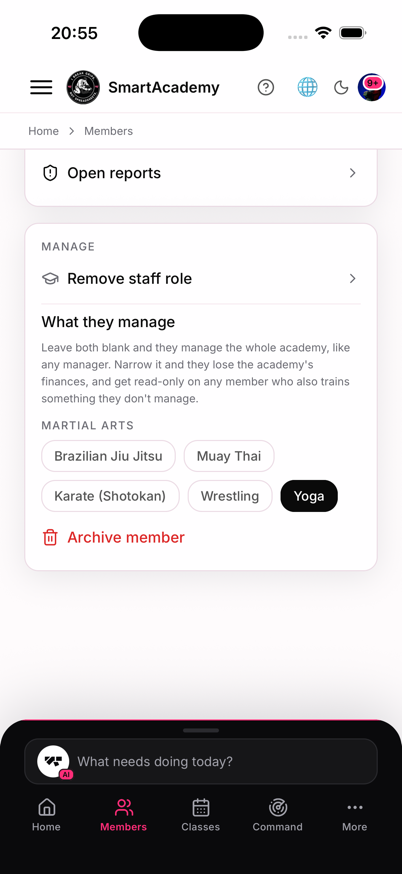
- Open the person's profile.
- More → Manage → Make manager, if they are not one already.
- Under What they manage, tap the art they run. Tap a location instead, or as well, if you have more than one site.
What a narrowed manager gets:
- Their own members, like an owner. Adding, editing, taking payment, everything.
- Read-only on a member who also trains something else. Somebody who does Yoga and Jiu Jitsu can be read by the Yoga manager, but not billed and not archived. That person is not only theirs.
- No academy finances. Revenue, analytics, the finance screens and the report builder are closed to them. Their own members' billing is not: managing somebody includes taking their payment.
- Nothing at all for a member at a site they do not run.
Clear the selection and they run the whole academy again.
Setting it up for the first time
Adding a second art to an academy that has only ever run one? This order means nobody loses access at any point in the middle.
- Add the art in Academy → Grading.
- Tag your classes with it. An untagged class stays open to everyone, which is right for open mat.
- Tag your existing plans. Until you do, everyone can book everything.
- Add the new art's plans and passes.
- Only then turn on separate chat, and narrow a manager if you have one.