Help Center › Membership Plans
Cancelling a membership plan
How to cancel
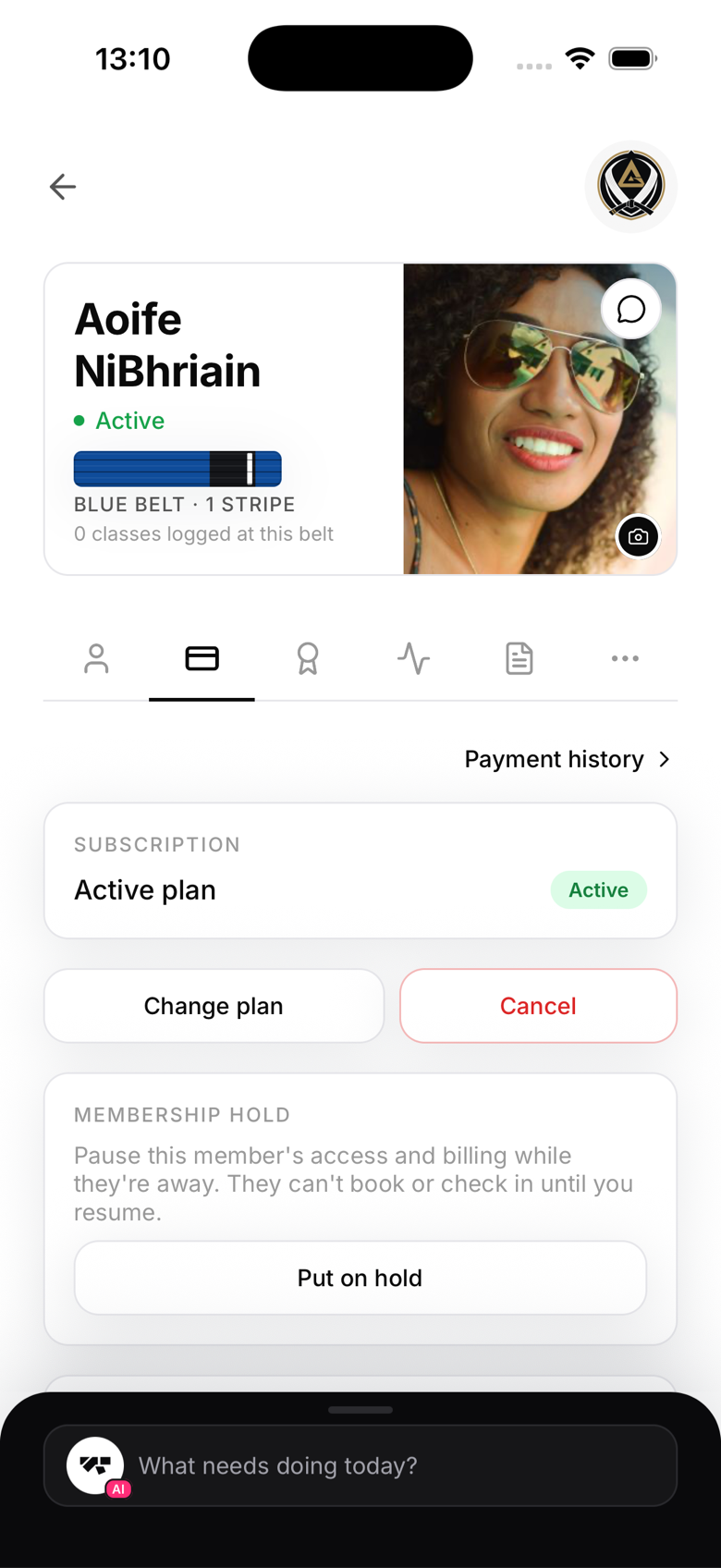
- Open the member's profile
- Tap Billing → Cancel membership
- Choose At period end to keep their access until the current billing period runs out, or End now to cancel immediately
- Confirm
Access after cancellation
If you cancel at period end, the member keeps full gym access until their current billing period finishes. For example, if they paid for the month of July, they keep access until July 31st, and no further invoices are generated.
If you choose End now, the subscription is cancelled in Stripe immediately and access stops right away.
What the member sees
Once a cancellation is scheduled, the member's app shows their plan as cancelling with an end date. After that date, their subscription status changes and they lose class booking and check-in access.
Reactivating after cancellation
If a member changes their mind and wants to resubscribe, they can pick a new plan themselves from their profile, or you can do it for them from the member's Billing tab. If the plan they choose has a trial period, MatPilot doesn't track whether they've used it before, so it may apply again.
Removing access immediately
Choosing End now during cancellation stops both billing and gym access right away, no extra step needed. If you also need to remove someone from your active roster, for example a disciplinary situation, archive the member as well. Archiving hides them from your roster but doesn't touch their Stripe subscription on its own, so cancel first if they're still being billed.