Help Center › Classes & Scheduling
Viewing the class roster
Who's here, who bailed, who's hoping for a spot: one screen.
Opening the roster
Tap any class in the Schedule tab to open its detail screen. The roster is split into sections:
- Checked in: members who have checked in (with time and method)
- Booked: members with a booking who haven't checked in yet
- Waitlist: members waiting for a spot to open
- Occupancy bar: visual summary of spots used vs. capacity
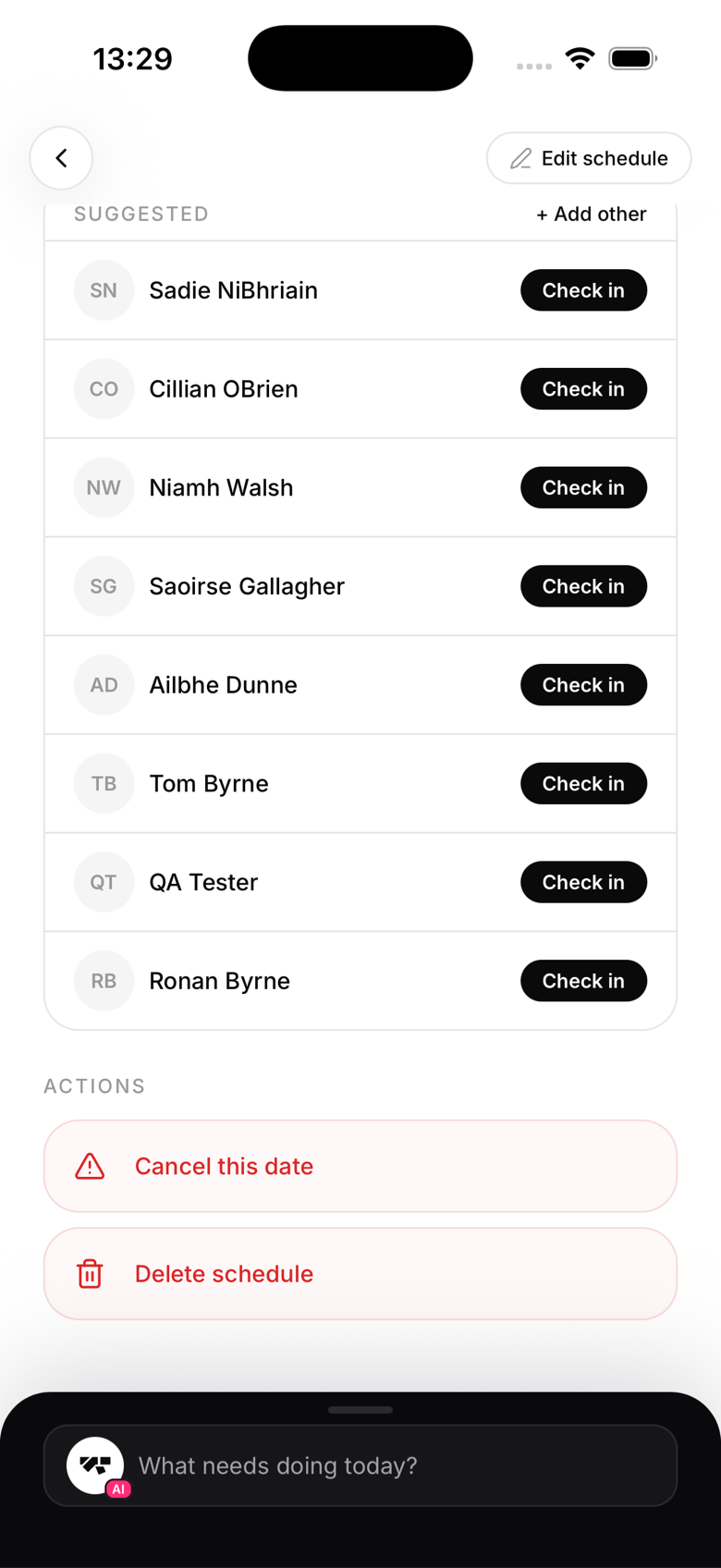
Member cards in the roster
Each member card shows their photo, name, belt rank, and check-in status. Tap a card to open their full profile.
Adding a manual check-in from the roster
Tap Add in the attendance section. Search for a member and confirm. You can add check-ins for members who aren't booked, for example a walk-in who came without booking.
Printing or sharing the roster
There's no dedicated print or export function for a single class roster. Take a screenshot if you need a record on hand.
Roster for past classes
You can view the roster for any past class by scrolling back through the schedule. Historical rosters are read-only for bookings, but check-ins can still be added retroactively.