Help Center › Classes & Scheduling
Setting up recurring classes
How recurring works
When you create a class and set a day and time, it automatically recurs on that day every week going forward. There's no "next occurrence" to create, the schedule generates the dated sessions automatically and keeps extending itself so you never run out of upcoming classes.
Editing a recurring class
Changes to a recurring class (name, time, instructor, capacity) apply from the next occurrence forward. You can also edit individual occurrences if, for example, a class is running later than usual one week.
Cancelling a single occurrence
To cancel a specific class without affecting the rest of the series, open that day's occurrence from the schedule, then Cancel this class and confirm.
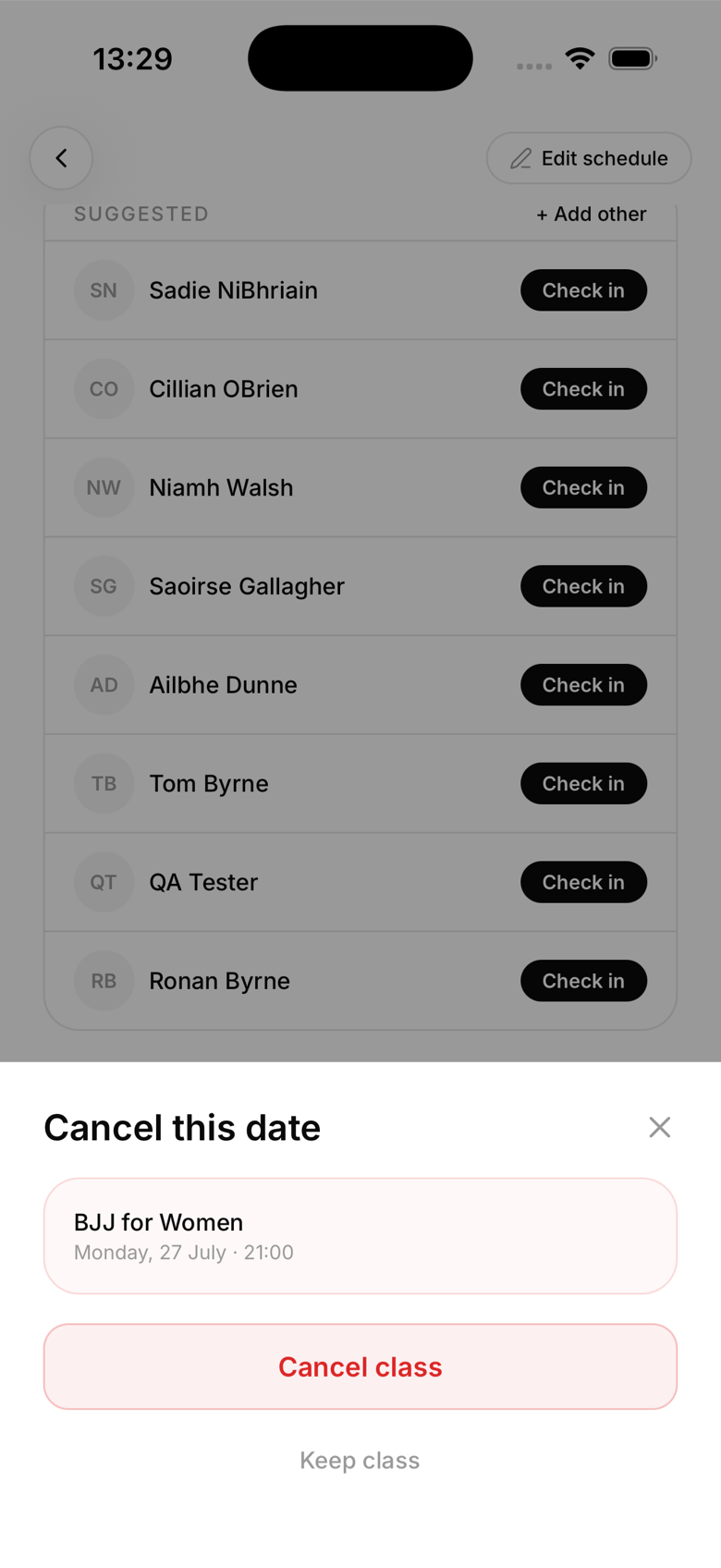
Cancelling doesn't notify anyone automatically. You'll be asked if you want to send an announcement, confirm that and booked members get a push notification right away. If you skip it, they won't hear about the cancellation until they check the app.
Pausing a class for a period
MatPilot doesn't have a way to temporarily pause a series and have it pick back up automatically. If you're closing for a week, for example a bank holiday, cancel each individual occurrence for that week instead.
Viewing upcoming classes
The owner Schedule tab shows all classes for the current week. Swipe left and right to move between weeks. Tap any class to see its roster and attendance.