Help Center › Classes & Scheduling
Managing waitlists
How waitlists work
- A member tries to book a full class
- They're added to the waitlist and notified
- If any booked member cancels, the first waitlisted member is promoted automatically
- The promoted member receives a push notification
Viewing the waitlist
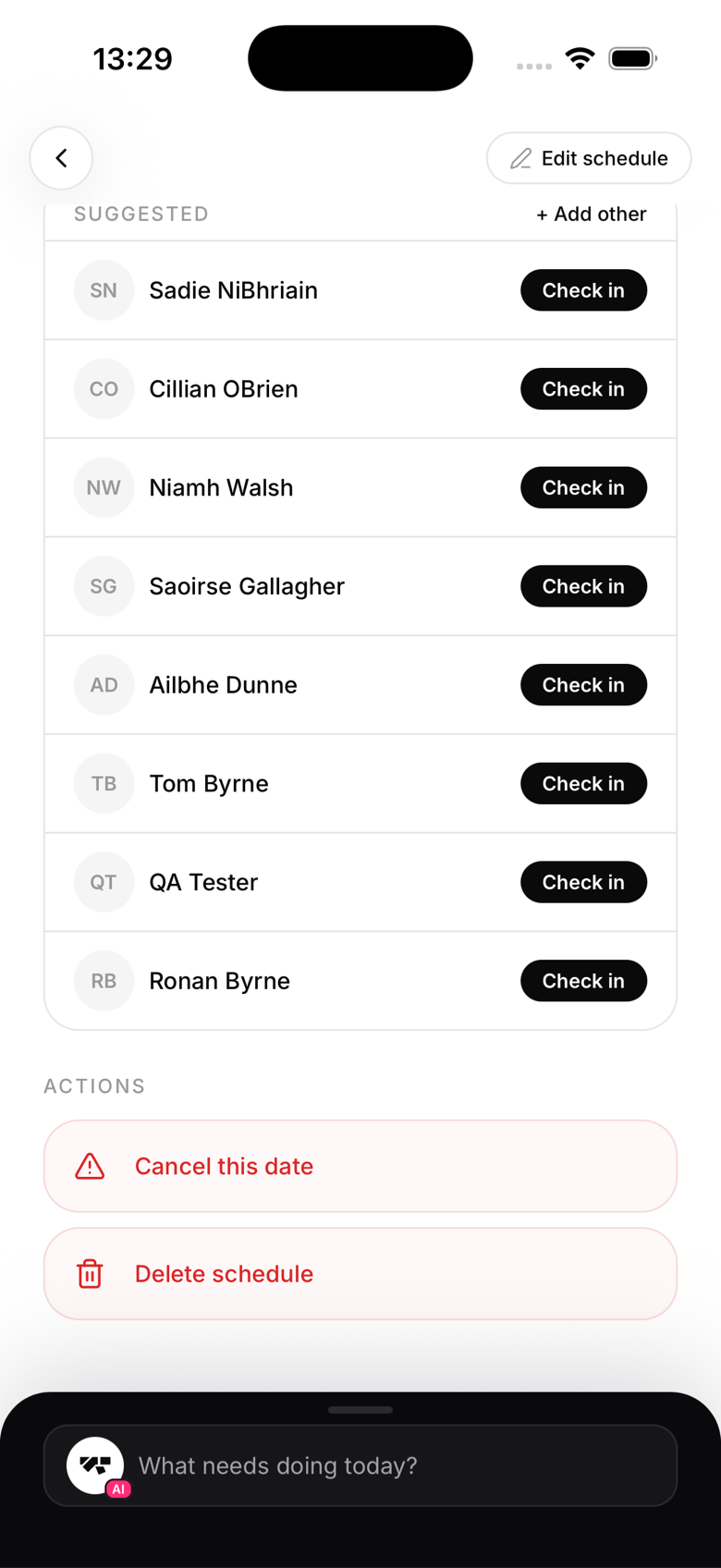
Open a class as an owner. The Waitlist section on the class screen lists waitlisted members in the order they joined, alongside the occupancy bar and check-ins.
Manual promotion
There's no button to manually promote a waitlisted member ahead of the queue, promotion only happens automatically when a booked spot frees up. If you want a specific waitlisted member to attend a session anyway, you can check them in directly from the attendance section, that records their attendance without changing their booking status.
Waitlist from the member's view
Members on the waitlist see their status as Waitlisted on the class card. If they're promoted, they receive a push notification and their status changes to Booked.
Leaving the waitlist
Members can leave the waitlist at any time by tapping Leave waitlist on the class card. This frees their spot for the next person.