Help Center › Classes & Scheduling
Member self-booking
How members book
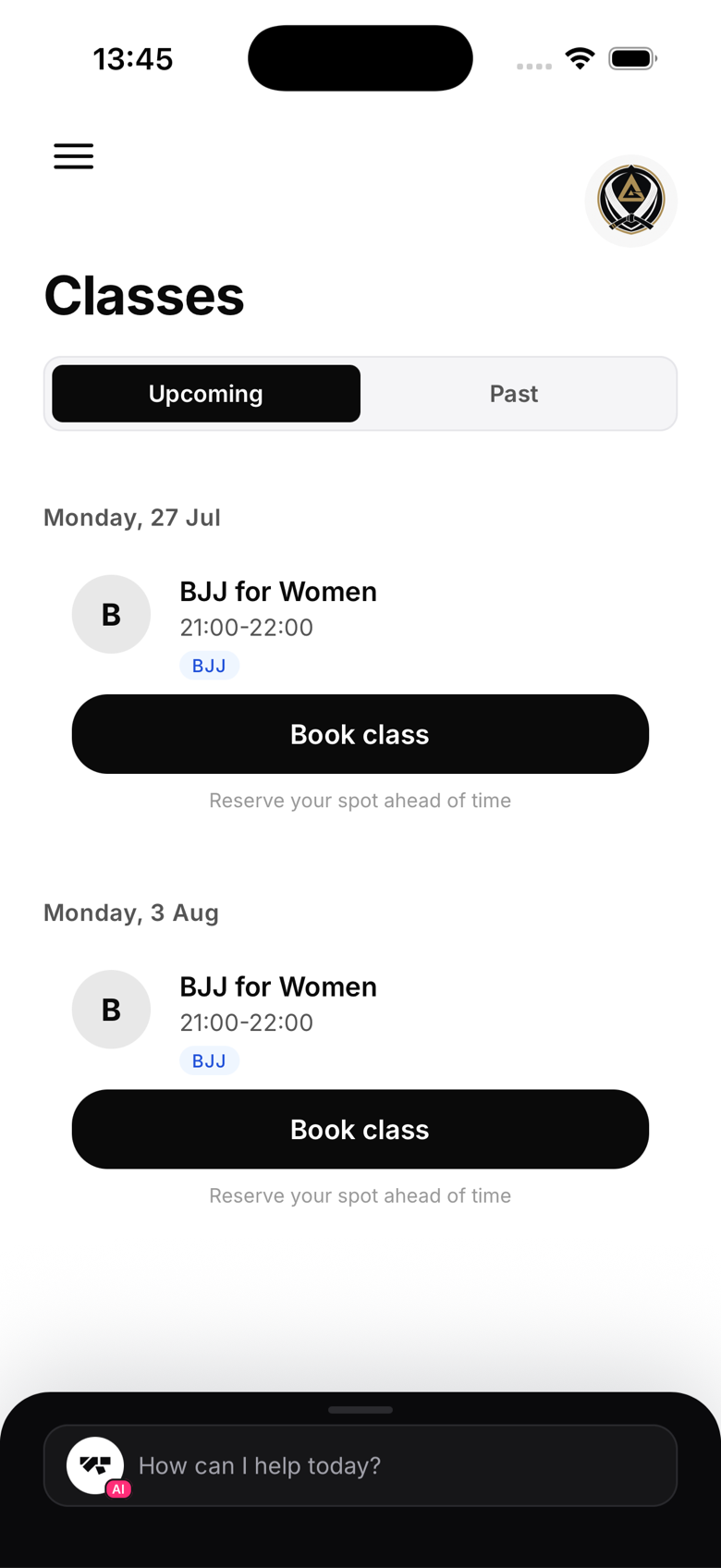
- Open the Schedule tab in the member app
- Browse classes by day or week
- Tap a class to see details (instructor, time, spots remaining)
- Tap Book to reserve a spot
If the class is full, they'll see a Join waitlist button instead.
Booking windows
You can set how far in advance booking opens for a class, right at class start, 24 hours before, 48 hours before, or a custom lead time. This is configured per class when you create or edit it, not as one gym-wide rule.
Cancelling a booking
Members can cancel their booking from the class detail screen at any time before the class. There's no automated cutoff or refund logic built in. If you want to charge a no-show or late-cancellation fee, staff can do that manually from the member's billing tab.
Walk-ins
Members don't need to book to check in via the kiosk. The kiosk allows walk-in check-in regardless of whether they had a booking. A booking is a reservation, a check-in is the actual attendance record.
Viewing all bookings
Owners can see all bookings for a class from that class's detail screen. There's no global "all bookings" view, filter by class to see who's coming.