Help Center › Membership Plans
Member plan upgrades and downgrades
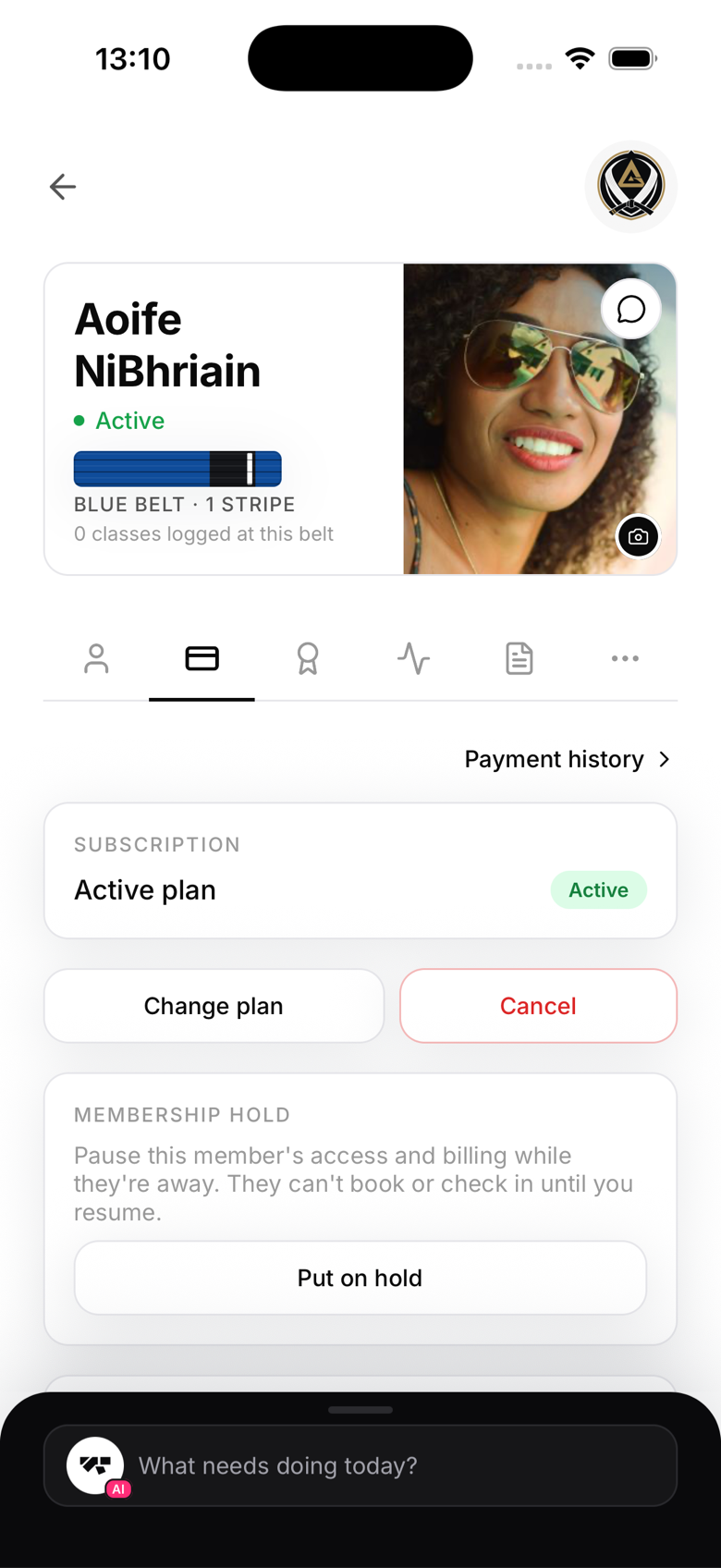
How to change a plan
As the owner or manager:
- Open the member's profile
- Tap Billing → Change plan
- Select the new plan
- Confirm
As the member: they can also switch plans themselves from their own Profile screen, no need to involve the front desk.
Either way, Stripe handles the transition on the live subscription, including any prorated adjustments.
Proration
When upgrading mid-cycle to a more expensive plan, Stripe prorates the difference for the remaining days on the current billing period. When downgrading to a cheaper plan, the credit is applied the same way, on the subscription rather than as an instant refund.
Member-initiated changes
Members can change their own plan from the app. Owners and managers can also make the change on a member's behalf from their Billing tab, which is useful for walk-in conversations at the desk.
Keeping history
When a plan is changed, the audit log records the previous plan and the new one, so you always have a record of when and why a member moved plans.