Help Center › Settings & Account
Viewing the audit log
Settle the 'I cancelled last month' dispute in ten seconds with a timestamp and a name.
Opening the audit log
Go to Settings → Tools → Audit log. Owners have access by default. If you want a manager or other staff member to see it too, grant them the view_audit_log permission from their profile's role settings. The log is read-only, entries cannot be edited or deleted.
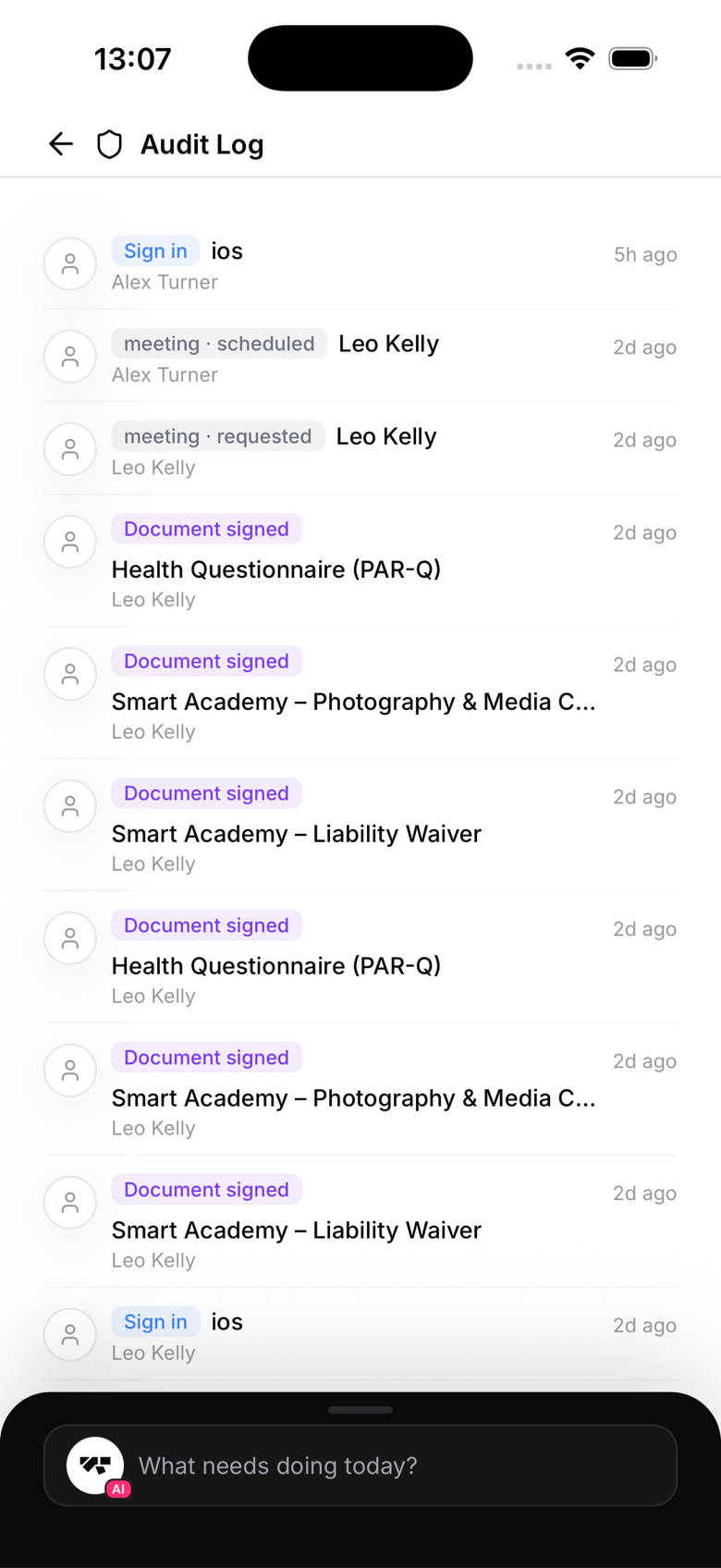
What you'll see
A chronological list of events, each showing:
- Timestamp - exact date and time
- Actor - who took the action (owner name, instructor name, or "AI Assistant")
- Action - what happened (e.g. "Member promoted", "Plan created", "Payment retried")
- Details - specifics (e.g. "James Murphy promoted from White Belt to Blue Belt in BJJ by Vinny McGee")
Filtering the log
Use the filter options to narrow by:
- Date range - see what happened last week, last month, etc.
- Actor - see all actions by a specific instructor
- Action type - see all promotions, or all payment events
Common use cases
- Check who promoted a member and when
- Review what an instructor has been doing
- See when a member was last edited
- Verify that a payment retry was attempted
- Review AI co-pilot actions
Log retention
Entries are kept for 12 months, then automatically deleted. If you need longer retention for compliance purposes, export regularly.
Exporting the log
Tap Export to download the current filtered view as a CSV file. This is useful for compliance or insurance documentation.