Help Center › Settings & Account
Email notification settings
Your notifications (owner)
Go to Settings → Notifications. Each event has separate toggles for in-app, email, and push, so you can pick exactly how you're notified. The email toggles cover:
- New payment received
- Payment failed
- Trial converted to paid
- New member joined
- Grading ready
- Payment dispute alert
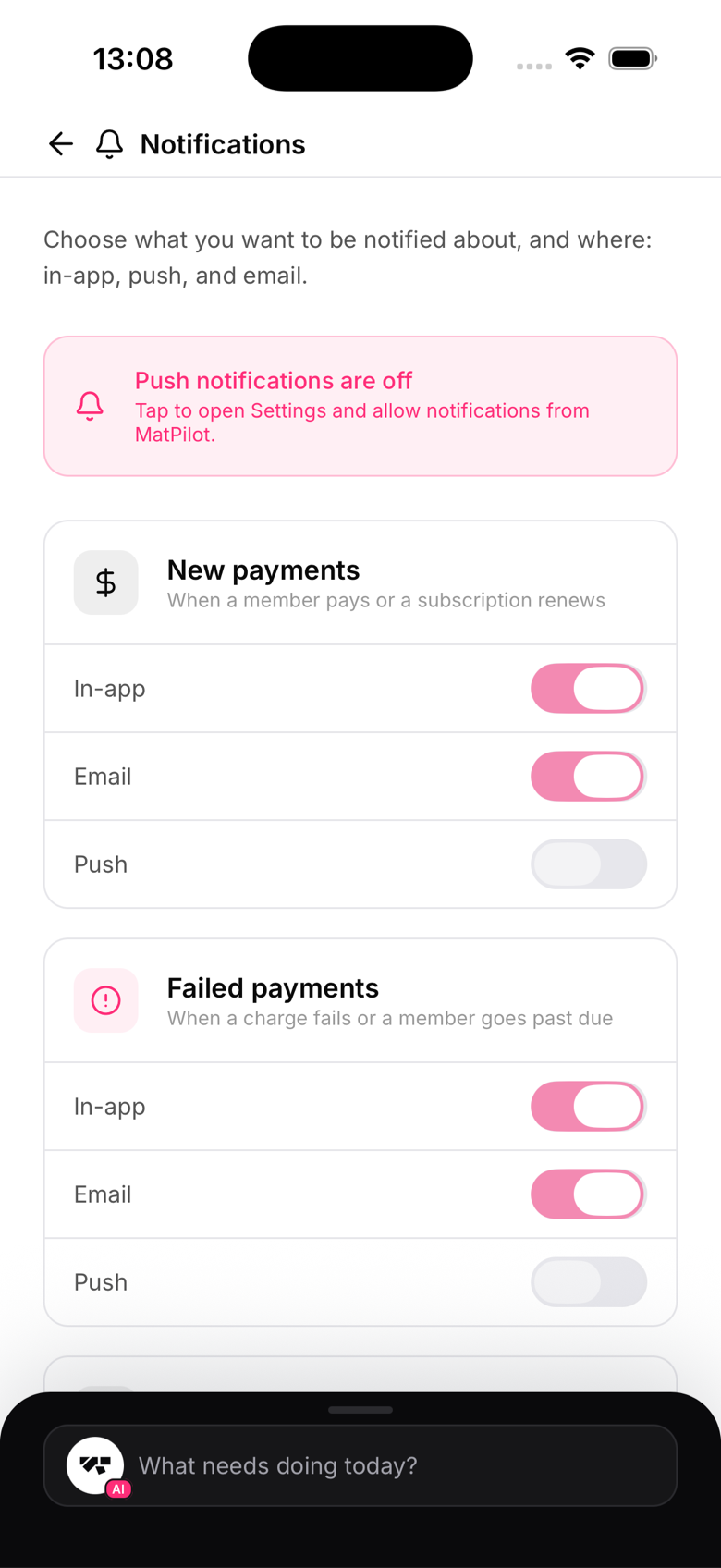
An owner email is only sent when both your personal toggle above and the underlying template are enabled. Turn off either one and that email stops going out.
Member notifications
Member emails are configured separately in Settings → Email templates. Each template can be enabled or disabled:
- Welcome email - sent when a member joins
- Payment receipt - sent after each successful payment
- Payment failed - sent to the member when their payment fails
- Waitlist promoted - sent when a member is promoted off a waitlist
Unlike your own notifications, members don't have a personal preference to turn these off. Whether a member receives one comes down entirely to whether you've left that template enabled.
Customising templates
Each email template is editable. Go to Settings → Email templates and tap a template to edit the subject line and body. A live preview shows how it looks before you save.
From address
All emails are sent from no-reply@transactional.matpilot.io. You can set a reply-to address in Settings → Email templates → Reply-to email so member replies come to you.
Turning off all member emails
If you prefer to communicate with members only through the app, you can disable all member email templates. They'll still receive push notifications.