Help Center › Settings & Account
Waiver and document management
The kiosk stopping a three-year veteran to sign the new waiver is the system protecting you.
Creating a waiver
- Go to Settings → Documents → + Add document
- Enter the waiver title and body text (markdown supported)
- Set whether it's required:
- Required - members must sign before training
- Optional - available for signing but not enforced
- Save and publish
Member signing
Members are prompted to sign required waivers:
- During walk-in enrolment via kiosk
- On first login after a waiver is added
- Before their first check-in if they haven't signed yet
Signing is done digitally, the member draws their signature on screen.
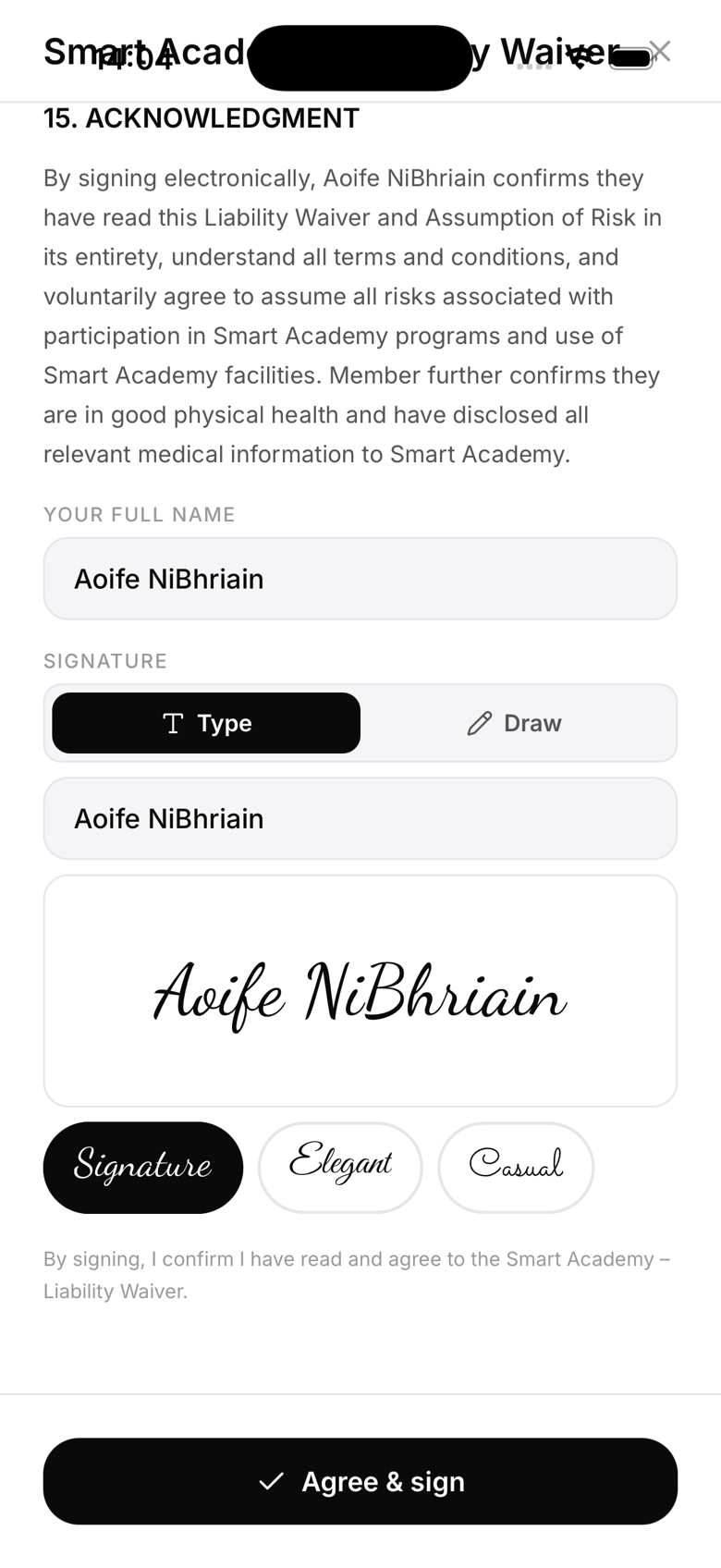
Waiver gate at check-in
If Waiver required for check-in is enabled in Settings, every member, not just new ones, is blocked from checking in (via kiosk or the member app) until every required document is signed. If you add a new required waiver today, your entire existing roster is prompted and blocked from training until they sign it, the same as a brand new member would be.
Viewing signatures
Go to the member's profile → Documents. You'll see a list of all documents with their signature status and date signed.
Updating a waiver
If your waiver text changes significantly, create a new version. Existing members will be prompted to re-sign the new version.