Help Center › Members & Profiles
Bulk importing members via CSV
Preparing your list
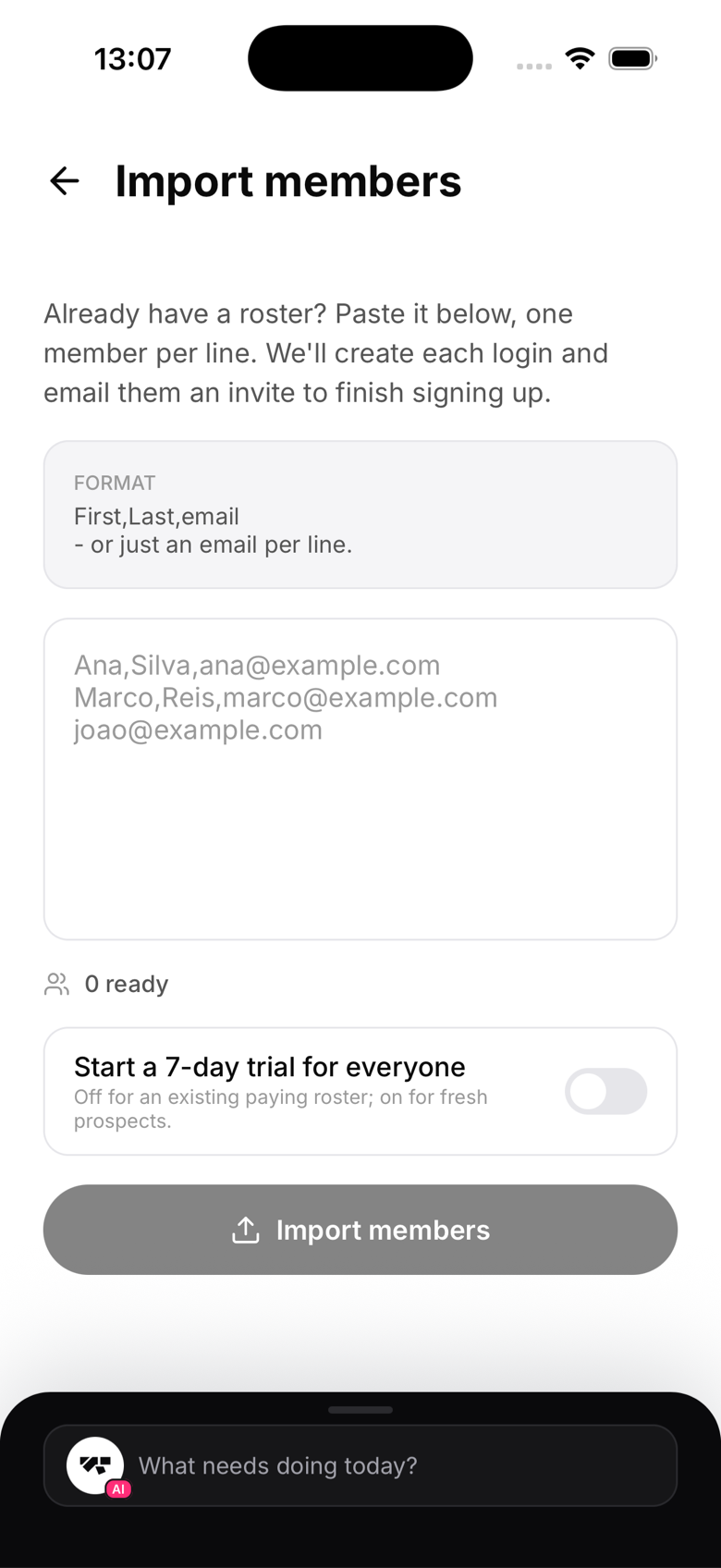
This isn't a file upload, it's a paste box. Copy your roster from a spreadsheet and paste it in, one member per line, in the format:
First,Last,email
or just an email on its own if that's all you have. MatPilot picks out the email in each line automatically and skips a header row if you leave one in.
Running the import
- Go to Settings → Import members
- Paste your list
- Check the "ready to import" count, MatPilot flags any invalid lines
- Optionally switch on the 7-day free trial toggle
- Tap Import
Large lists are sent in batches of 50 automatically, so there's no need to split anything yourself.
What happens after import
Each imported member gets a login and an email invite to set their password and finish signing up. Without a trial, they're created with invited status; with the trial switched on, they're active immediately so they can start training. Unlike adding a single member by hand, bulk import doesn't require a signed waiver to already be on file, though members will still need to sign one before they can check in to a class.
Errors and duplicates
If an email already belongs to your gym, that row is skipped and shown in the results as already existing, nothing is duplicated. Re-running the same paste is safe.