Help Center › Members & Profiles
Member roles explained
Roles at a glance
| Role | Can manage members | Can take billing actions | Can see revenue | Can change gym settings |
|---|---|---|---|---|
| Owner | Yes | Yes | Yes | Yes |
| Manager | Yes | Yes | Yes | Most, not role changes |
| Instructor | Attendance, promotions, diplomas | No | No | No |
| Reception | Check-in only | No | No | No |
| Student | Own profile only | Own payments only | No | No |
Owner
Usually there's one owner per gym: whoever created the account. Owners have full access, including billing and gym settings. An owner can grant owner or manager access to someone else if needed, though most gyms only ever have one.
Manager
Managers can do almost everything an owner can: add and edit members, manage plans, connect Stripe, retry payments, archive members. The one thing only an owner can do is change another member's role.
Instructor
Instructors can view the class roster, take attendance, promote members, and generate diplomas. They can't see revenue or billing details.
Reception
Reception staff can check members in and view the class schedule. They have the most limited access and are ideal for front-desk volunteers.
Student (and child)
The default role for members. Students see their own profile, their class schedule, their payment history, and their belt progression. Minors are tracked as a child role rather than student internally (shown as "Junior student" in the app), but they behave the same way. Their age comes from their date of birth, not the role itself.
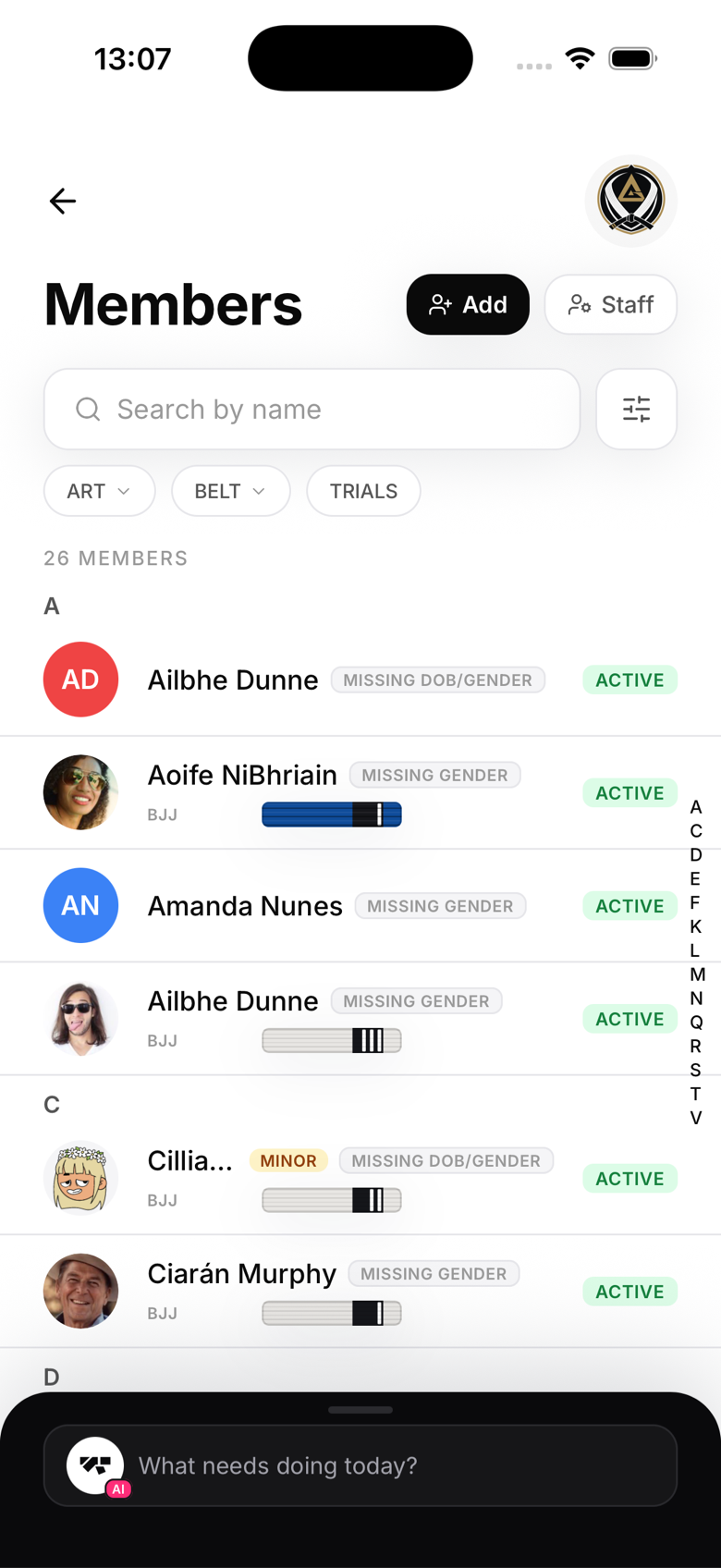
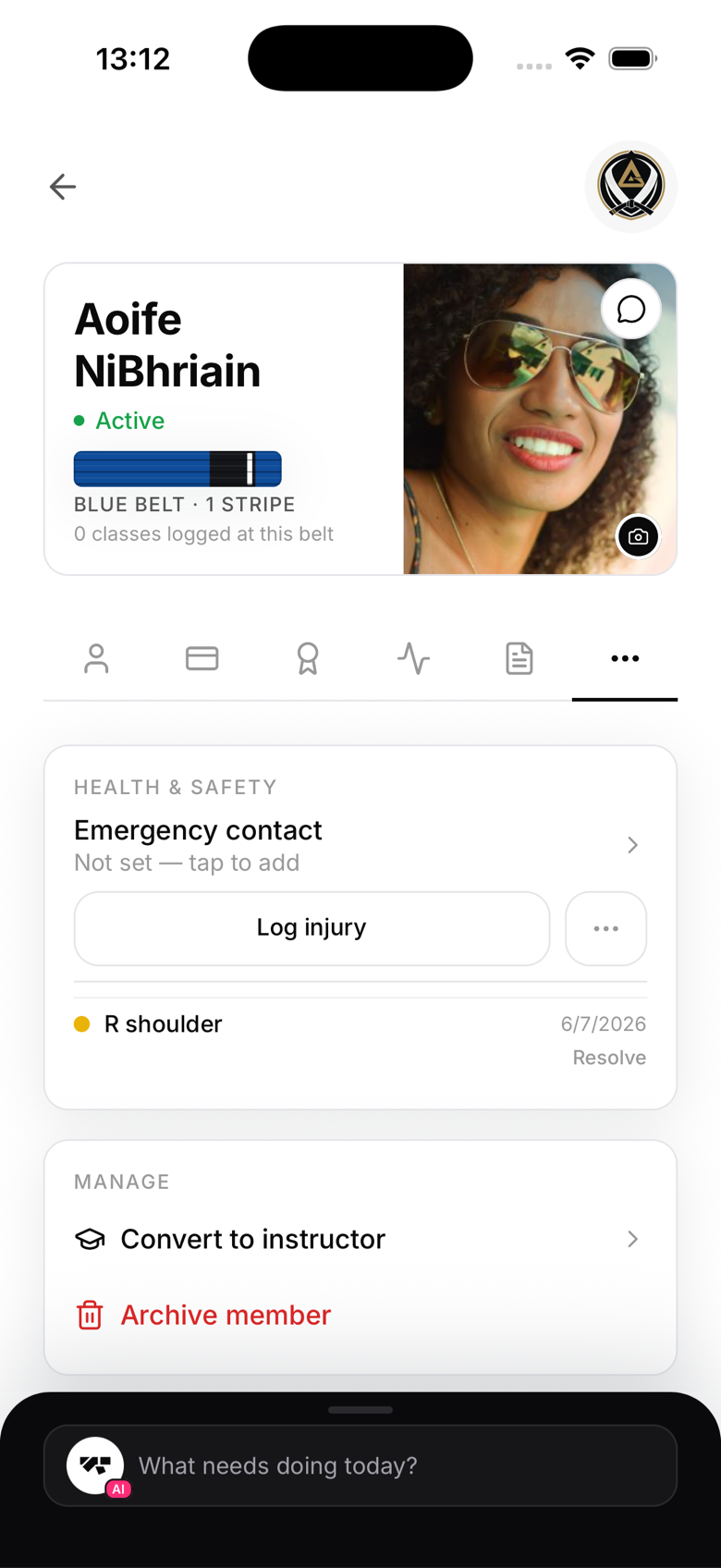
Changing a role
There's no single "Role" field to edit. To make an existing student an instructor, open their profile, go to More → Manage, and tap Convert to instructor (you'll be asked which arts they teach). To remove staff access, tap Remove staff role to move them back to a regular member. Manager, reception, and owner access are granted through the Staff invite flow on the Members screen instead, either by inviting someone new or promoting an existing member.