Help Center › Members & Profiles
Adding a profile photo
How members add their own photo
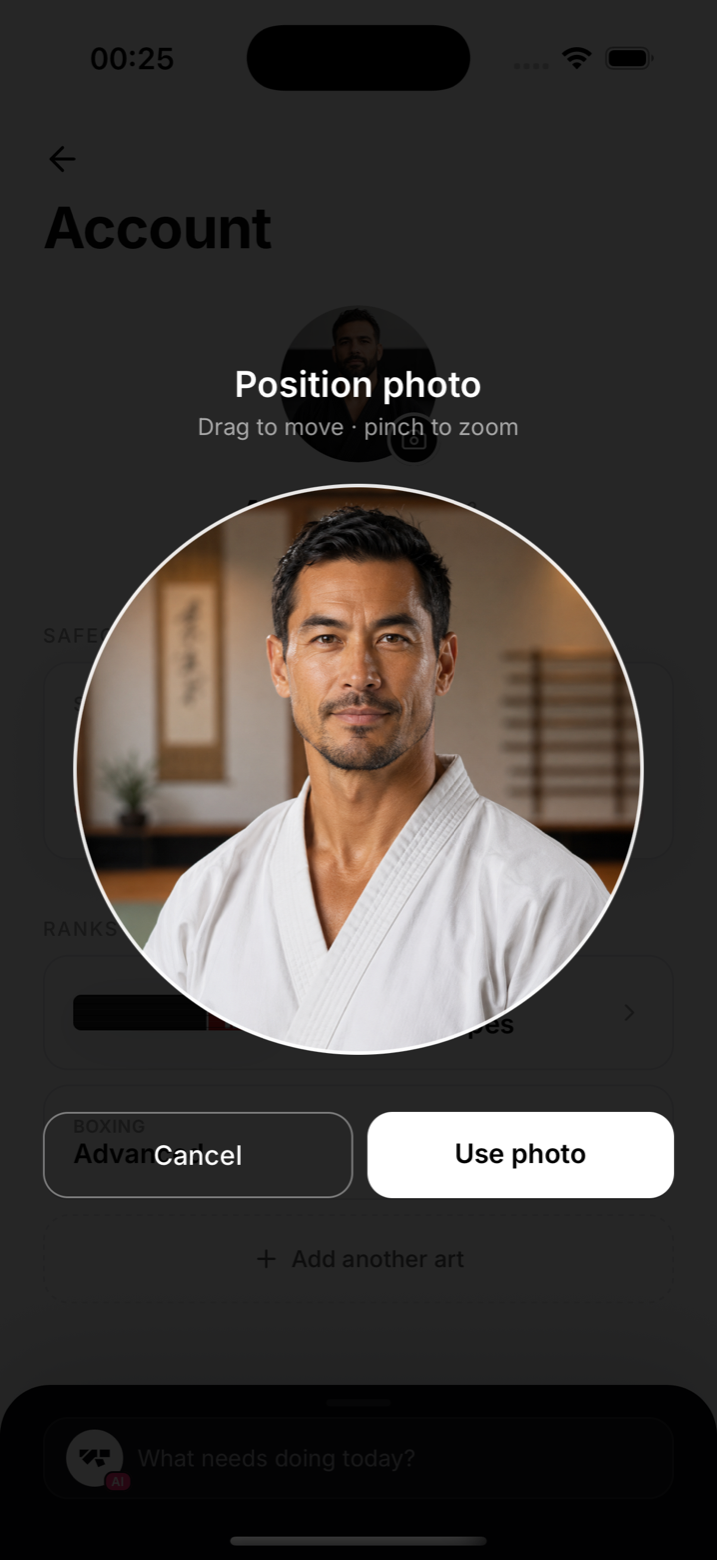
Members tap their avatar from their own Profile, pick a photo from their library, then pinch and drag to crop it into a circle before it uploads.
How owners add a photo for a member
Open the member's profile and tap their avatar. This opens the same photo library picker and cropper. There's currently no in-app camera capture, only photos already saved to the device library.
Photos and minors
Members under 18 have no profile picture unless your academy has turned Under-18 profile pictures on AND you have recorded that child's parent or guardian consenting. Both are needed, and the setting starts off. A member whose date of birth isn't set yet is treated the same way, because MatPilot can't confirm they're an adult; set their date of birth first.
See Profile pictures for under 18s for how to turn it on and what happens when you turn it off.
Background removal
Whenever a photo is uploaded, MatPilot automatically generates a background-removed cutout behind the scenes. It's used to render a clean floating photo behind the home screen header. There's no separate toggle for this, it happens for every upload.
Privacy
Profile photos are only visible to gym staff and to the member themselves. They are not shared publicly.