Help Center › Members & Profiles
Adding a new member
Manual add (owner or manager)
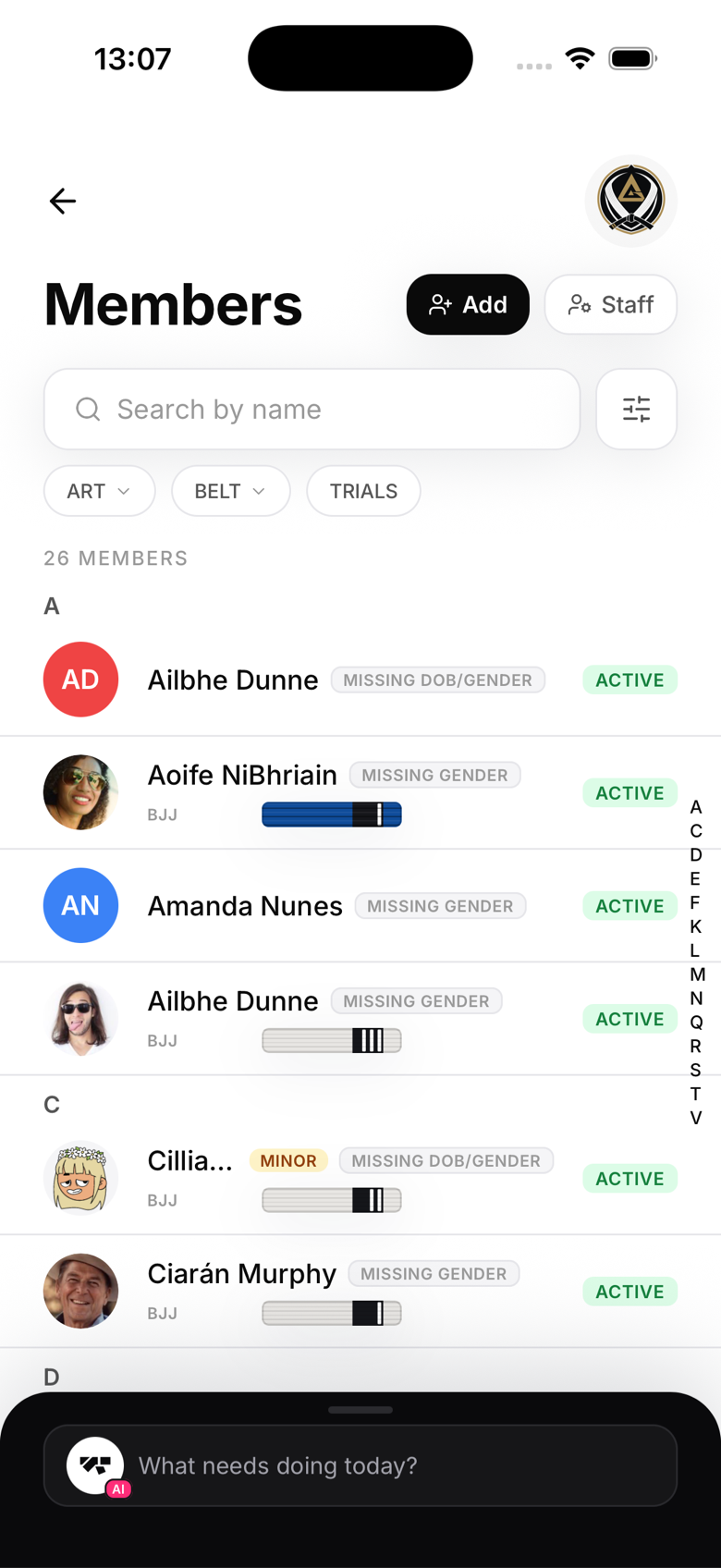
Tap Add on the Members screen and enter:
- First and last name
- Email address
- Phone number (optional)
- Date of birth (drives kids vs. adult belt progressions)
- Gender (optional)
- Discipline and starting belt, if they're transferring in with rank already
A 1-class free trial is switched on by default, so they can train today without paying. Turn it off if you'd rather assign a plan right away.
MatPilot creates their login and emails them an invite to set a password and finish signing up. They don't need to accept it before you assign a plan, set their rank, or take attendance for them. You'll need Stripe connected before you can add your first member, MatPilot gates member creation on it so billing is ready from day one.
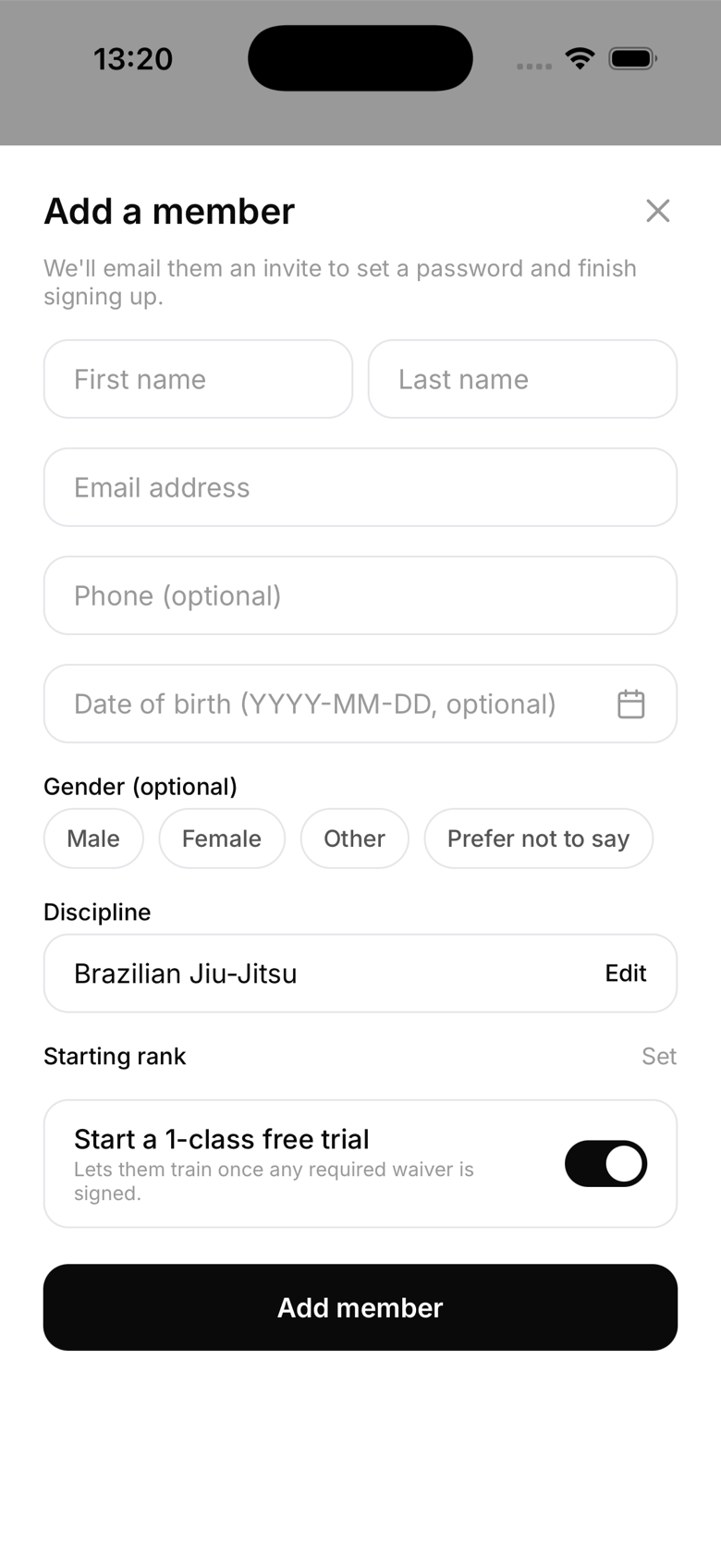
This flow always adds someone as a regular member. To bring on an instructor, manager, or reception staff, use the separate Staff button instead.
Adding staff
Owners and managers invite instructors, reception, and fellow managers from Staff on the Members screen. This generates a single-use invite code, or promotes an existing student to a staff role. There's no self-serve way to pick your own role, staff access is always granted deliberately.
Kiosk walk-in
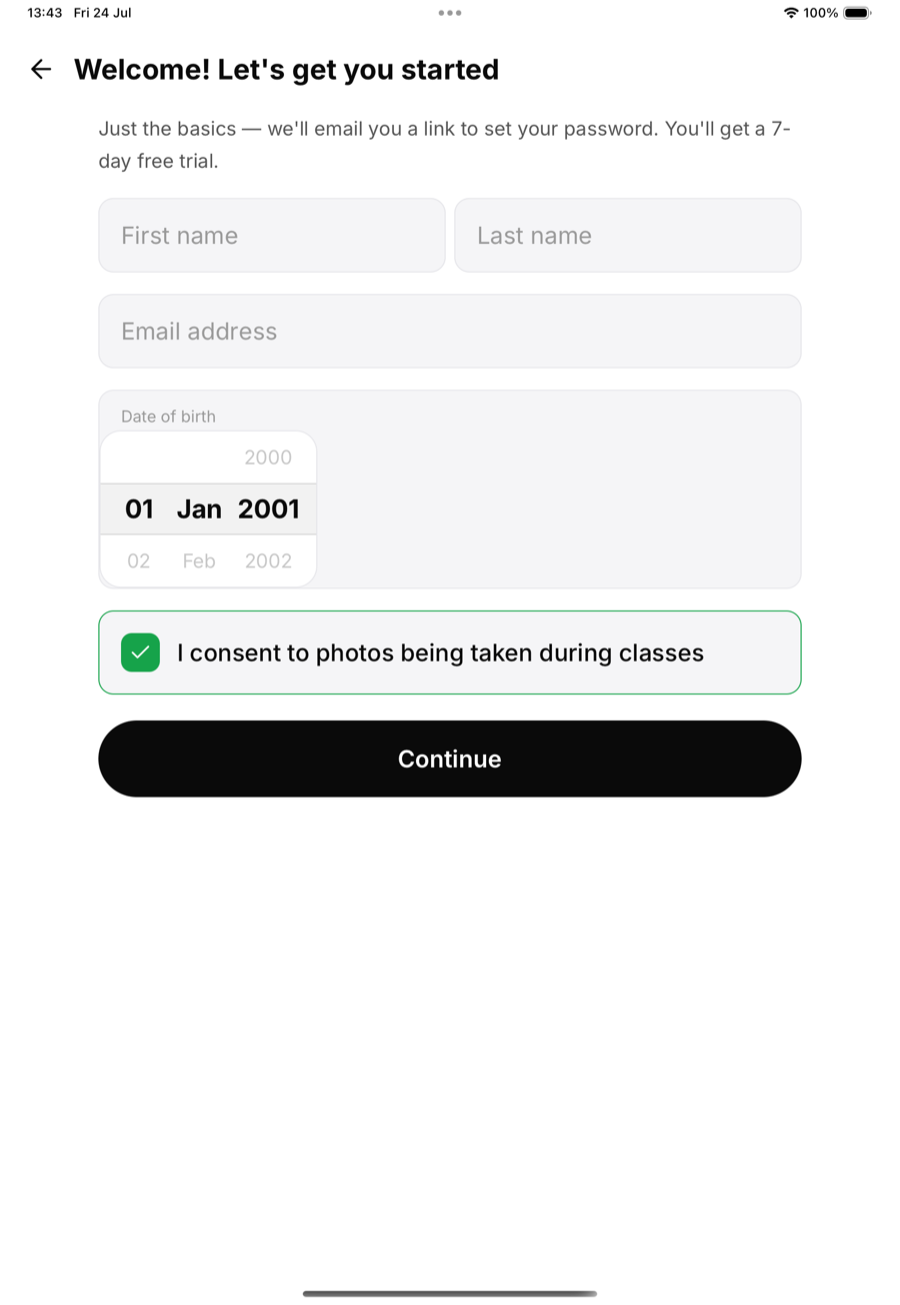
If you've set up kiosk mode at the front desk, walk-ins can enrol themselves on the tablet: they fill in their own details, sign any required waivers, and appear in your member list immediately.
Bulk import
Already have a roster in a spreadsheet? You can paste in a whole list of names and emails at once instead of adding people one by one. See the guide on bulk importing members.
After adding
Once a member is in the system:
- Assign a membership plan or grant a trial
- Set their belt rank if they're transferring from another gym
- Confirm their date of birth if they're a minor
Duplicate detection
MatPilot checks by email automatically. If someone already belongs to your gym, adding them again just returns their existing profile instead of creating a duplicate.