Help Center › Members & Profiles
Editing member information
What owners and managers can edit
- Phone number and address
- Date of birth and gender
- "Member since" date
- Emergency contact details
- Belt rank and stripe count
- Profile photo
- Staff notes (internal, never visible to the member)
A member's first and last name are set when they're added and can't currently be renamed by staff from the app afterward. If a name was entered wrong, the member can fix it themselves from their own profile, or contact MatPilot support.
Editing email
Open the member's profile and update their email from there. Because this also changes their Cognito login, MatPilot sends them a password reset so they can sign back in with the new address.
Editing a member's belt
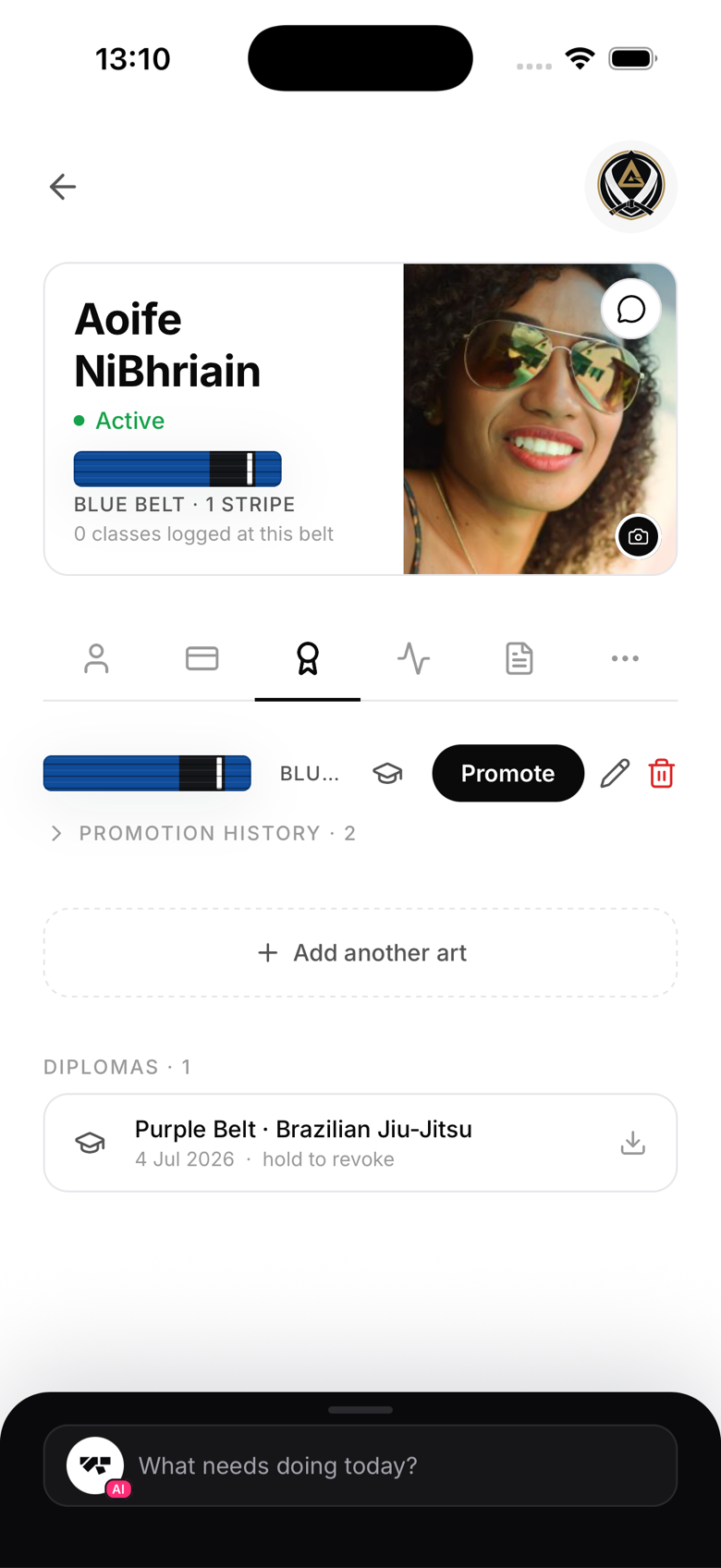
Open the member's profile → Ranks tab and tap the pencil icon next to their rank. Select the art, belt, and stripe count. This is a correction: it sets their current rank without creating a promotion record or offering a diploma. For a tracked promotion with history, use the Promote button instead.
What members can edit themselves
Members can update their own name and profile photo from their Profile tab. Phone, address, date of birth, gender, and emergency contacts are staff-managed fields, a member can't change those themselves in the app.
Bulk edits
MatPilot doesn't support bulk profile editing. For belt changes affecting many members at once after a grading, promote each member individually from their Ranks tab, or generate diplomas together from the multi-select bulk bar on the Members screen.