How to open the AI assistant
Mid-conversation at the desk, the assistant is one tap away from anywhere in the app.
Finding the AI
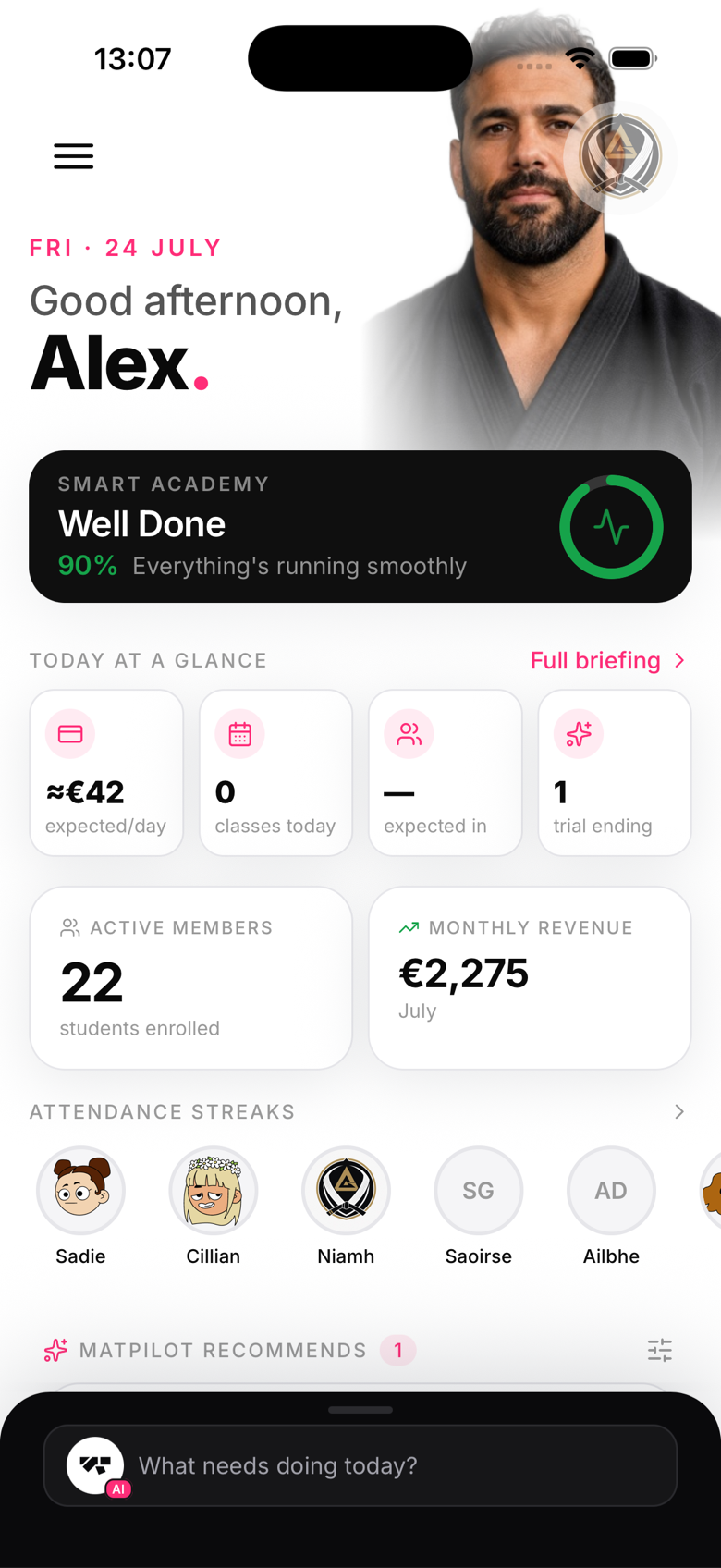
The AI isn't a separate tab, it's a command bar that sits at the bottom of every main screen in the owner app. Tap it to expand the full chat interface. If you don't see it, make sure you're logged in as an owner, not a member.
Starting a conversation
Type your request in the text box and send it. You can use natural language, you don't need specific commands.
Some things to try:
- "How many active members do I have?"
- "Promote James to blue belt"
- "Create a new monthly plan for €120"
- "Send an announcement about class cancellation tomorrow"
Context awareness
The AI has access to your gym's live data: members, plans, revenue, and classes. It uses this context automatically. You don't need to tell it your member names or plan prices, it already knows.
Conversation history
Your chat history is saved between sessions. You can scroll back to review previous conversations, including actions you approved.
Limitations
The AI co-pilot cannot:
- Access external websites or databases
- Make changes without your confirmation, every action needs an explicit Confirm tap first