Instructor class assignments
Assigning an instructor to a class
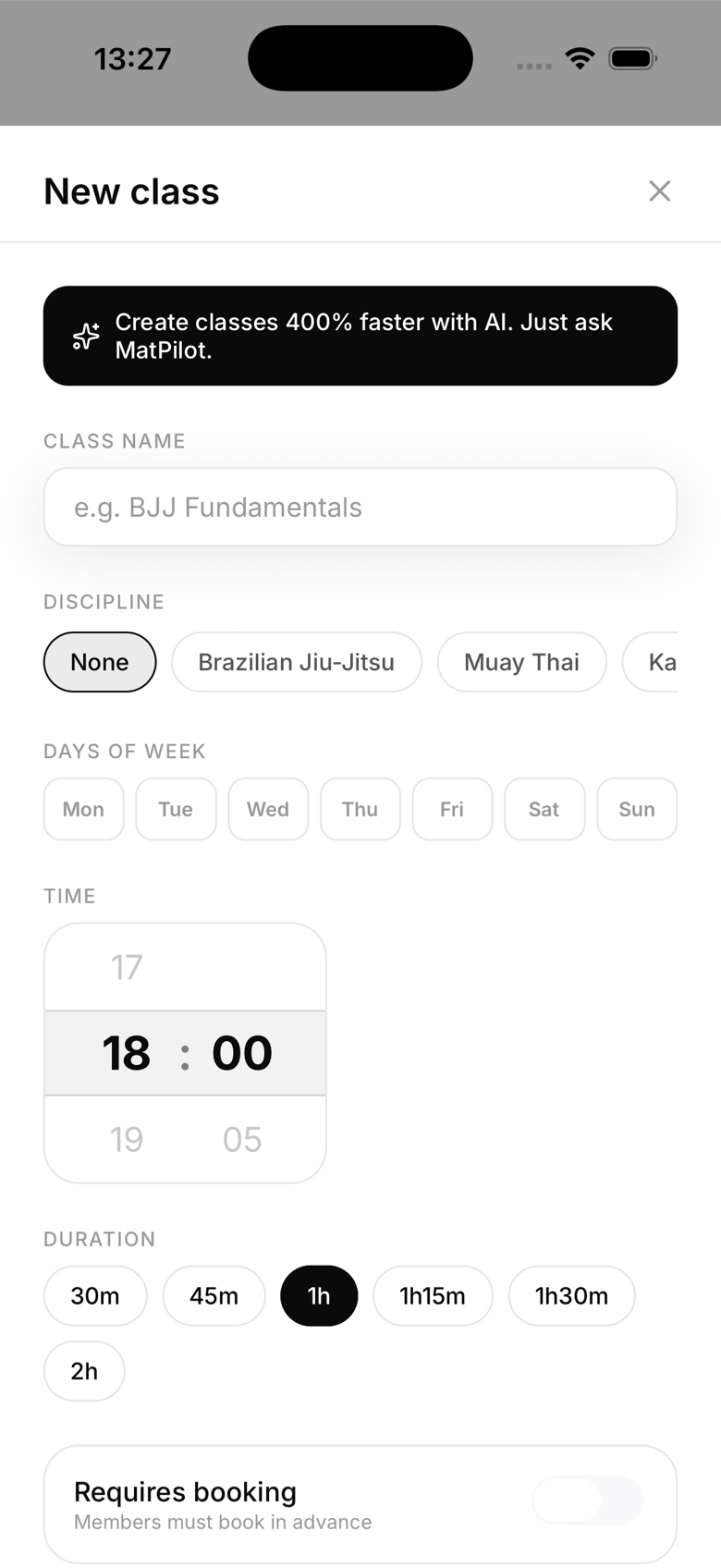
When creating or editing a class (or the recurring schedule behind it):
- Scroll to the Instructor field
- Tap to open the instructor picker
- Select a staff member with the Owner, Manager, or Instructor role. Reception doesn't appear in this picker, since front-desk staff aren't assigned to teach
- Save
The instructor's name appears on the class card for both owners and members.
The instructor's view
When an instructor opens MatPilot, their schedule tab shows all classes, with their assigned classes highlighted. From an assigned class, they can:
- View the full roster with member photos and belt ranks
- Mark attendance
- See who booked and who checked in
Changing an instructor
For a class generated from a recurring schedule, editing the Instructor field updates the schedule template and every future occurrence at once, there's no option to swap the instructor for a single session only. If you need a one-off substitute for just one class, the simplest option is to note it in the class title (for example "BJJ, covered by Marcelo this week") rather than reassigning the schedule. A standalone one-off class (not generated from a recurring schedule) can't be edited after it's created, so if you need to change its instructor, cancel it and create a new one.
Guest instructors
For a guest instructor who isn't in your MatPilot member list, mention them in the class name (for example "BJJ with Marcelo Garcia, Seminar") rather than trying to assign them as staff.
Unassigned classes
Classes without an assigned instructor simply don't show an instructor line on the class card. This is fine for open mat or self-practice sessions.