Removing a staff member
If the person is leaving the gym entirely
Archive them:
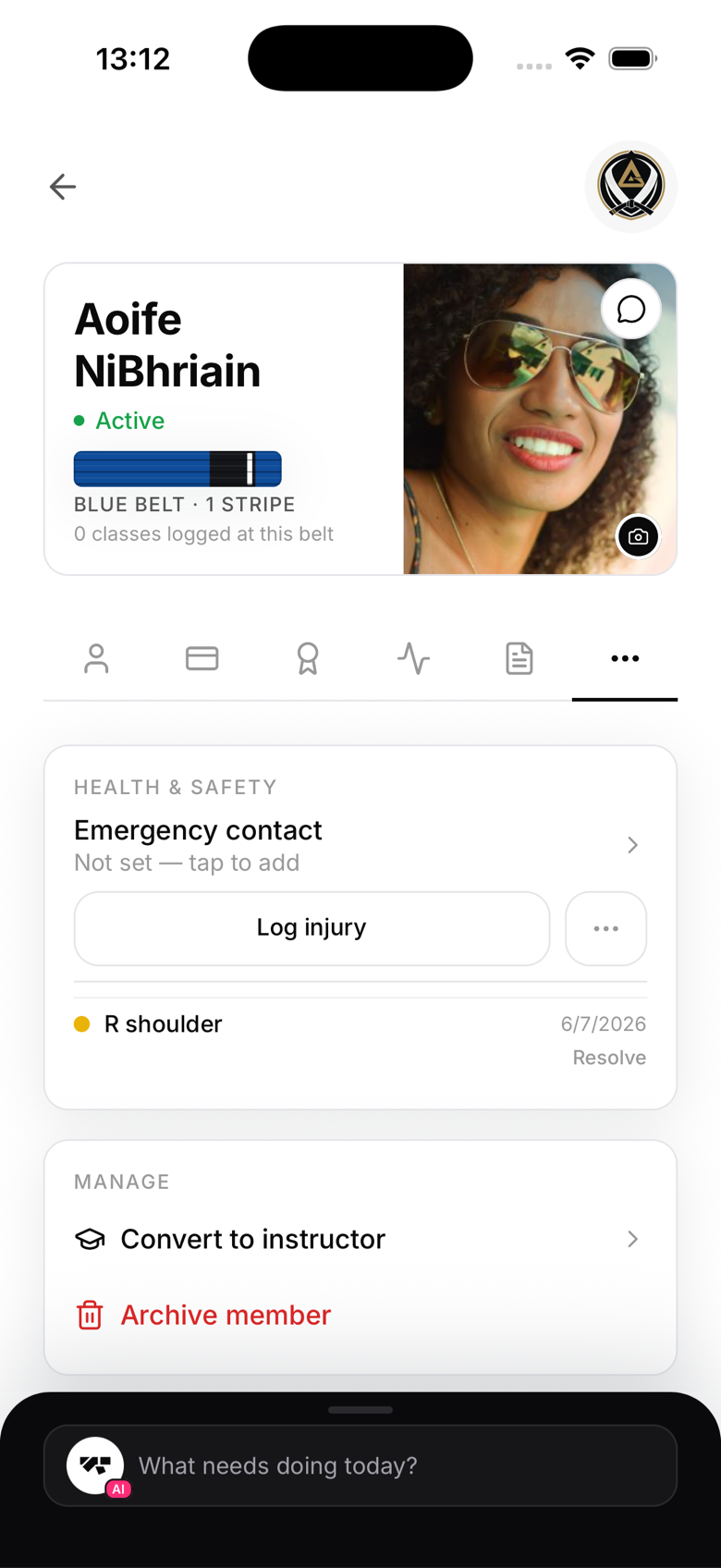
- Go to their member profile
- In the Manage section, tap Archive member
- Confirm
Archiving removes all access immediately. Their attendance and promotion records are preserved. Both owners and managers can archive a staff member this way. Note that you can't archive the gym's owner account, if the owner themself is the one leaving, that's an ownership transfer, not an archive.
If the person is staying as a regular member
Change their role back to Student instead:
- Open their profile
- In the Manage section, tap Remove staff role
- Confirm
This is owner-only, a manager can archive a departing staff member entirely but can't demote one back to student. Their staff access is revoked immediately, and they'll see the standard member view next time they open the app.
Immediate effect
Role and access changes take effect instantly. Your role is checked fresh from your membership record on every request rather than baked into your login session, so there's no delay or sign-out required for the change to apply.
Audit trail
Role changes appear in the audit log with the date, time, and who made the change. You can review this from Settings → Tools → Audit log, visible to the owner by default.
What happens to their class assignments
Removing someone's staff role does not automatically update classes or recurring schedules that still list them as the instructor. If they were assigned to upcoming classes, edit those classes (or the recurring schedule behind them) and pick a new instructor so your roster stays accurate.