Inviting a new instructor
How to add an instructor
If the person isn't already a member of your gym, add them first:
- Go to Members → + Add member
- Enter their name and email, then save
They'll get the standard welcome email with a link to set up their account and download the app.
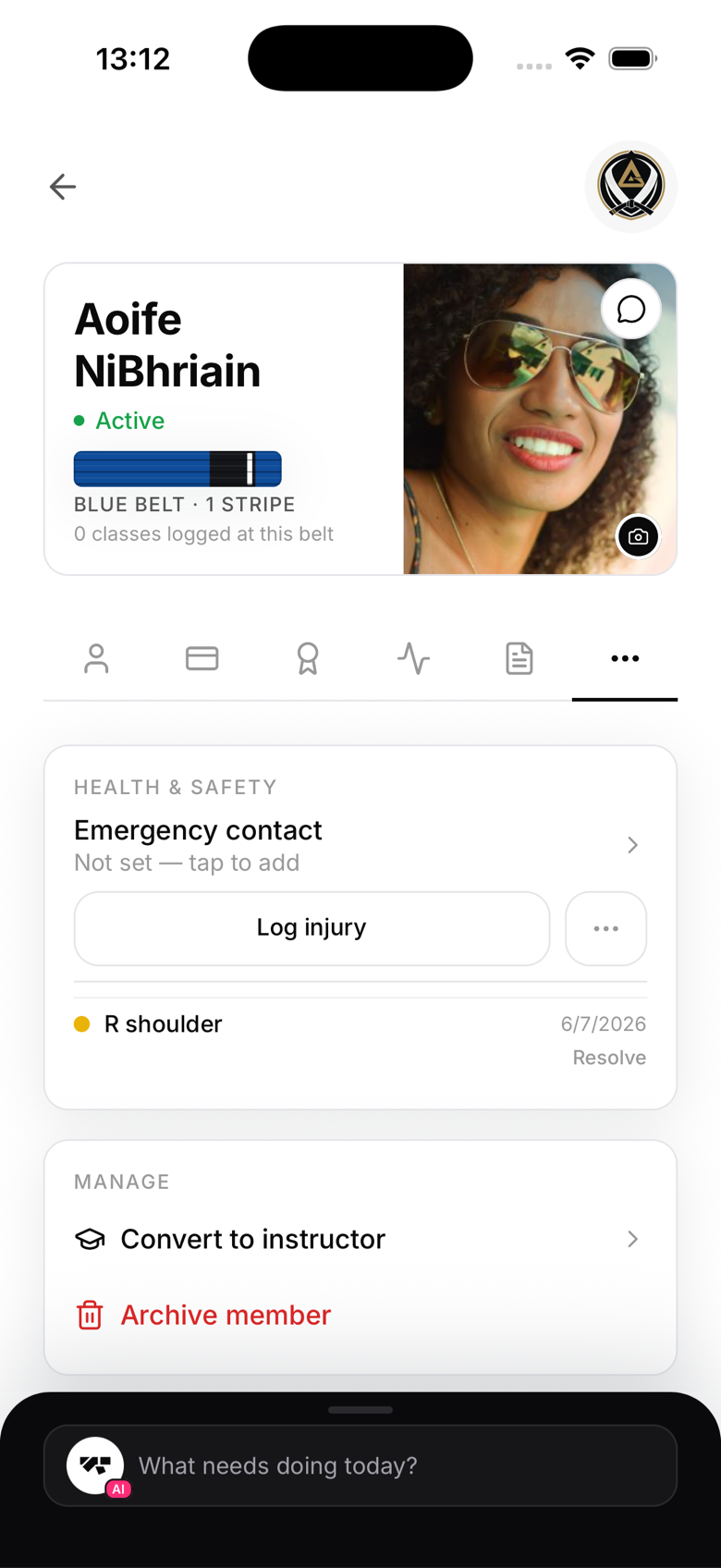
Once they're a member (existing students work too), promote them from their profile:
- Open their member profile
- In the Manage section, tap Convert to instructor
- Choose which art or arts they'll teach
- Save
This step is owner-only, a manager can't change anyone's role. No separate email goes out when you promote someone, they'll just see the new instructor tools next time they open the app.
What instructors can do
Once promoted, instructors can:
- View all classes on the schedule
- See the class roster (names, photos, belt ranks)
- Mark attendance
- Generate promotion diplomas
- View individual member profiles (name, belt, attendance)
What instructors cannot do
- Change a member's belt or stripes. Promotions stay with the owner and manager
- See billing information or payment status
- Change membership plans
- View revenue or financial reports
- Access the AI co-pilot
- Change any gym settings
Assigning classes
Assign the instructor to specific classes by editing the class, or its recurring schedule, and selecting them in the Instructor field. The picker lists staff with the Owner, Manager, or Instructor role, Reception doesn't appear here since front-desk staff don't teach.
Multiple gyms
If an instructor teaches at another gym that also uses MatPilot, they can be a member of both, with a different role at each, all from the same app account.