Help Center › Grading & Promotions
Promoting a member to a new rank
How to promote
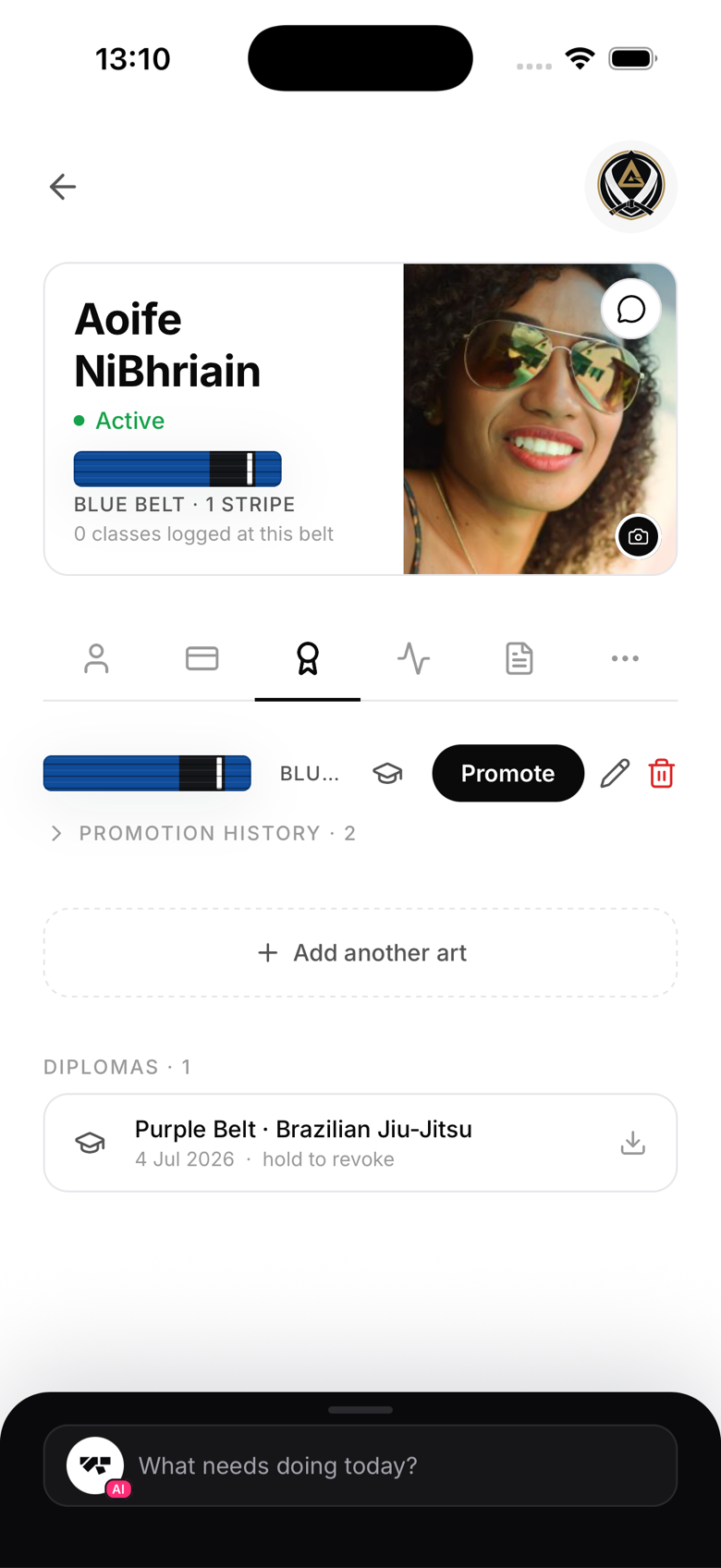
- Open the member's profile and go to the Ranks tab
- Find the discipline you want to promote, each art the member trains has its own row and its own Promote button
- Tap Promote. MatPilot automatically applies whatever the ladder calls for next, a stripe, or the next belt if the current one is maxed out
- Confirm in the popup
MatPilot never suggests who's ready to grade. That call is always the instructor's, based on the mats, not the app.
What gets recorded
- Member's new belt and stripe count (updated immediately)
- Promotion date and time
- The instructor who was logged in when the promotion was confirmed
- A promotion history entry on the member's Ranks tab
Member notification
MatPilot doesn't currently send an automatic notification when you promote someone. The member sees their updated rank next time they open the app, but telling them yourself, in front of the class, is still part of the moment.
After promoting
You'll be offered the option to generate a diploma right from the success screen. Tap Generate diploma to go directly to the diploma designer with the member's details pre-filled. You can also generate one later from the member's Ranks tab.
Grading a whole class at once
If you're promoting one or two people, the flow above is the fastest way. For a full grading ceremony with a group of candidates, use the dedicated Graduation Day feature instead, it lets you build a candidate list ahead of time and only applies the new ranks once you confirm after the event. See the next article for the full walkthrough.