Help Center › Grading & Promotions
Sharing and printing diplomas
Sharing options
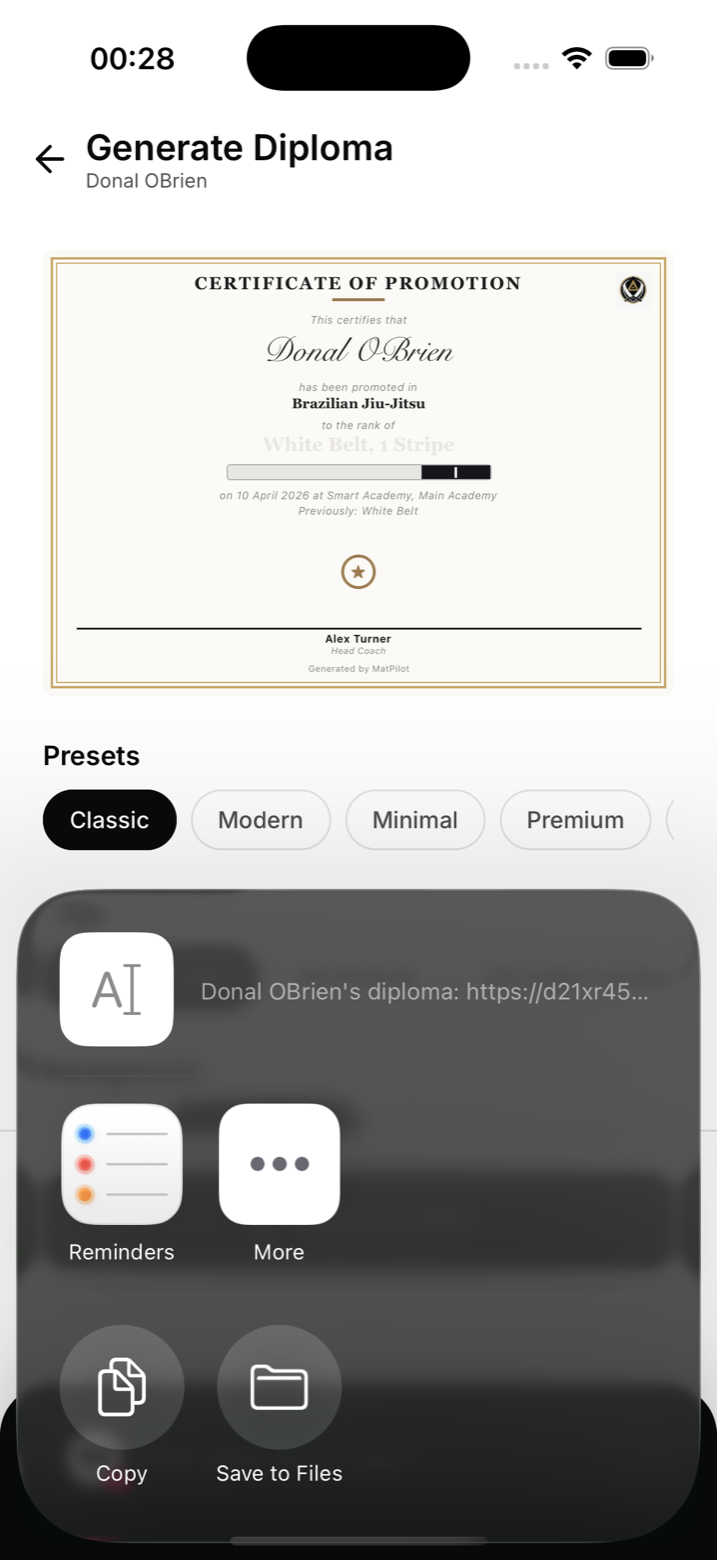
After generating, tap Share to open the system share sheet. Options include:
- AirDrop to a nearby device
- Messages / WhatsApp
- Save to Files
- Print (if a printer is connected)
Printing
For best results, print on A4 or US Letter card stock (120 to 200gsm). The diploma is generated as a high-resolution PDF suitable for printing.
If you're connected to an AirPrint printer, tap Print in the share sheet. For non-AirPrint printers, save the PDF to Files and print from your computer.
The member's copy
Every generated diploma is saved to the member's profile. They can access it from Progress, "My diplomas". They see a list of all their diplomas and can tap to view or share each one.
Diploma verification
If you enabled it when generating, each diploma carries a certificate number and a QR code linking to a public verification page. Recipients scan it to see the student, art, rank, date, and gym confirming the promotion is genuine, useful for competitions or club transfers.
Revoking a diploma
If a diploma was generated in error, go to the member's profile, Ranks tab, long press the diploma in the saved list, and choose Revoke. The member still sees the diploma in their list, but it's marked with a "Revoked" badge, and the verification page shows it as revoked rather than valid. You can reinstate it the same way if the revoke was a mistake.