Your academy's photo on the kiosk
Your mats, your wall, your team photo: the first thing people see at the door can be your own academy.
Adding your photo
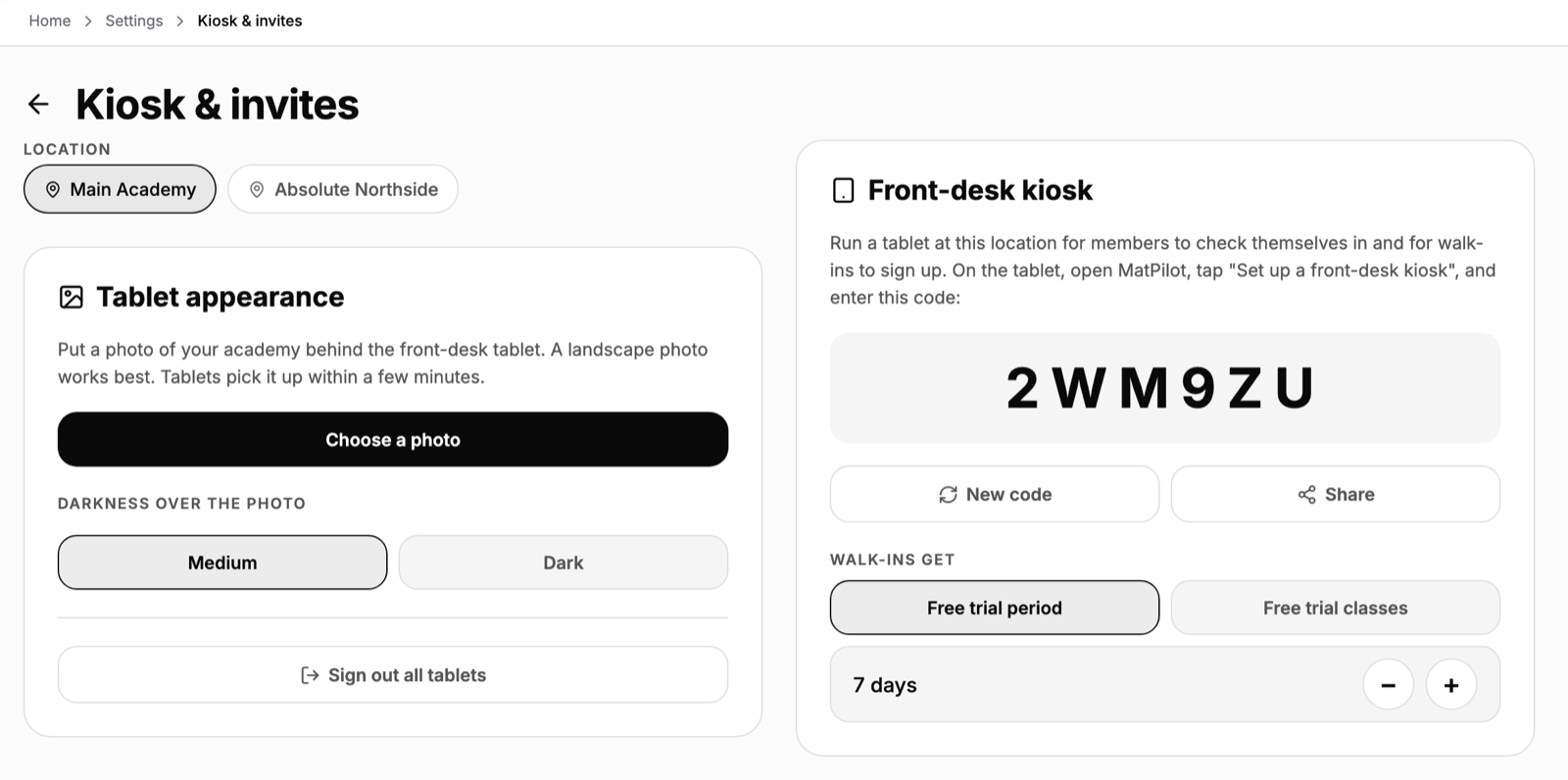
- In the MatPilot app, open Settings, Kiosk & invites and pick the location.
- In Tablet appearance, tap Choose a photo. A landscape photo works best.
- Choose Medium or Dark for the shade over the photo, so the names and buttons stay readable.
Every tablet at that location shows it within a few minutes. There is nothing to do on the tablets.
Changing or removing it
Change photo replaces it on every tablet; Remove photo takes the tablets back to the background chosen on each tablet, or none.
How it sits with the tablet's own settings
Your photo takes priority over the built-in backgrounds chosen on a tablet. Colours stay a per-tablet choice. The default accent is black, and the kiosk draws it in white over a dark photo so it never disappears. See Kiosk branding: backgrounds and colours.
Choosing a good photo
- Wide rather than tall, and not too busy in the middle, where the two big cards sit.
- Your own space or your own people, with permission from anyone recognisable.
- Dark suits a bright photo; Medium a photo that is already dim.