Troubleshooting kiosk connectivity
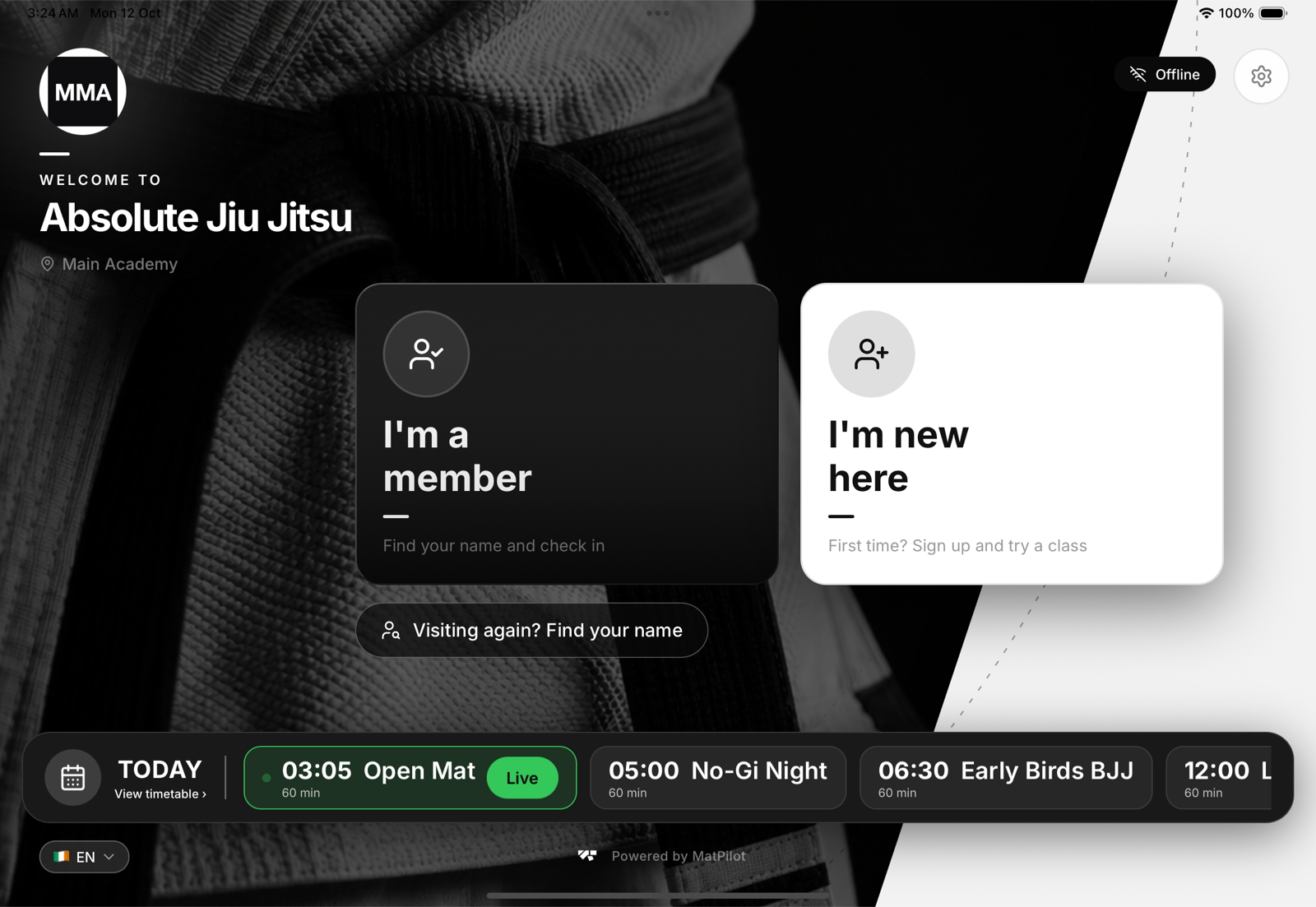
The Offline badge is showing
The tablet cannot reach MatPilot. It carries on with today's timetable and a saved list of names, and keeps check-ins to send later, so nobody is turned away. See When the kiosk loses its internet connection.
- Open the tablet's own Settings and check the Wi-Fi.
- Once the connection is back, the badge clears by itself within about 30 seconds and saved check-ins are sent.
- Still showing? Close MatPilot on the tablet and open it again.
The tablet is back on the pairing screen
A tablet only goes back to pairing when it has been signed out: someone tapped Unpair this tablet on it, an owner used Sign out all tablets, or the kiosk was switched off for that location. A Wi-Fi drop never does it. Pair it again with the code in Settings, Kiosk & invites. See Signing out kiosk tablets.
A member is not found
- Check they belong to this location and are not archived.
- Offline, the kiosk searches a saved list by first name only. Ask them to type their first name.
- A visitor finds themselves through Visiting again? Find your name, not I'm a member. See Returning visitors at the kiosk.
A class is not showing
The kiosk offers today's classes at its own location that have not finished yet. Check the class is at the right location. A class that ended a minute ago is no longer offered: add the late arrival from the class roster.
You cannot unlock the settings
Use the location's current pairing code, shown in Settings, Kiosk & invites. If you made a new code, the old one no longer opens the settings. Offline, the code the tablet was paired with still works. Still stuck? MatPilot support can give you a one-time code for that location. See Kiosk codes, explained.