Setting up a kiosk tablet
Step 1: get the pairing code
In the MatPilot app, as the owner:
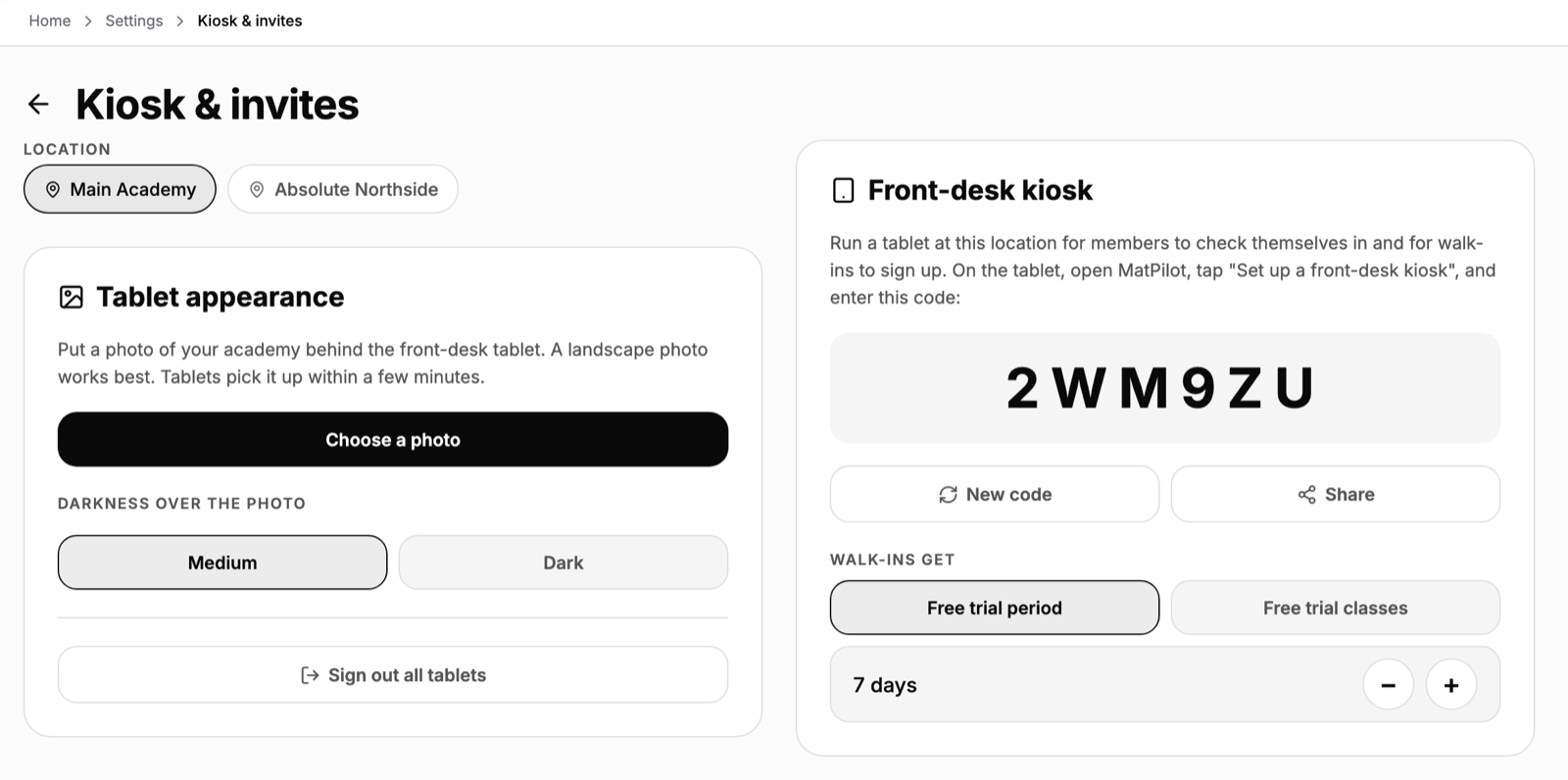
- Open Settings, Kiosk & invites.
- Pick the location if you have more than one.
- Under Front-desk kiosk, tap Enable kiosk for this location the first time. A 6-character pairing code appears.
Step 2: install MatPilot on the tablet
Download MatPilot from the App Store or Google Play and open it. Do not sign in.
Step 3: pair it
- On the welcome screen, tap Set up as kiosk.
- Enter the pairing code.
- The tablet opens your kiosk home screen.
Step 4: make it look like your academy
Back in Settings, Kiosk & invites, the Tablet appearance card puts a photo of your academy behind the kiosk. Every tablet at that location picks it up within a few minutes. See Your academy's photo on the kiosk. Colours and the tablet's language are set on the tablet itself, behind the gear icon. See The kiosk admin panel.
Step 5: lock the tablet to MatPilot
The kiosk keeps the screen on and ignores the back gesture, but only the tablet can stop someone leaving the app. Turn on Guided Access on an iPad or app pinning on Android. See Locking down the kiosk tablet.
More than one tablet
The pairing code belongs to the location, so you can pair several tablets with it. See Pairing multiple kiosk tablets.