The kiosk admin panel
Everything staff can change on the tablet lives behind one gear icon and one code.
Getting in
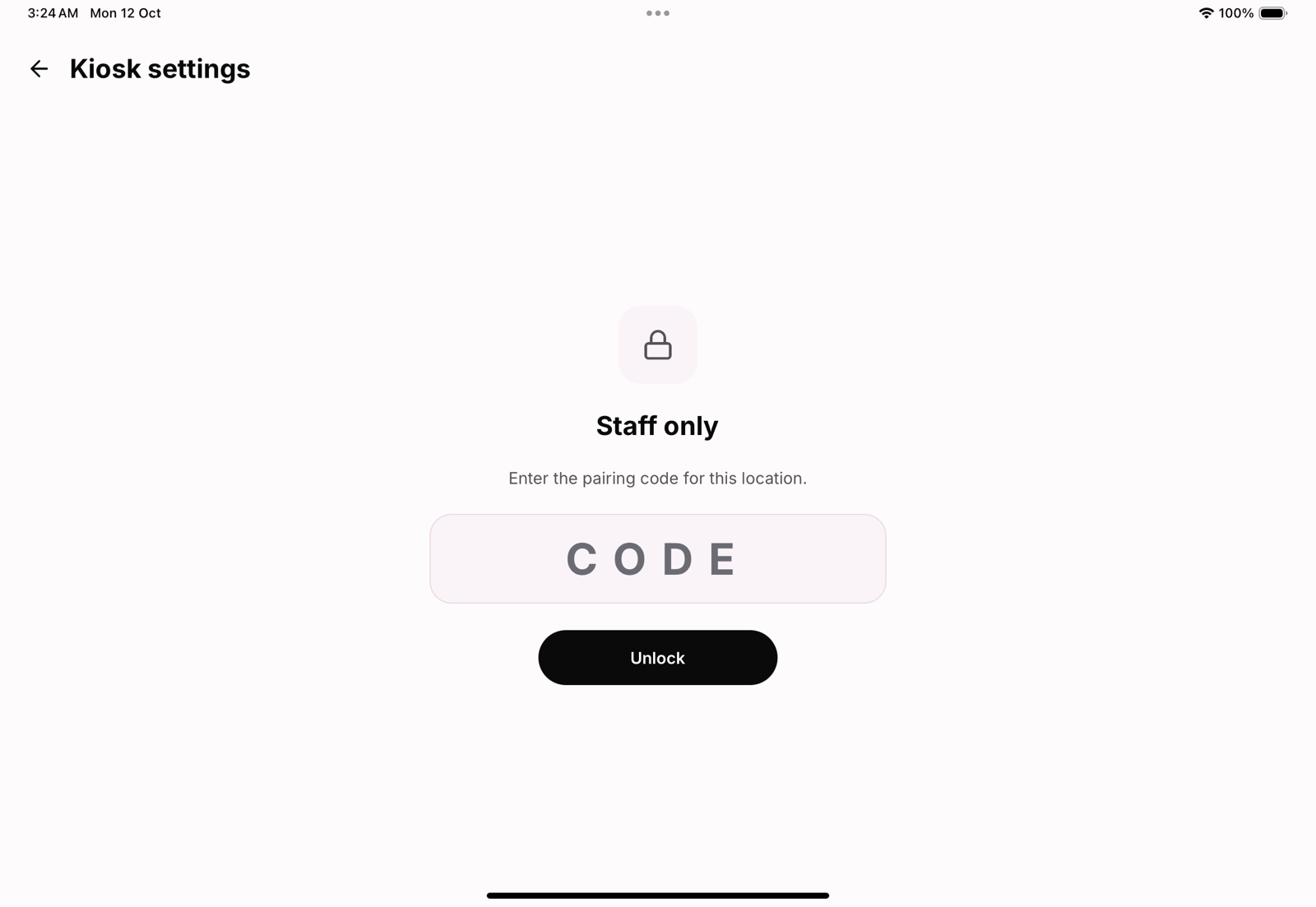
Tap the gear in the corner of the kiosk's home screen. It asks for the location's current pairing code before showing anything, so a member poking at the tablet only sees a lock. Without internet, the code the tablet was paired with still opens it.
What is inside
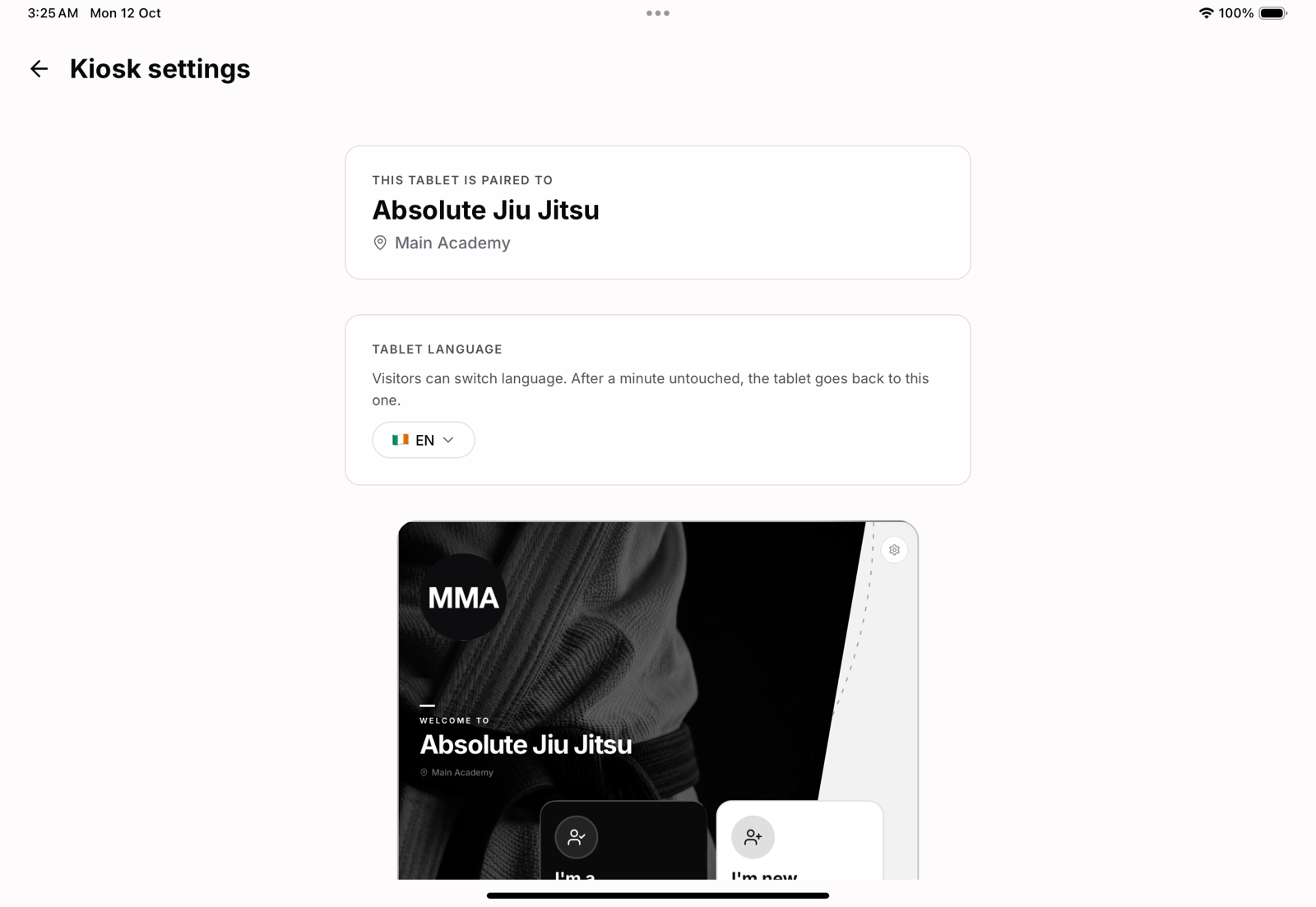
- This tablet is paired to: the academy and location.
- Tablet language: the language the kiosk returns to after a minute untouched.
- A live preview of the home screen.
- Background, overlay and the colour kit. See Kiosk branding: backgrounds and colours.
- Show today's classes: the class bar on the home screen.
- Unpair this tablet.
Unpairing
Unpair a tablet you are retiring, moving to another location or giving another job. It is signed out of MatPilot straight away and goes back to the pairing screen; pairing it again takes the current code of wherever it goes next. To sign out every tablet at once, or one you cannot reach, use Sign out all tablets in the app. See Signing out kiosk tablets.
Leaving it
Left untouched for a minute, the tablet asks Still there? and then closes the settings, so they are never left open for the next person.