Putting your timer on a gym TV
The screen everyone watches between rounds can show your timer and who has checked in.
Set it up
- In the MatPilot app, open Settings, TV display and pick the location. Tap Enable TV display for this location the first time to get a code.
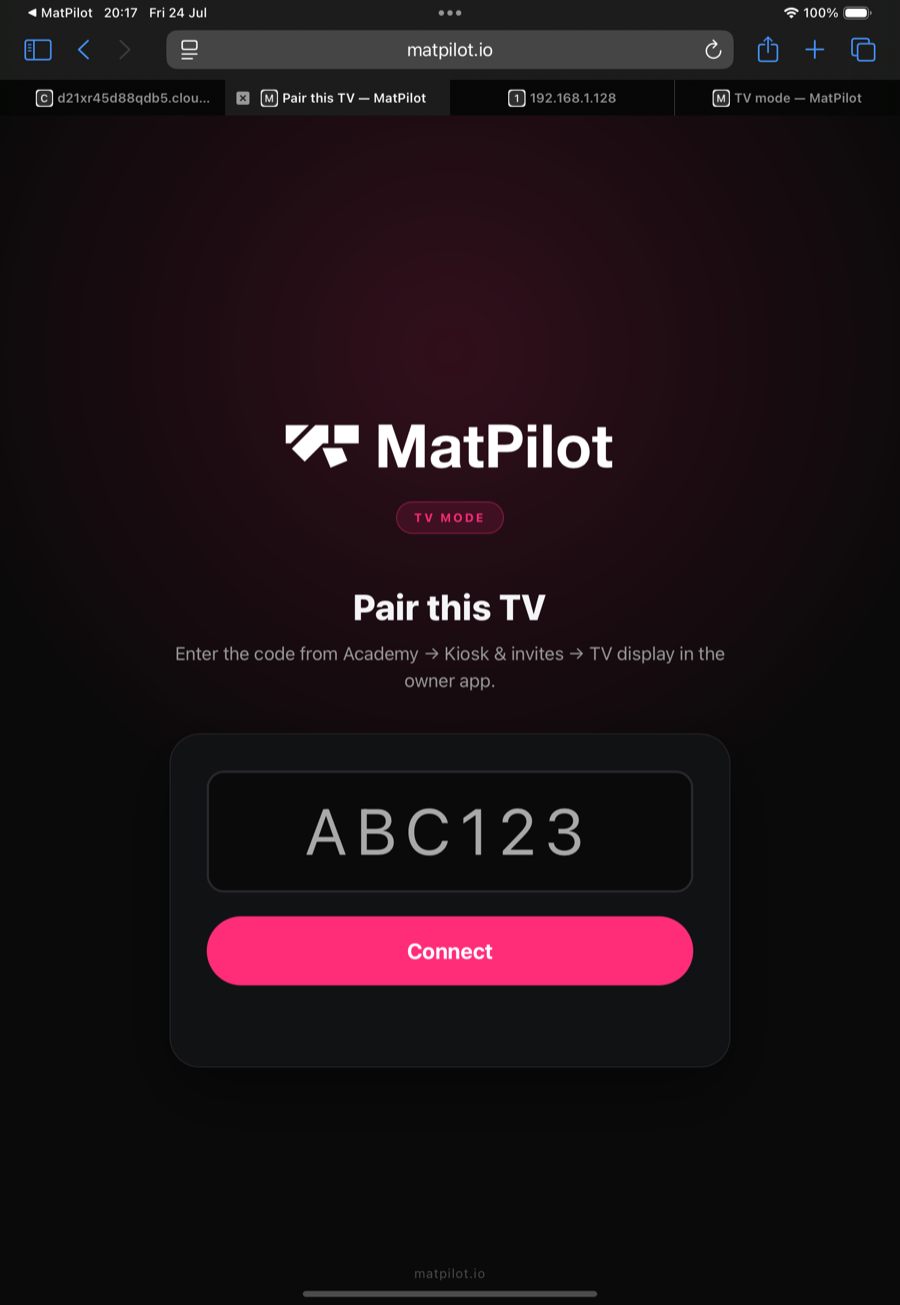
- On the TV (or anything with a browser: a streaming stick, an old laptop on HDMI), open matpilot.io/tv/pair.
- Type the code from the app. The TV switches to your academy's display.
What it shows
- A round timer for rounds and rests, readable from the far end of the mat.
- The live check-in list for the class that is on, so members see their name appear as they check in at the kiosk.
Check-ins from the kiosk or the front desk appear within moments, which quietly reminds everyone to check in.
Notes
- The TV only displays. Open remote control on the same screen lets you drive the timer and views from your phone.
- Pairing survives restarts. Pair again from the same screen if you change the hardware.
- The TV and the kiosk tablet are separate devices with separate codes.