Kiosk display settings
Two places shape how the kiosk looks: the app for things every tablet should share, and the tablet itself for that one screen.
In the app, for every tablet at a location
Settings, Kiosk & invites, Tablet appearance: a photo of your academy behind the kiosk and how dark to make it (Medium or Dark). Every tablet at that location picks it up within a few minutes. See Your academy's photo on the kiosk.
On the tablet, behind the gear icon
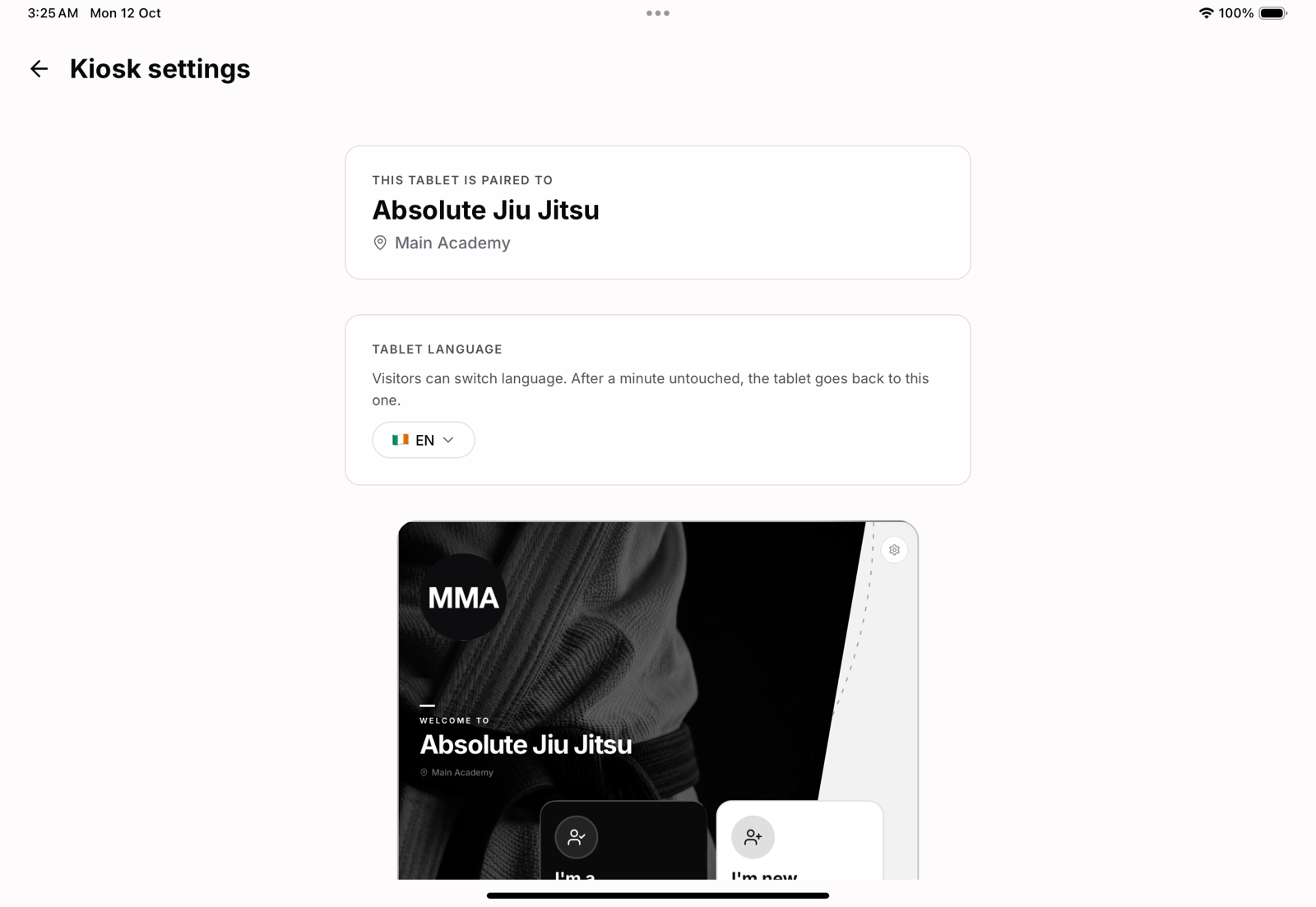
Tap the gear on the kiosk's home screen and enter the location's pairing code. Everything here is saved on that tablet only:
- Tablet language: the language the kiosk starts in. A visitor can switch language, and after a minute untouched the tablet goes back to this one.
- Background: one of the built-in martial-art backgrounds, or none. Your academy's photo from the app takes priority over it.
- Colours: the accent, the text, the two big cards and the class bar. The default accent is black, drawn in white wherever it sits on a dark surface.
- Show today's classes: the class bar along the bottom of the home screen.
A live preview at the top shows each change before you leave the tablet.
Things the kiosk does by itself
- Starts over when left alone. On any screen after the home screen, a minute untouched brings up Still there?, and 15 seconds later the kiosk goes back to the start, so the last person's name never waits for the next one.
- Stays awake. The screen does not dim or lock while the kiosk is open.
- Your logo comes from your academy profile.