Inviting staff and instructors
Staff roles
- Owner: full access to everything, including billing and settings
- Manager: same as owner except cannot delete the gym or change billing
- Instructor: can take attendance, view rosters, promote members, and generate diplomas
- Reception: can check in members and view the class schedule
How to invite staff
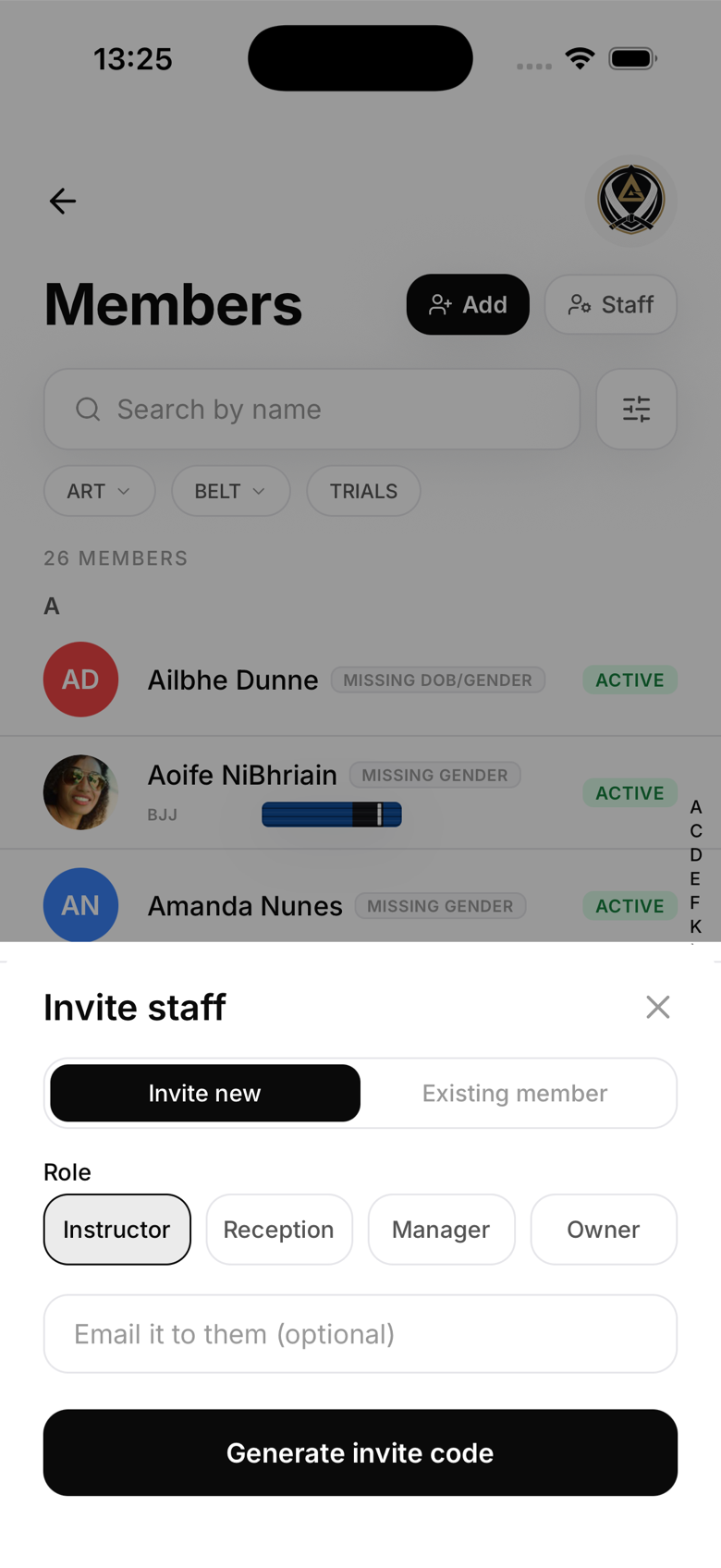
On the Members screen, tap the Staff button next to Add (visible to owners and managers only). Pick a role, either invite someone new or promote an existing member, and MatPilot generates a single-use invite code. Share it however you like; the person opens the app, taps "Join with a code", and enters it to get access. Only an owner can hand out a Manager or Owner code; managers can invite instructors and reception staff.
Instructor assignments
Once an instructor has an account, you can assign them to specific classes. This shows their name on the class card and lets members know who's teaching.
Removing staff
To remove a staff member, open their profile, go to the More tab, and tap Archive member. This removes their access immediately. Their historical attendance records are preserved, and you can restore them later if needed.