Adding your first members
Manual entry
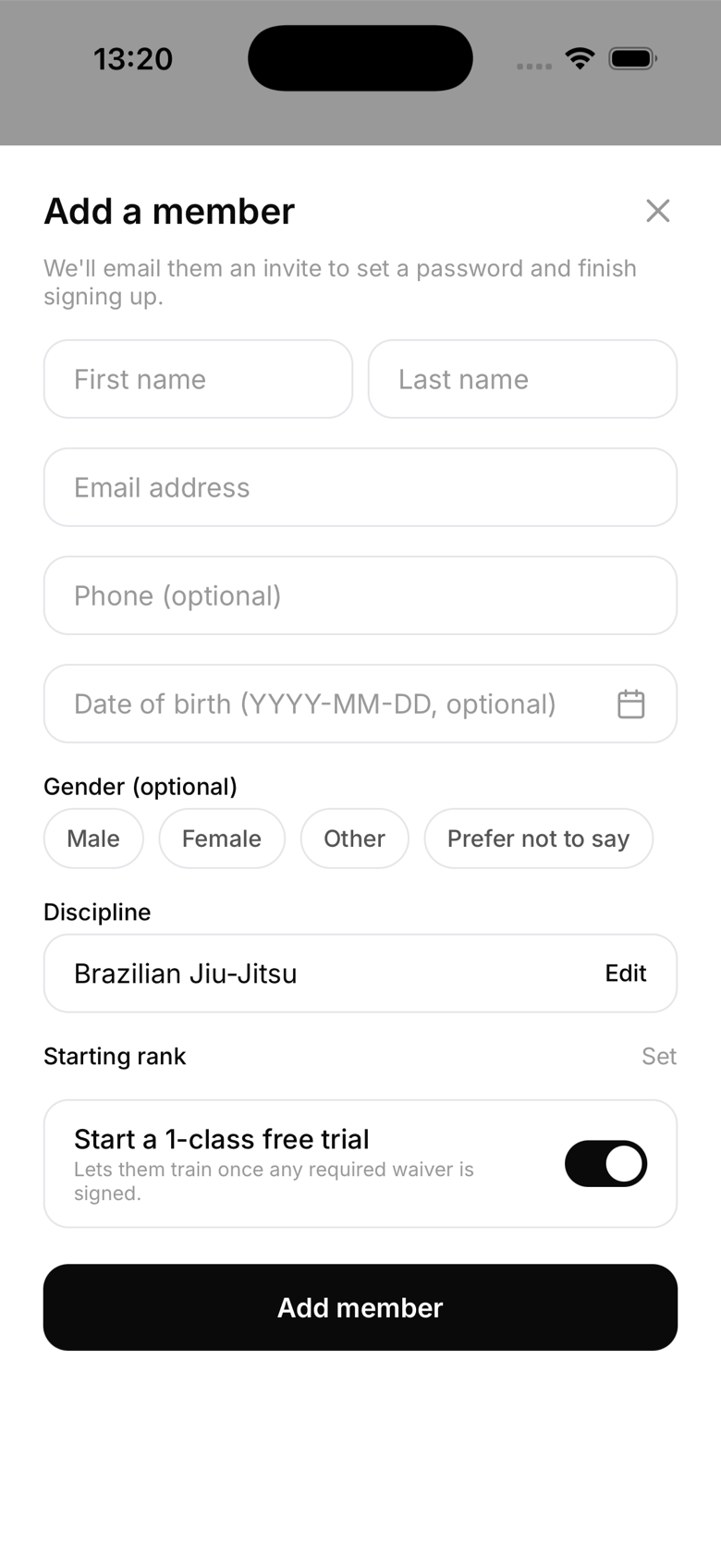
From the Members screen, tap Add. Fill in the member's name and email, and add belt rank, date of birth, or emergency contacts right away if you have them, or later. This flow is for students and children; the member receives an email invitation to set up their account. To add instructors, managers, or reception staff, use the separate Staff button next to it instead (see Inviting staff and instructors).
Invite code
MatPilot uses shareable invite codes rather than links. From the Kiosk & TV display screen (Gym tab → Setup), generate a code and share it with a prospective member. They open the app, tap "Join with a code", enter it, and appear in your member list automatically.
Bulk paste import
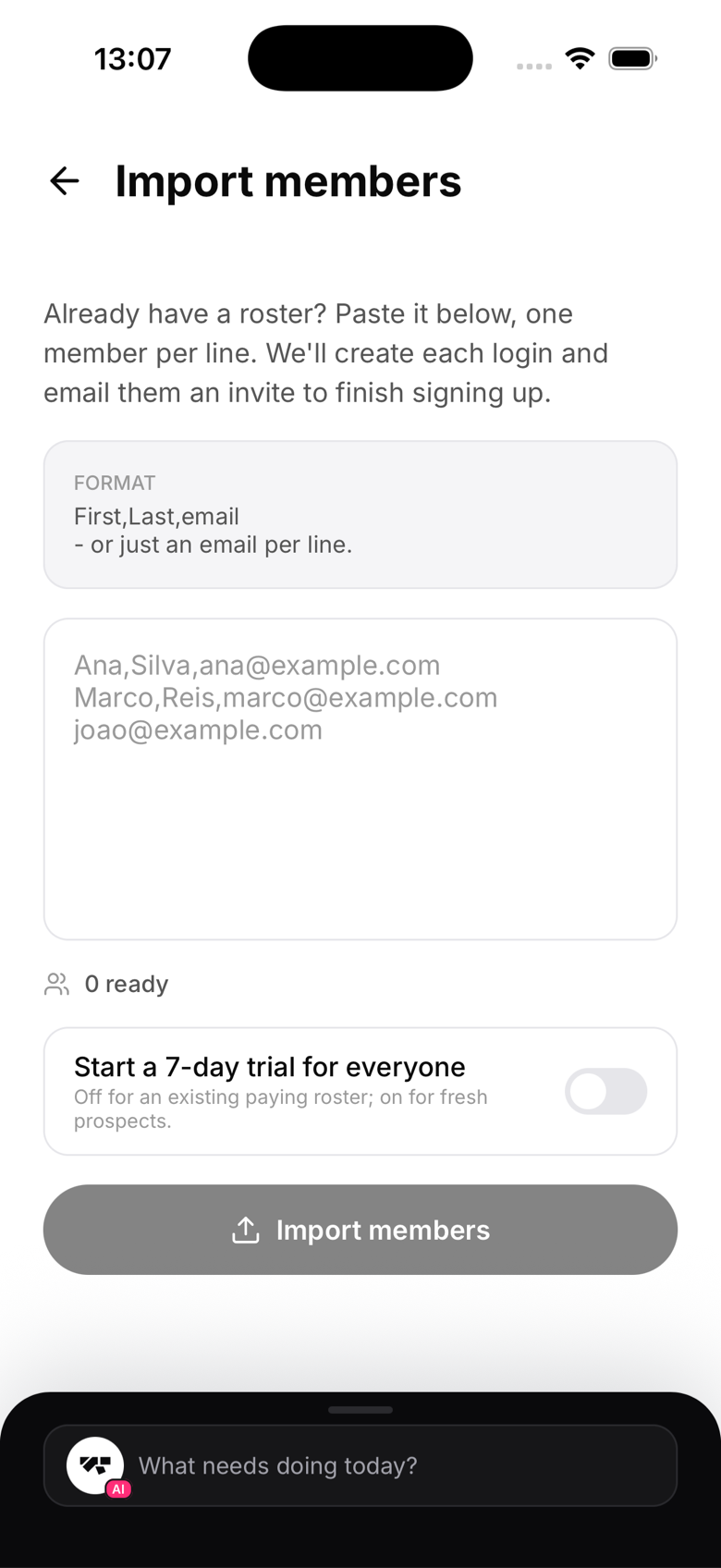
For gyms migrating from another platform, go to the Gym tab → Manage → Import members. This isn't a file upload, it's a paste box: copy the name and email columns from your old system's export and paste them in as one member per line (First, Last, email). MatPilot parses the rows, skips anyone already in your gym, and shows you a summary once it's done.
After adding a member
Once a member is in the system:
- Assign them a membership plan (or grant a free trial)
- Set their belt rank if applicable
- They can start booking classes and checking in
Member status
New members typically start as invited until they set up their account, or active right away if you put them straight on a trial or plan. If a member leaves, you can archive them from their profile's More tab. Their data and history are preserved and they drop off your active roster, though on a free MatPilot plan archiving doesn't currently free up your member cap; upgrading removes the cap entirely.
Importing from Stripe
Already billing members through Stripe? Link your existing Stripe account and MatPilot imports its customers and subscriptions directly, so billing keeps running without interruption. The full walkthrough is in Migrating from another platform.