Navigating the owner dashboard
Daily briefing
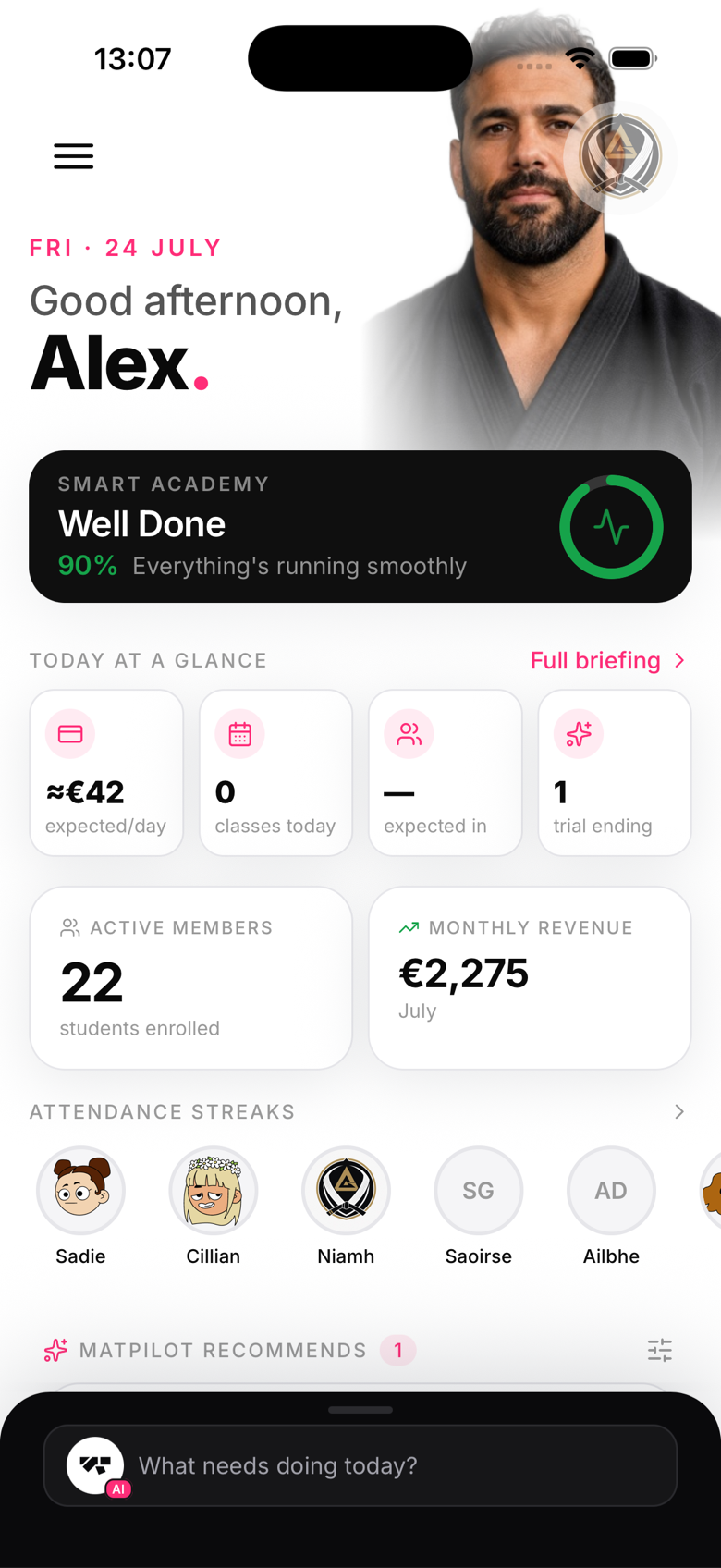
At the top of the Home screen sits an Academy status gauge. Tap it, or the "Full briefing" link further down, to open your full daily briefing: a short, AI-written summary of what needs your attention, grounded in real numbers like upcoming classes, members with failed payments, and revenue highlights. MatPilot deliberately never auto-flags who's "ready to grade", promotion is always the professor's call.
Key metrics
Below the briefing, a "Today at a glance" row shows expected revenue for the day, how many classes are on today, expected attendees, and any trials ending soon. Further down you'll find quick stats for active members and monthly revenue, plus attendance streaks once you've got some history built up.
Getting things done fast
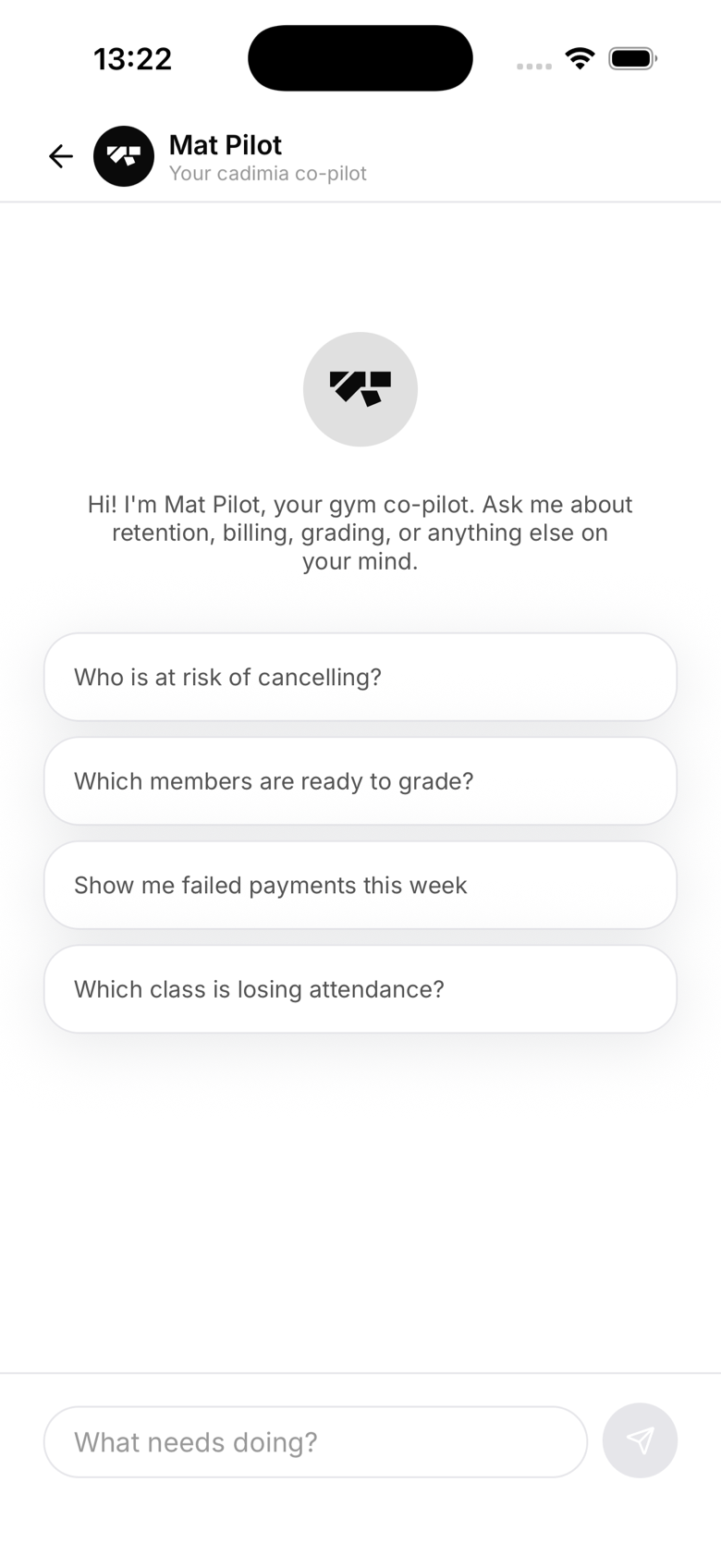
There's no floating add-button on Home. Instead, a command bar pinned to the bottom of the screen opens the AI assistant with contextual quick prompts, tap it to ask for things like "add a member" or "create a class" in plain language. For structured navigation, tap the menu icon to open the full drawer.
Navigation
There's no traditional bottom tab bar with fixed sections. Real navigation happens through the menu: Home, Inbox, Members, Classes, Events, Marketing, Finances, Membership plans, Academy store, My academy, My account, and Settings all live there. The Gym (Academy) screen, reachable from the menu, is your day-to-day hub: members, classes, plans, payments, and more, grouped into Manage, Money, and Setup sections.