Help Center › Billing & Payments
Viewing your revenue dashboard
Accessing the dashboard
The revenue summary appears on the owner home screen in the briefing card. For more detail, open the Finances screen from the Gym tab, or tap through from any revenue figure on Home.
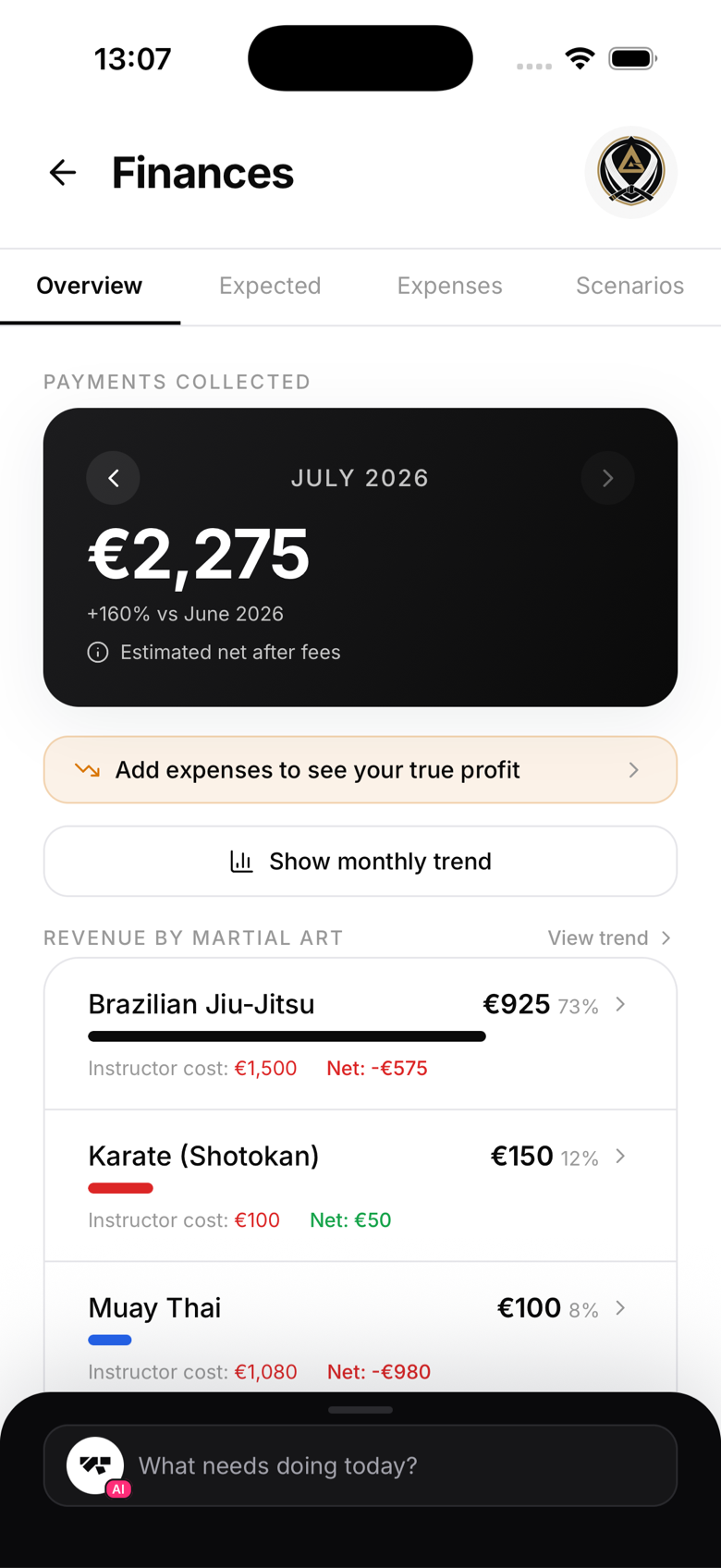
What you'll see
- Monthly recurring revenue (MRR) - total active subscriptions x their monthly price
- This month's collected - actual payments received so far this month
- Active subscribers - members currently on a paid plan
- Failed payments - count and total owed
Revenue by plan
The revenue view breaks down income by plan type. You can see which plans are most popular and generating the most revenue.
Historical trends
Monthly revenue figures are tracked over time so you can see a trend as your gym grows.
Currency
Revenue totals are calculated in your gym's configured currency. If you have plans priced in more than one currency, only payments in your gym's main currency are included in the headline total, so it's worth reading "Payment currency support" if you sell in multiple currencies.
Limitations
The MatPilot revenue dashboard shows data from payments processed through the platform. Cash payments recorded manually are included once logged as an in-person payment; anything settled entirely outside MatPilot or Stripe won't appear.
Exporting revenue data
For accounting purposes, export detailed reports from your Stripe dashboard. MatPilot's revenue view is a summary tool, not a full accounting system.