Help Center › Billing & Payments
Stripe account setup, step by step
Before you start
You'll need:
- A Stripe account (or you'll create one during onboarding)
- Your business details (name, address, tax number if applicable)
- A bank account for payouts
How to connect
- Go to Settings
- Tap Connect Stripe
- You'll be redirected to Stripe's secure onboarding
- Follow the steps to enter your business information
- Once complete, you're redirected back to MatPilot
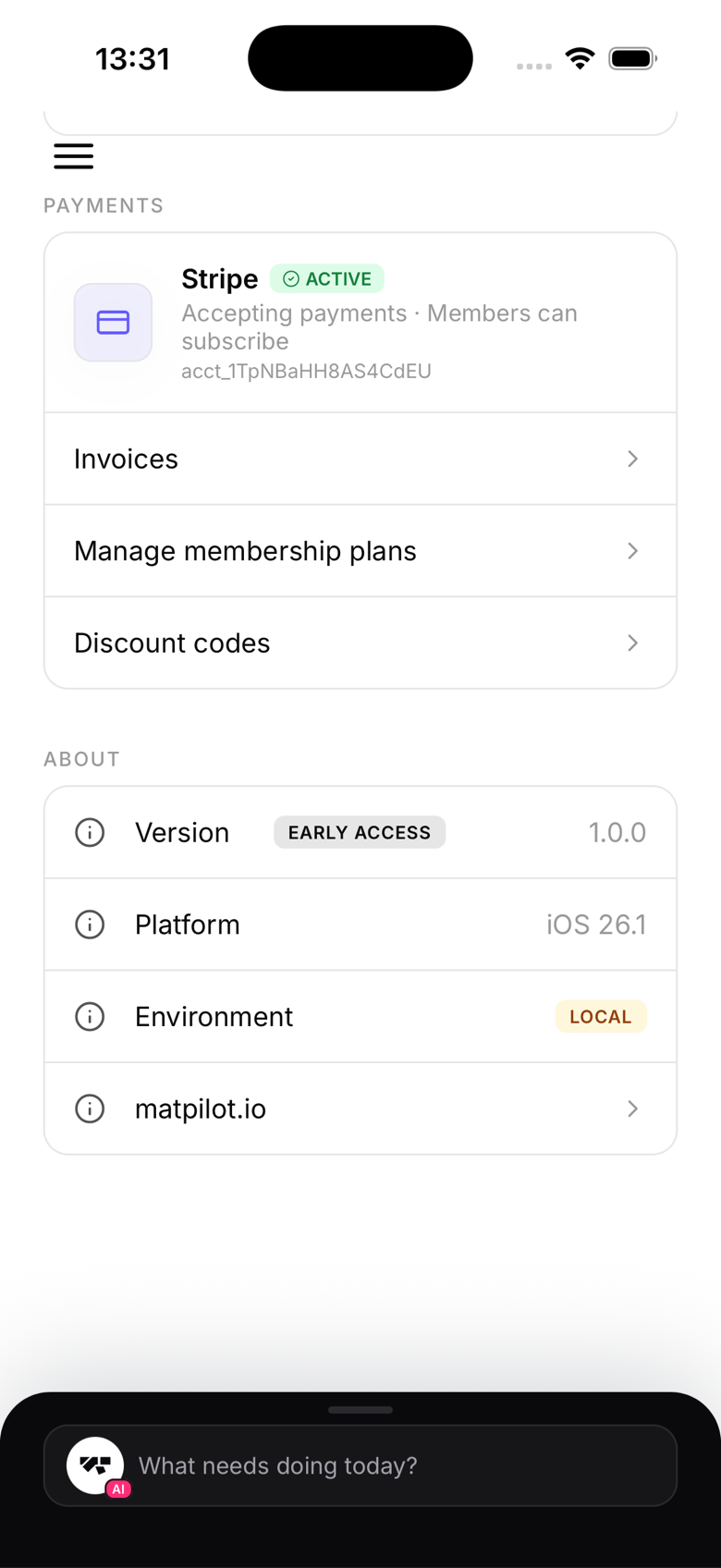
If you already have a Stripe account
Stripe will detect your existing account and offer to connect it rather than create a new one. Use the Use existing account option.
Verification
Stripe may ask for identity verification documents (passport, driving licence) for compliance. This is a Stripe requirement, not MatPilot's.
Testing the connection
After connecting, create a test membership plan and try purchasing it using Stripe's test card (4242 4242 4242 4242). If the payment goes through and appears in your Stripe dashboard, the connection is working.
Changing or removing your Stripe connection
There's currently no in-app option to disconnect Stripe once it's connected. If you need to change your connected account (for example, you moved your gym to a new legal entity), contact MatPilot support and we'll help you re-onboard without disrupting existing member subscriptions.