Creating your first class
The fastest way: just ask
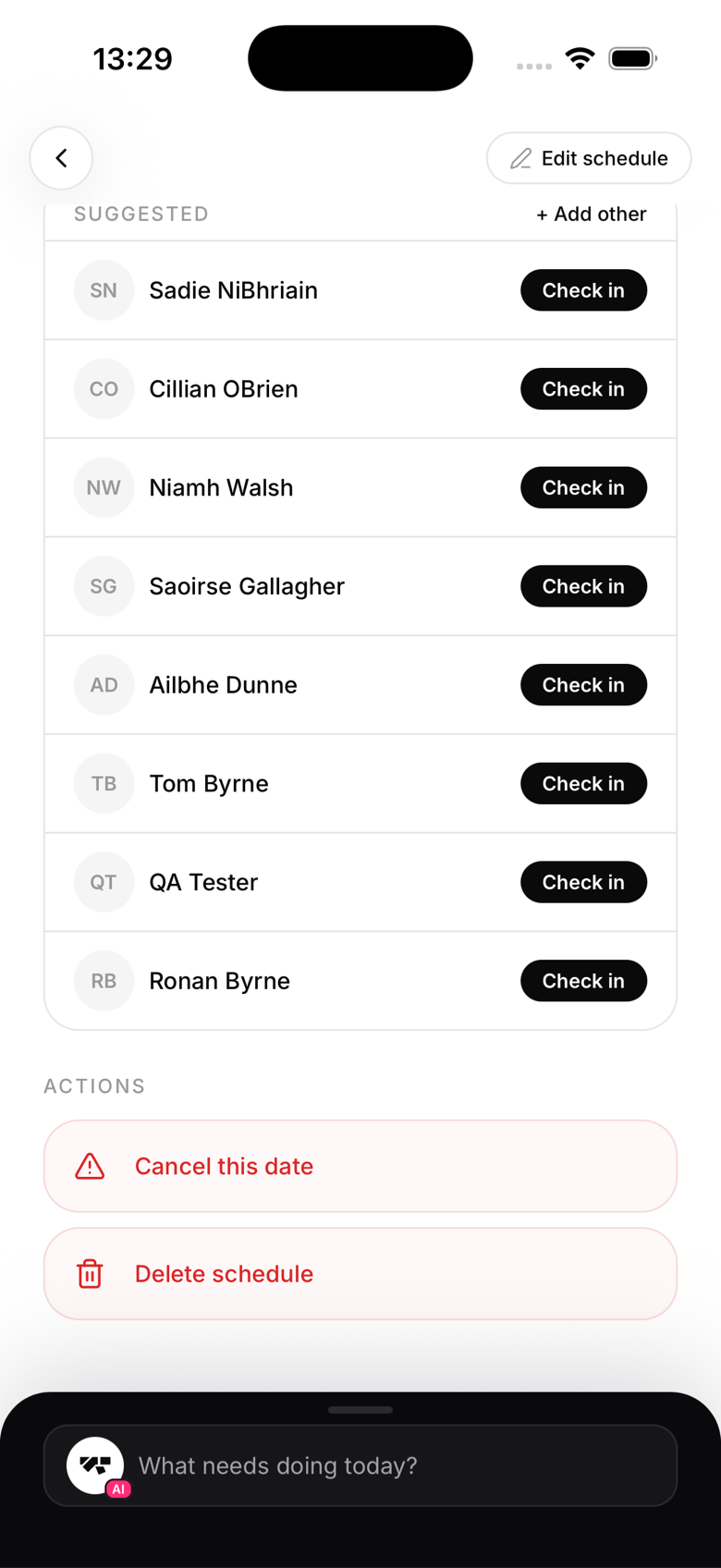
Tap the command bar at the bottom of your Home screen and type something like "create a BJJ fundamentals class Mondays and Wednesdays at 6pm, 20 spots". The AI co-pilot builds the recurring class and shows you a preview card; nothing is created until you tap Confirm. The rest of this guide covers doing it by hand.
Creating a class
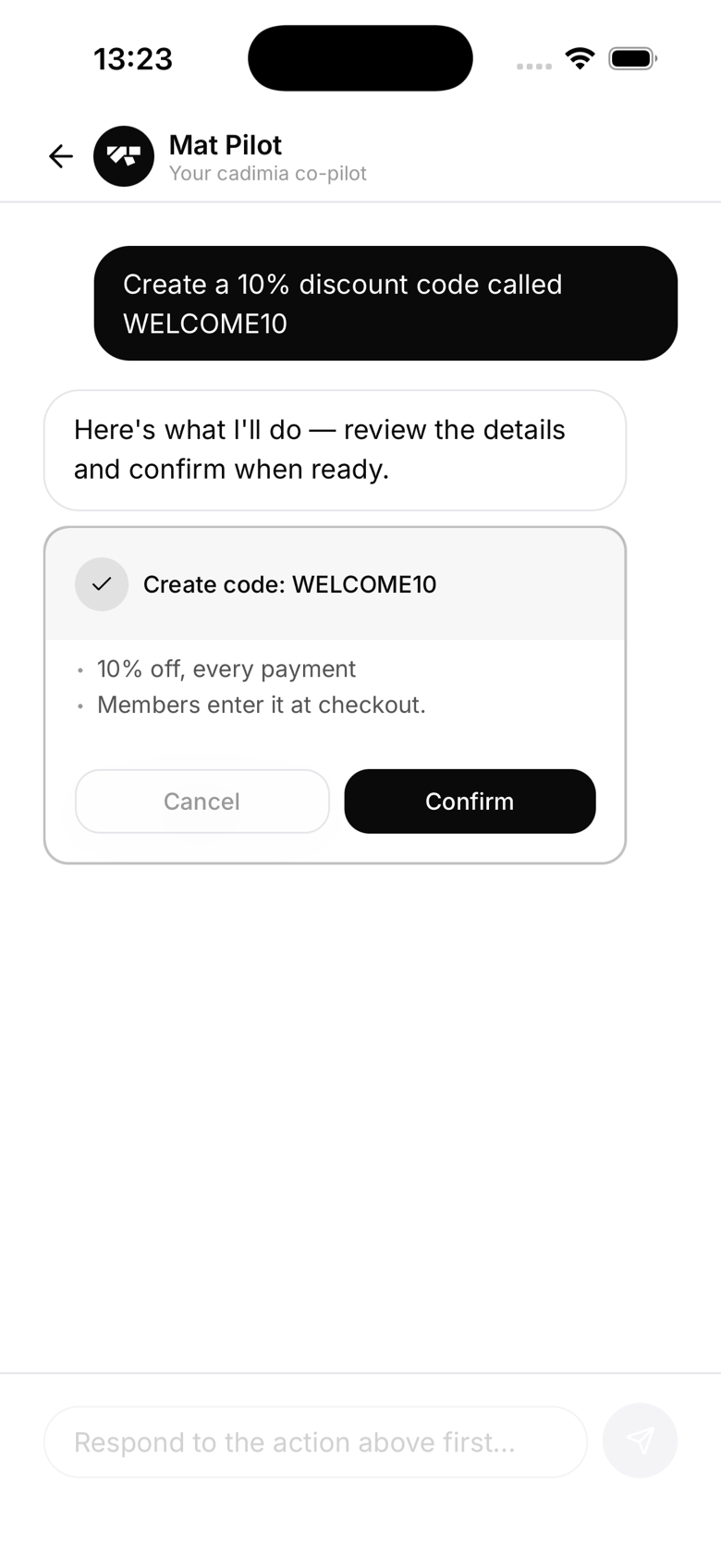
Go to Schedule and tap the + button to open New class. Fill in:
- Name: e.g. "BJJ All Levels", "Kids Karate"
- Days and time: pick one or more days of the week and a start time (you can set a different time per day if needed), plus a duration
- Instructor: assign one or more staff members (optional but recommended)
- Booking: optionally require members to book a spot, with a booking window
The class is created at whichever location you currently have active, so switch locations first if you run more than one. There's no capacity field on this form yet; if you want a hard cap on spots, set a default max class capacity for the location in the Gym tab → Setup, or ask the AI assistant to set one for a specific class.
Every class is recurring
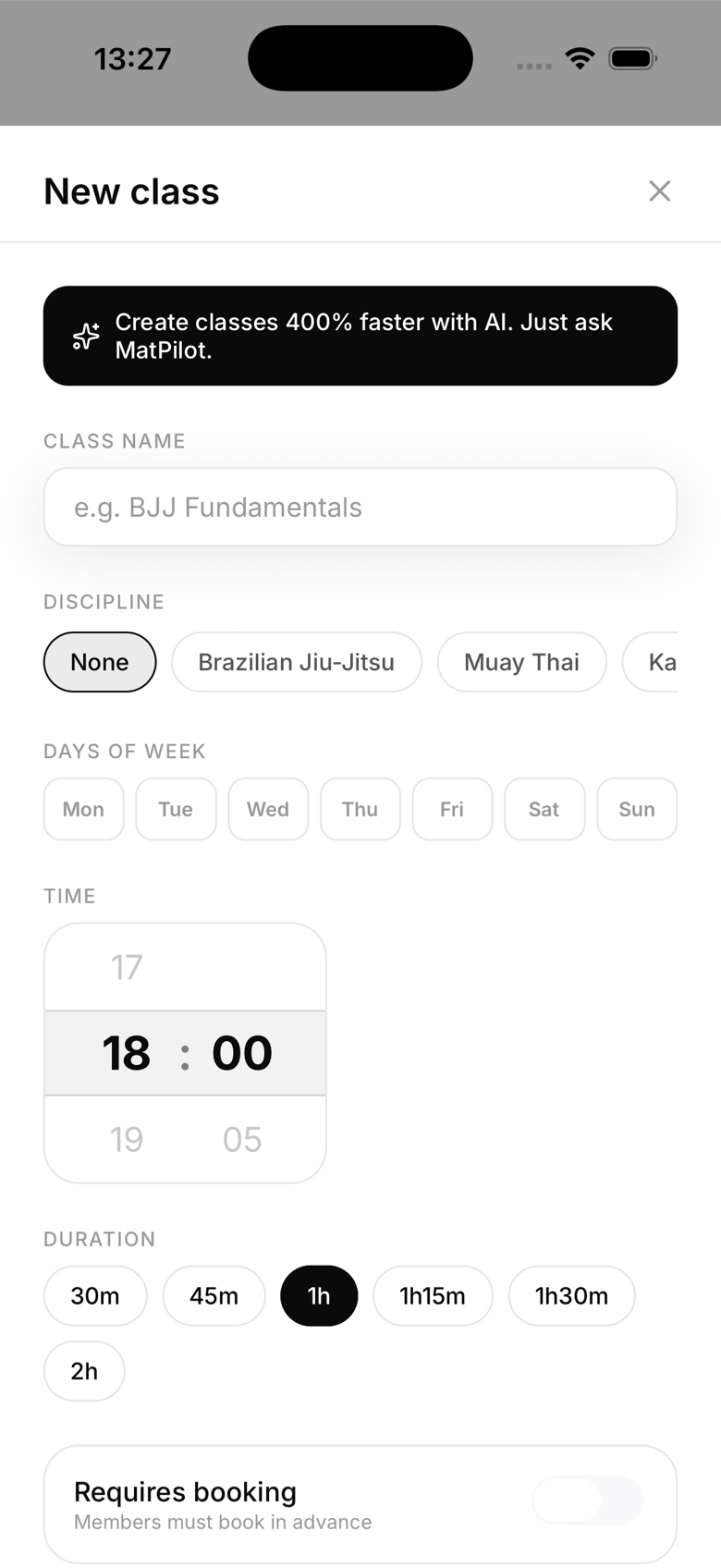
MatPilot classes are always set up as weekly recurring sessions, there's no separate "one-off, single date" class type. For one-off events like seminars or gradings, use the dedicated Seminars or Graduation features instead of creating a class. You can still cancel a single instance of a recurring class (say, if you're closed one week) without affecting the rest of the series.
What members see
Members see all active classes on their Schedule tab. They can tap to view details, book a spot, and check in when they arrive. If a class is at capacity they'll see an option to join the waitlist.
Taking attendance
Tap the class to open its roster. You'll see who booked, who checked in, and who's absent. Tap + Add to manually check in members who forgot to tap in on the kiosk.