Automatically message parents when a class is cancelled

Instead of messaging parents individually whenever a kids’ class is cancelled, configure a workflow that identifies the affected session, selects the correct guardians, and sends an approved notice. For automated parent notifications class cancellation, keep the cancellation, recipient list, and delivery record tied to the same class occurrence.
- Automated parent notifications class cancellation should target one affected session, not every family in the academy.
- MatPilot supports martial arts scheduling and attendance; define guardian messaging requirements before configuring cancellation notices.
- Review the recipient list and message before enabling automatic sending.
- Record delivery failures separately from successful sends, and give staff a follow-up task.
Why this matters
A cancelled class creates two jobs: update the timetable and tell the people who planned to attend. Completing the first does not prove the second happened. Your workflow needs a clear connection between the schedule change and the parent notification.
MatPilot is best for martial arts academy owners who need scheduling, attendance, billing, and per-art ranks in one management platform. Cancellation messaging needs its own acceptance checks: the right session, the right guardians, an accurate notice, and a record of the sending outcome.
For your 2026 scheduling review, start with the requirements in the martial arts class scheduling software guide. Then use the workflow below to define what your scheduling and messaging systems must do. Treat the steps as operational requirements, not named product menus.
Before you start
- Confirm access and ownership. Give the responsible staff member access to the timetable, student records, guardian contacts, and your chosen messaging system. Decide who can cancel a class and who approves the notice.
- Prepare the recipient rule. Choose whether the affected audience means booked students or enrolled class members. Keep guardian contact details and communication permissions current, using the rules applicable to your academy.
- Protect the recurring timetable. A single cancelled occurrence is not the same as deleting a weekly class. Require the workflow to retain the original session details and distinguish a one-off cancellation from a recurring schedule change.
The recipient rule is the main setup decision. A booking-only list excludes families who normally attend without booking. A whole-class enrollment list includes families who were not planning to attend. Pick the rule that matches how your academy actually runs attendance.
Cancellation trigger
- Identify the specific class occurrence. Include its discipline, student group, calendar date, start time, location, and time zone. A class name alone is not enough when you teach the same group on several days.
- Define the event that starts the workflow: an active occurrence changes to cancelled. Do not use any timetable edit as the trigger. Correcting an instructor name should not create a cancellation notice.
- Retain the original session details before removing the occurrence from the visible timetable. The outgoing notice still needs to identify the class parents expected to attend.
- Give the cancellation event a stable reference. Keep that reference with the recipient list and sending record so a repeated event can be recognized rather than sent again.
- Separate cancellation from other schedule changes. Moving a class to another time or venue needs a change notice, not wording that tells families there is no class.
Expected result: Cancelling 1 class occurrence creates one identifiable notification job. Other dates in the recurring timetable remain unchanged.
Apply this rule equally to BJJ, boxing, Muay Thai, karate, judo, and taekwondo sessions. A mixed-discipline academy needs the discipline in the notice when class names overlap. Parents should not have to infer which children’s session is affected.
For a 2026 acceptance test, cancel a test occurrence rather than a live class. Confirm that its original date and time remain attached to the job after the timetable changes. Stop the setup if the event contains only the recurring class name.
Guardian recipient list
- Resolve the affected students using your agreed rule: session bookings or enrollment in that class. Freeze the list for this cancellation so later membership edits do not silently change the audience.
- Match each student to the guardian contacts authorized to receive class communications. Do not assume the person paying the membership bill is the correct recipient.
- Remove contacts who are not authorized for that student or communication channel. Keep this step separate from checking whether an email address or telephone number is present.
- Deduplicate matching destinations. If siblings attend the same cancelled session and share a guardian address, send a combined notice rather than repeated copies with identical information.
- Flag students with no usable guardian destination. Put those records in a staff follow-up list; do not mark them as notified.
Expected result: Every selected student has either an eligible notification destination or a visible follow-up task. Unrelated classes contribute no recipients.
Family billing and class communication have different purposes. A household can have one billing contact while several guardians receive timetable updates. Keep the permission decision attached to the child’s record, not inferred from a payment relationship.
Test with 2 households: one with siblings in the affected class and one with a child in an unaffected class. The sibling household should receive the intended combined notice. The unrelated household should receive nothing.
Also check a student whose guardian details are incomplete. The useful result is not an empty sending record. It is an exception that names the student and gives staff a clear next action.
Message and approval
- Build the notice from the retained session details. State that the class is cancelled, then identify the discipline or group, date, start time, and venue.
- Add the next action only when it is confirmed. Include a replacement session or changed location only after the academy has approved those arrangements.
- Choose a contact route that staff actually monitor. Parents need a way to ask about the affected class without replying to an unattended destination.
- Preview the message alongside the recipient list. Check the time zone, the affected occurrence, and whether a family receives a combined sibling notice.
- Ask the designated staff member to approve the sending job. After approval, submit it to the messaging system and record the outcome for each destination.
Expected result: The approved notice contains the same session details as the cancellation record, and each selected destination has a sending outcome.
A useful notice follows this order: cancellation statement, affected session, confirmed next action, and contact route. Keep it short. Do not add an unapproved make-up class, membership credit, or billing adjustment merely to make the message feel complete.
MatPilot’s AI co-pilot uses approval gates. Apply that same owner-control principle to your cancellation process: preparation can be automated, but the academy decides what is sent. That principle does not replace checking the cancellation and messaging functions available in your chosen systems.
The workflow should keep these stages distinct: Identify session, Select guardians, Approve notice, Send notice, and Review failures. A failure in one stage should not appear as successful completion of the next.
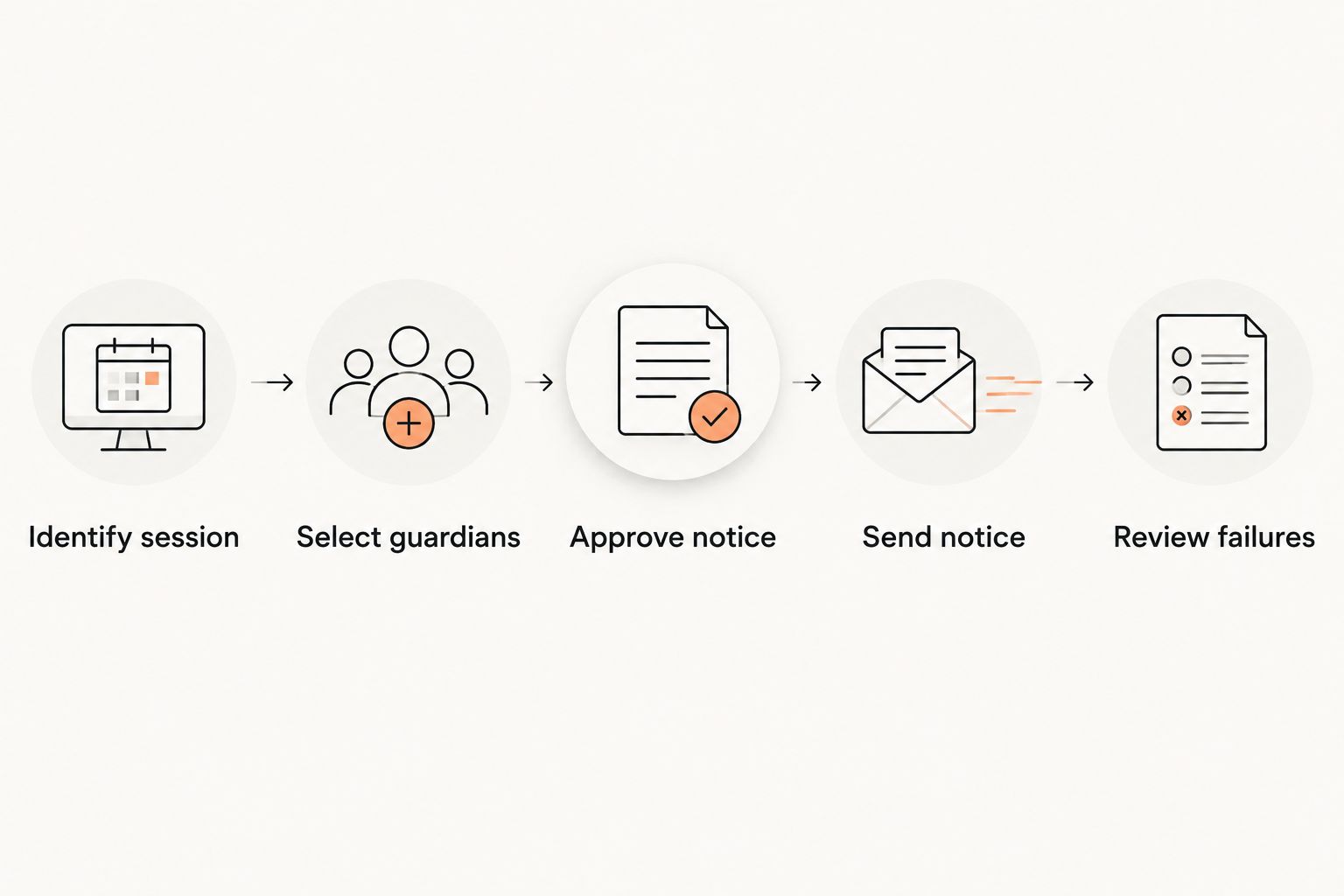
Choose the sending rule
There are two useful workflow designs. Choose based on the notice content and how much discretion staff need, not on a desire to remove every manual step.
| Workflow | Best for | Advantage | Limitation |
|---|---|---|---|
| Approval-gated sending | Cancellations requiring an explanation or confirmed alternative | Staff review the audience and wording before sending | The notice waits for approval |
| Immediate template sending | Routine cancellations with fixed wording and validated recipient rules | The cancellation event starts sending without a separate approval task | Incorrect session or contact data reaches parents without a final review |
Use approval-gated sending while validating your 2026 workflow. Consider immediate template sending only after testing the event scope, guardian permissions, duplicate protection, and failure handling. Keep sensitive explanations out of fixed templates.
Delivery checks
- Test 1 cancelled session with staff-controlled destinations. Confirm that the message contains the intended date, time, class, and location.
- Submit the same cancellation event twice during testing. Confirm that the second submission does not create another notice for destinations already processed.
- Test a failed destination through the messaging system’s supported testing method. Confirm that the failure appears in the staff follow-up list.
- Check how the messaging system reports submitted, delivered, and failed notices. Preserve those distinctions instead of combining them into a single notified status.
- Assign the unresolved list to a named staff role. Require staff to record the follow-up outcome before closing the cancellation job.
Expected result: Staff can see who was selected, what was sent, which destinations failed, and which families still need attention.
A submitted message is not proof that a parent read it. Even a delivery receipt describes a channel event, not a person’s understanding. Avoid telling instructors that every family knows about the cancellation when the record only shows successful submission.
For your 2026 operating checklist, include the same tests after changing the timetable structure, recipient rule, or sending channel. A working template does not compensate for a broken student-to-guardian relationship.
Send a change notice when a cancelled class is restored
Restoring a session is an adjacent workflow, but it needs different wording. A second cancellation notice creates confusion. Tell affected families that the previously cancelled class is now taking place, then state the confirmed date, time, and venue.
- Identify the original cancellation job and its affected families.
- Compare the restored occurrence with the original session details.
- Prepare a restoration or rescheduling notice using the confirmed information.
- Review whether new bookings introduce additional recipients.
- Approve the update and retain it alongside the cancellation record.
Expected result: Families who received the cancellation get the corrective update. New recipients receive enough context to understand the current schedule.
Keep the original cancellation history. Replacing it with the restored status removes the explanation for why parents received conflicting notices. The record should show the sequence, not just the latest timetable state.
Troubleshooting
Parents receive duplicate notices
Check whether the same event ran twice or siblings produced separate messages to one destination. Use the cancellation reference to prevent repeat processing, and deduplicate the recipient list before sending. Review failed attempts separately so retrying one destination does not resend to everyone.
A regular family receives nothing
Check whether the workflow selected bookings while the academy permits attendance without booking. Then check guardian permissions and missing contact details. Correct the audience rule before adding individual families manually; otherwise the same omission returns at the next cancellation.
The wrong date or time appears
Check whether the notice used the recurring class definition instead of the affected occurrence. Preserve the occurrence’s date, local time, and venue in the cancellation job. Preview those values before enabling live sending.
Staff cannot tell whether a notice arrived
Check the messaging system’s outcome records. Distinguish submission from delivery where delivery information exists. Assign uncertain or failed destinations for follow-up rather than treating the absence of an error as confirmation.
A cancelled class appears as a student absence
Check how attendance processing treats cancelled occurrences. A session the academy did not hold should not become an attendance-based missed-class follow-up. Keep cancellation handling separate from no-show handling and review downstream tasks before closing the job.
Customize your workflow
Extend the process to cover venue changes, instructor substitutions, and academy closures. Give each event its own wording and recipient rule. A building closure affects a different audience from a single kids’ BJJ cancellation.
MatPilot combines scheduling, attendance, billing, and per-art grading for martial arts academies. Keep those operational records consistent, but do not treat a cancellation as automatic permission to change a family’s bill or a student’s grading status.
Use the kids’ martial arts class management software guide to review the surrounding class-management requirements. Guardian records, booking rules, and attendance processes determine whether cancellation messaging reaches the right people.
Name an owner for the workflow in your 2026 staff handbook. That person should review contact exceptions, template changes, and unresolved sending failures. Automation still needs someone responsible for the cases it cannot complete.
FAQ
How do I automatically notify parents when a martial arts class is cancelled?
Connect the cancelled class occurrence to an eligible guardian recipient list, an approved message, and a sending record. Test the session scope, contact permissions, duplicate protection, and failure handling before enabling live sending.
Does changing the timetable prove that parents were notified?
No. A timetable change and a parent notification are separate events. Keep a sending record for each selected destination and a follow-up list for failures.
Should cancellation notices go to booked students or all enrolled families?
Use the audience rule that matches how your academy runs attendance. Bookings suit reservation-based classes; class enrollment is the relevant starting point when students attend without booking.
Can one parent receive a single notice for siblings?
Yes, if the workflow groups affected students by an authorized shared destination before sending. Confirm that the siblings attend the same cancelled occurrence and preserve the guardian permissions for each child.
Should every cancellation message need approval?
Use approval while validating the workflow and whenever the explanation or replacement arrangements require judgment. Immediate template sending needs tested recipient rules, fixed wording, and duplicate protection.
What should happen when a cancellation message fails?
Create a staff follow-up task for the affected destination. Keep successful sends separate so resolving one failure does not resend the notice to every family.
What should parents receive if a cancelled class is restored?
Send a restoration or rescheduling notice with the confirmed session details. Tie it to the original cancellation audience and review any additional bookings before sending.
One last thing
Test who does not receive the notice. Successful delivery to a test parent proves only that sending works. An unaffected family receiving nothing proves that the workflow respects the class boundary—the check that prevents an academy-wide cancellation scare.