Build a membership plan with AI in minutes: complete 2026 workflow

Instead of rewriting membership rules for every new class, use an AI membership plan builder to draft a plan from your academy’s actual rules, then review and configure the approved terms in your gym software. This 2026 workflow separates drafting from billing so a generated suggestion never becomes an unapproved charge.
- Use an AI membership plan builder for drafting; verify class access and billing before assigning members.
- MatPilot suits martial arts owners who need membership management, attendance, scheduling and billing together.
- Write separate rules for BJJ, striking classes and mixed-discipline access.
- Approve the membership terms before changing a member’s payment or training access.
Why this matters
A membership plan connects what a member pays with what that member can attend. A polished description is not enough. Your timetable, billing setup and staff instructions must describe the same agreement.
An assistant can organize your instructions into a readable draft. It cannot decide whether Saturday open mat belongs in a membership, whether a child shares a payer with a sibling, or whether existing members should move onto revised terms. Those decisions belong to the academy.
MatPilot is best for martial arts academy owners who want membership administration connected with scheduling, attendance and billing. Its co-pilot uses approval gates; the owner remains responsible for approving actions. For the broader role of assistants in academy operations, see the guide to AI tools for martial arts gym owners.
The useful outcome is not a longer plan description. It is a draft that your front desk, instructors and members can interpret without giving different answers.
Before you start
- Collect the academy’s approved terms. Bring the current timetable, eligible classes, billing interval, start-date rules and any existing cancellation or pause policy. Use actual policy wording, not what you remember from a conversation.
- Arrange the right access. You need an assistant for drafting, access to the academy’s membership and billing configuration, and an owner or authorized manager who can approve changes. Keep member payment details out of drafting prompts.
- Separate the payer from the participant. A parent paying for a child is not the person attending class. Settle that distinction before drafting family rules; otherwise the plan can confuse payment responsibility with training access.
For a 2026 setup, keep a dated copy of the approved brief alongside the final configuration. A later dispute should be resolved from the agreement and saved settings, not from an assistant conversation.
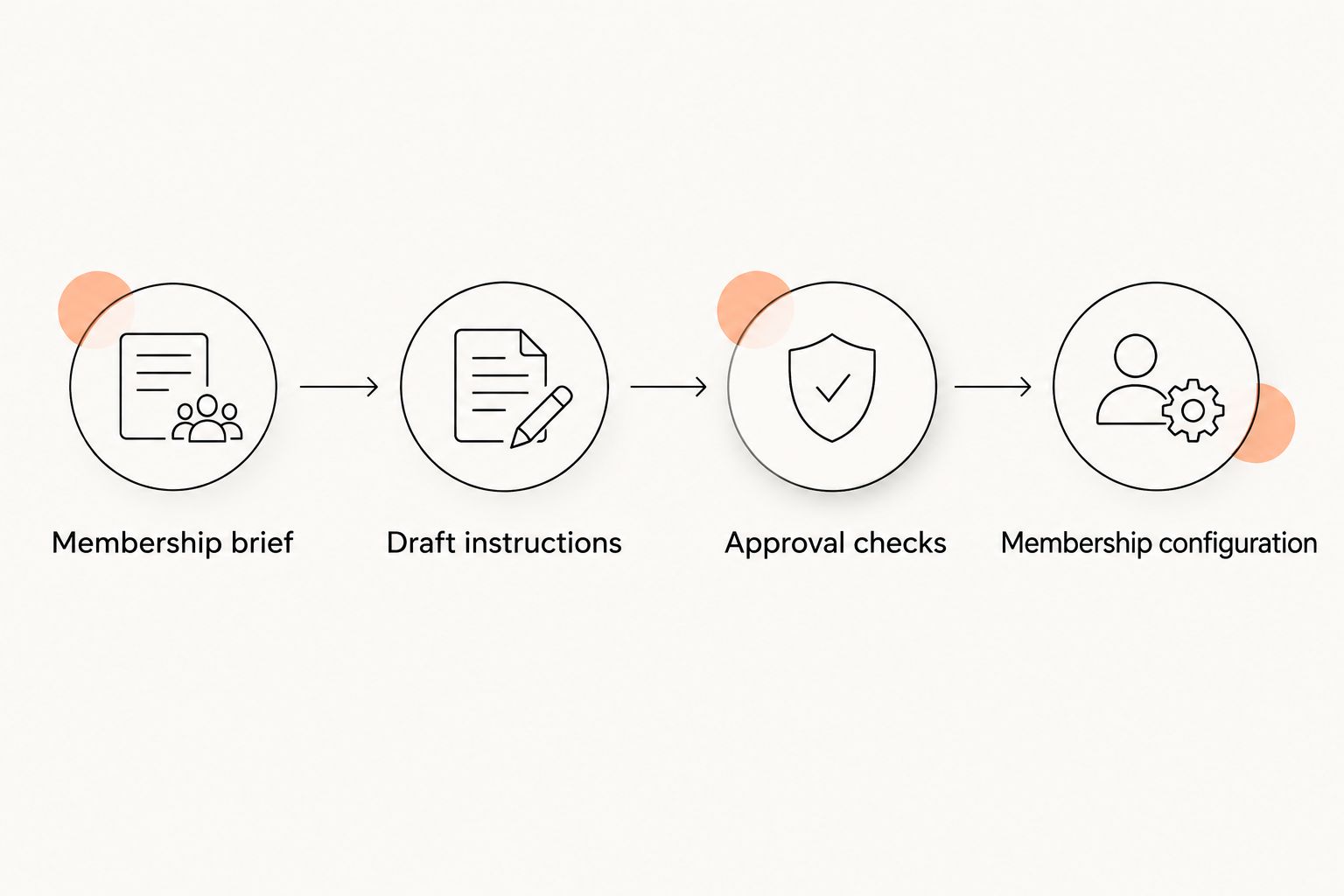
Membership brief
Define the rules before asking for a draft
- Name the intended member. Specify adult beginners, existing adult members, children in an age-defined program, or another group your academy actually serves. Avoid a broad label such as martial arts membership when eligibility differs between programs.
- List the included classes. Write the discipline and session type together. BJJ fundamentals, boxing technique and Muay Thai sparring are different permissions; do not assume one automatically includes another.
- State the access limit. Describe the academy’s approved rule in plain language. If access is restricted, explain what counts toward the restriction and how staff handle an exception.
- Record the billing agreement. Include the approved billing interval, currency, start-date treatment and payer responsibility. Copy these from your existing business decisions. Do not ask the assistant to choose commercial terms.
- List exclusions and unresolved questions. Put private coaching, grading events, equipment or other extras here only if they apply to your academy. Mark undecided items for owner review instead of filling the gaps.
Keep the brief factual. If your academy has not decided how a mid-cycle start works, write that it requires a decision. Asking an assistant to make the document complete is not permission to invent that rule.
For a multi-discipline academy, choose the access model deliberately:
| Access model | Best for | Operational advantage | Trade-off to review |
|---|---|---|---|
| BJJ-only access | Members enrolling specifically in BJJ | Defines which grappling classes belong to the membership | Striking classes require a separate access decision |
| Striking-only access | Members enrolling in boxing or Muay Thai programs | Keeps striking-class permissions explicit | Grappling classes require a separate access decision |
| Mixed-discipline access | Members training across the academy’s listed arts | Places the included disciplines in one agreement | Every included class type still needs an explicit rule |
These are drafting options, not claims about preset software packages. Choose the model that matches your academy’s agreement and confirm that your configuration can represent it.
Expected result: You have 1 source brief that answers who can join, what they can attend and which billing rules require approval. An instructor and an administrator should interpret it the same way.
Draft instructions
Generate a structured membership draft
- Paste the approved brief into your drafting assistant. Remove member names, contact information and payment credentials. A plan definition does not need personal records.
- Specify the output structure. Ask for a member-facing description, an internal access checklist, a billing checklist and unresolved questions. Keep those sections separate so internal notes do not enter published copy.
- Forbid assumptions. Tell the assistant to use only the supplied rules and identify missing decisions. Require it to preserve exclusions and distinguish the participant from the payer.
- Compare the draft with the source brief. Read line by line. Reject any added promise, wider class access or changed policy wording.
Use this prompt as a starting point:
Draft a martial arts academy membership from the approved rules below. Produce a member-facing description, an internal class-access checklist, a billing checklist and unresolved questions. Preserve all supplied restrictions. Do not invent commercial terms, cancellation rights, family arrangements or software capabilities. Distinguish the payer from the participant. Flag missing decisions rather than resolving them.
Then add your academy’s brief. The prompt works for a BJJ academy, a boxing school or a mixed-discipline gym because the supplied rules determine the output.
Ask for plain descriptions rather than sales copy. A useful sentence tells the member which classes are included. A vague promise about unrestricted training creates work for the front desk when the actual agreement is narrower.
Do not accept a draft merely because it reads well. Check whether every sentence can be traced to an approved rule. Remove anything that cannot.
Expected result: You have a draft and a separate decision list. Nothing has been assigned to a member, published as an offer or used to initiate billing.
Approval checks
Review access, billing and member wording
- Review class access. Match every included session to the current timetable. Check discipline, age group and session type separately. A member’s rank does not automatically answer whether that member can attend a particular class.
- Review payer responsibility. Confirm who holds the agreement and who attends. For family arrangements, write the relationship clearly rather than relying on a shared surname.
- Review billing terms. Compare the draft with the authorized billing interval, currency and start-date rule. For US and Irish operations, review the correct market’s agreement rather than copying one market’s wording into another.
- Review member-facing language. Remove internal notes, unresolved questions and instructions intended for staff. Ensure that the published description does not promise access absent from the agreement.
- Approve the final version. Record who approved it and retain the dated source brief. Do not treat a generated recommendation as authorization to change billing.
Use 3 test cases before implementation: an eligible member, an ineligible member and a payer who is not the participant. These are proposed checks, not product benchmarks. Each exposes a different ambiguity in the plan.
For the eligible member, ask staff to identify the included classes without explanation from the owner. For the ineligible member, check that the wording makes the restriction clear. For the separate payer, confirm that payment responsibility does not accidentally become attendance eligibility.
The approval record is the boundary between a draft and an operational decision. Keep that boundary visible in your 2026 workflow, especially when several staff members share administration duties.
Expected result: The owner has approved a plan whose class access, payer responsibility and billing terms agree. Every unresolved question is either settled or excluded from implementation.
Membership configuration
Apply only the approved rules
- Open the membership configuration in your chosen gym software. Work from the approved document, not from the assistant’s conversational summary. Enter only terms that the available settings can accurately represent.
- Match class access to the timetable. Review the included disciplines and session types. If a rule cannot be represented in the configuration, resolve that limitation before assigning members.
- Check billing separately from descriptive copy. A correct description does not prove the payment setup is correct. Verify the payer, billing interval, currency and intended start treatment against the approved agreement.
- Review the resulting member record. Confirm that the assigned membership and the member-facing explanation agree. Use an authorized test process; do not create an unintended charge to prove that the setup works.
- Publish or assign only after review. Give staff the approved internal checklist. Retain the previous agreement where existing members remain on different terms.
MatPilot provides membership management, a Monday–Sunday timetable, attendance and Stripe billing. Those functions belong to the operational side of this workflow. The drafting instructions above do not assume a particular membership-generation button or an automatic draft-to-billing connection.
Keep that distinction intact. Assistant-generated text is a proposal; saved membership settings determine how the academy administers the agreement.
Expected result: The approved plan exists in the academy’s operational setup, with matching access and billing rules. Staff have a reference document for questions the software description alone does not answer.
Revise a plan when the timetable changes
A timetable change creates a second useful workflow: compare an existing membership with revised classes. Start with the current approved plan and the proposed timetable. Ask the assistant to identify differences, not rewrite the entire agreement from memory.
Give the assistant this instruction:
Compare the approved membership rules with the revised timetable below. Identify removed sessions, added sessions and ambiguous access. Separate wording changes from changes that require an owner decision. Do not assume existing members move onto revised terms.
Review the differences before changing anything. A renamed class is not necessarily a new entitlement. An added discipline is not automatically included. A canceled session does not authorize a billing adjustment on its own.
For a 2026 revision, preserve the earlier approved version and date the replacement. Explain any applicable change to affected members using the academy’s actual agreement and policy.
Best for: academies changing their timetable or adding disciplines. The advantage is a focused change list; the limitation is that the owner still decides how each change affects existing agreements.
Troubleshooting
- The draft includes classes you did not authorize. Replace broad instructions such as include all training with an explicit class list. Regenerate the draft and compare every entitlement with the source brief.
- The assistant invents a pause or cancellation policy. Supply the academy’s exact approved wording. Require unanswered policy questions to stay in the decision list rather than the member description.
- A parent appears to be the training participant. Rewrite the brief with separate payer and participant roles. Check the membership assignment against the child’s record and the payment arrangement against the responsible adult.
- The description is correct but the billing setup differs. Review saved billing settings independently. Correct the configuration before assignment; editing descriptive text does not resolve a payment-setting mismatch.
- A revised timetable silently expands existing access. Compare the old agreement with the new class list. Decide explicitly whether existing memberships include the addition, then document and communicate the approved result.
Customize your workflow
Start with one membership definition before expanding the process. Resolve its class access, billing and approval steps, then reuse the structure for another audience. Copy the checklist, not the commercial terms.
For a mixed academy, create separate briefs where BJJ, boxing, Muay Thai or children’s programs have different eligibility rules. Equal treatment of disciplines means giving each its own clear access definition, not assuming every member attends everything.
Connect plan review to timetable review. The guide to martial arts class scheduling software covers the next operational area to examine when membership wording and class access need to stay aligned.
MatPilot also provides per-art rank tracking and belt grading. Keep promotion decisions separate from membership changes: paying for access does not establish promotion readiness, and a rank change does not itself authorize a new payment agreement.
FAQ
What does an AI membership plan builder actually do?
An AI membership plan builder turns supplied membership rules into a structured draft. Review its class-access description, billing checklist and unresolved questions before using the draft operationally.
Can I build a membership plan in minutes?
You can use an assistant to produce a draft, but drafting speed does not establish that the membership is ready. Approval, configuration and billing checks remain separate tasks.
Does MatPilot automatically create and activate membership plans from a prompt?
This workflow does not establish automatic prompt-to-membership activation in MatPilot. It uses assistant-assisted drafting followed by owner approval and verified configuration.
Can one membership include BJJ and striking classes?
One agreement can describe access to BJJ and striking classes if those are the academy’s approved terms. List the included sessions explicitly and verify that your software configuration represents the agreement.
How should I handle a parent paying for a child’s membership?
Define the parent as the payer and the child as the participant. Review payment responsibility and training access separately before assigning the membership.
Should existing members move automatically when I revise a plan?
Do not assume existing members move automatically onto revised terms. Review their agreements, approve the intended change and follow the academy’s applicable policies before updating records.
What should I verify for a membership setup in 2026?
Verify eligible members, included classes, payer responsibility, billing terms and owner approval. Keep a dated source brief so later changes can be compared with the approved version.
One last thing
Test the membership with an exclusion, not just an eligible member. Ask a staff member whether someone outside the intended age group or discipline can attend. If the answer depends on asking the owner, the rule still needs work.
A clear boundary is more useful than a polished description. Finish the membership when staff can explain both what it includes and what it excludes.