Connect MatPilot to Xero for automatic payment reconciliation
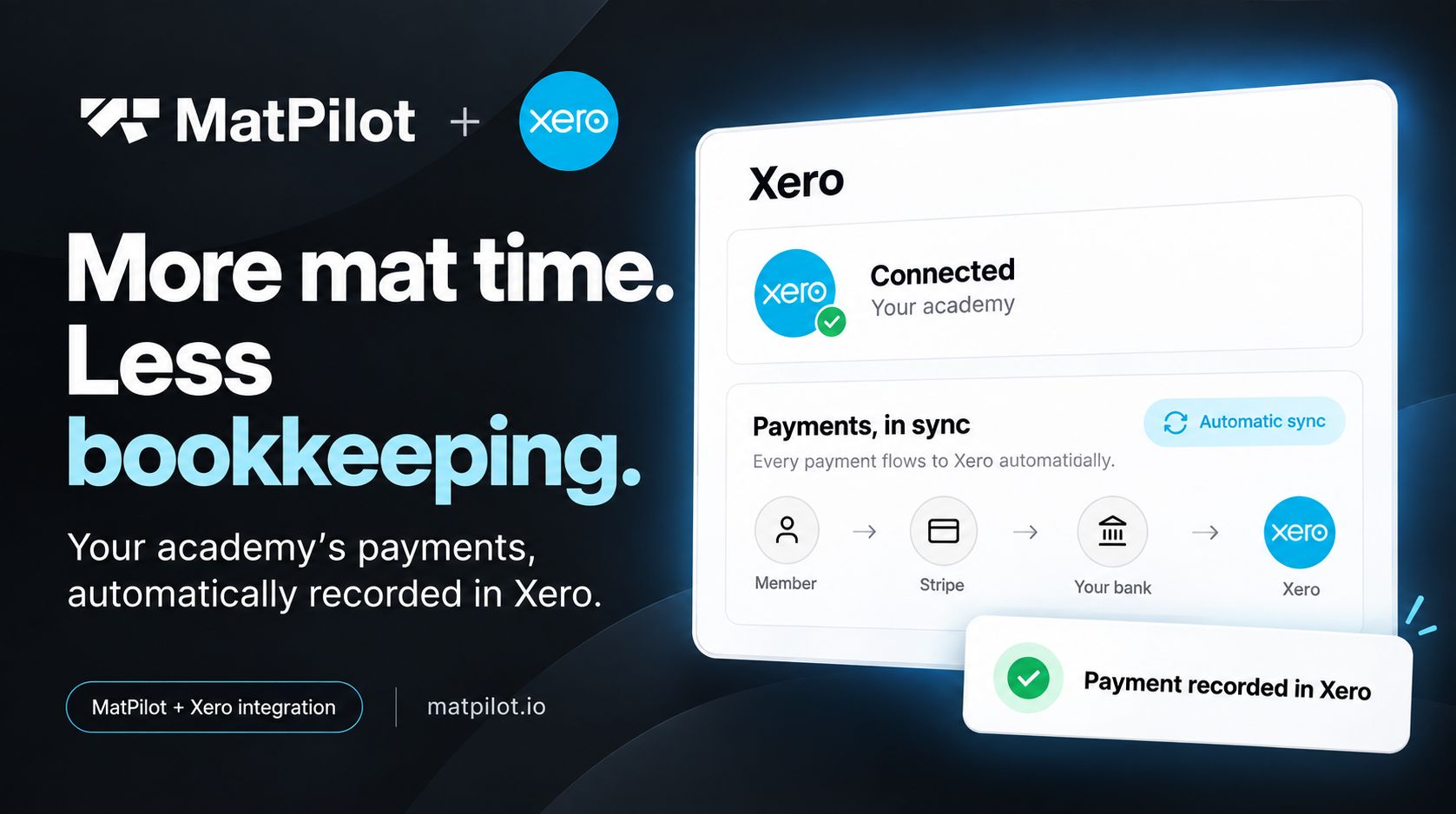
Instead of entering gym payments into your accounts by hand, connect gym software to Xero using MatPilot’s Xero sync, then check how each Stripe payment appears in Xero. A payment reaching Xero is not the same as a bank deposit being reconciled.
- MatPilot is a fit for martial arts gyms that want Stripe billing and Xero sync in one management workflow.
- To connect gym software to Xero, authorize the connection, check a Stripe payment, and inspect its Xero record.
- Keep bank-deposit matching as a separate check until you confirm how your Xero setup handles payouts and fees.
Why this matters
A BJJ academy can collect a membership payment and still leave its accounts unfinished. The payment has to be recorded, and the eventual bank deposit has to be accounted for. Those are related jobs, not interchangeable ones.
MatPilot gym software includes Stripe billing and Xero sync. MatPilot is best for martial arts academy owners who want billing and accounting connected while retaining a clear review step for bank reconciliation. The owner still needs to confirm which records the connection creates and whether those records match the money arriving in the bank.
In 2026, start with a small sample rather than a full month of transactions. Trace 1 day of payments, inspect 2 individual charges, and check 3 details for each: the member or payment reference, the amount, and the date. These are setup checks, not claims about what the integration records automatically.
Before you start
- Have access to the MatPilot account that manages your gym’s billing, the connected Stripe account, and the Xero organization where the entries should appear. Use someone authorized to approve a Xero connection.
- Find a completed Stripe payment you can identify without relying on a member’s name alone. A payment reference, date, and amount give you a clearer test than a name shared by several family members.
- Check the destination organization before approving access. If you manage more than 1 Xero organization, selecting the wrong one can make a working connection look broken when you search the intended accounts.
Do not use a failed or pending payment as your first test. Start with a completed charge, establish where it appears, and then examine exceptions. Keep the Stripe payment view and Xero open while you work so you can compare actual records rather than infer what was transferred.
Connect the Xero organization
- Sign in to the MatPilot account used for the academy’s billing. Find its Xero connection option and open the authorization flow shown there. Menu wording can change; follow the current on-screen labels rather than an old screenshot.
- Sign in through the Xero authorization page presented by that flow. Review the organization name before you approve access. If it is not the organization you use for this gym, stop and select the correct one.
- Return to MatPilot and check the connection state displayed there. Do not treat an authorization screen alone as proof that payment records are transferring.
Expected result: MatPilot shows a connected Xero organization that matches the one you intend to use. If you cannot find a Xero connection option, resolve account access before changing anything in Stripe or creating a manual import.
Check a Stripe payment in Xero
- Open a completed member payment in Stripe. Record its payment reference, amount, and date. If the member belongs to a family billing arrangement, note who was charged rather than assuming each student has a separate payment.
- Find the corresponding record in the connected Xero organization. Search using the available payment details. Check the record itself; a connected status does not establish that a particular charge has arrived.
- Compare the Xero record with the Stripe charge. Check the amount and date, then check whether its reference or other identifying detail lets you trace it back to the payment. If the connection exposes a sync status or error for that payment, review it before creating any replacement entry.
- Repeat the check for a second completed charge. Choose one you can distinguish from the first, such as a charge on another date. This catches a wrong-organization or partial-record problem before you rely on the workflow.
Expected result: You can identify the Xero record associated with each test charge and explain any difference you see. If you cannot identify one, do not add a manual copy yet; first check the organization and the connection state to avoid a duplicate.
The record you find in Xero matters more than the word sync. Inspect what it represents before deciding how to handle tax, fees, refunds, or reporting. A charge, an invoice, and a bank deposit answer different accounting questions.
Review the bank deposit separately
A Stripe charge is not necessarily the same record as the deposit you see on a bank statement. Use the bank transaction and the payment records to work out what belongs in the reconciliation. If several charges contribute to a deposit, do not force a single member payment to match the whole deposit.
- Find a deposited Stripe payout in your bank records and locate the related payout information in Stripe. Keep the payout reference available while reviewing Xero.
- In Xero, inspect the bank transaction and the records associated with the underlying charges. Determine whether your accounting setup records processing fees separately before you match a net deposit to gross charges.
- Resolve any difference using the actual payout and accounting records. Do not create a second payment entry simply to make the bank line disappear.
Expected result: You can show how a bank deposit relates to its underlying payments and any separate adjustments. Whether Xero proposes a match depends on the records and bank setup in your account; verify the result before approving it.
This is the useful distinction in a 2026 payment-reconciliation workflow:
| Workflow | Best for | Advantage | Limitation |
|---|---|---|---|
| Manual entry | An owner checking a small set of transactions | You inspect each entry as you create it | Re-entry adds work and creates an opportunity for duplicates |
| MatPilot Xero sync | A martial arts gym already using MatPilot billing | Stripe payment information can reach the accounting workflow without routine manual re-entry | You must verify the Xero record and reconcile bank deposits separately |
When a member retries a failed payment
A completed charge is the cleanest connection test. A failed payment needs a different sequence because it does not establish that money was collected. Do not book an unsuccessful attempt as a received payment.
- Open the payment issue in the gym’s billing workflow and confirm the payment state in Stripe. Separate the failed attempt from any later successful charge.
- If the member retries, use the successful Stripe charge as the reference for your Xero check. Record its date and amount. Do not assume the retry has the same reference as the failed attempt.
- Find the corresponding Xero record and check for an unintended duplicate associated with the original attempt. If you find 2 accounting records for 1 successful charge, investigate before reconciling either one.
- Follow up with the member using the actual payment state. A reminder for an unresolved failure is different from a receipt for a successful charge.
Expected result: The successful charge is traceable through the records you use, while the failed attempt remains identifiable as a failure. The exact record types depend on your accounting setup, so inspect them rather than treating a retry as an update to the original charge.
For an academy with family billing, identify the payer as well as the student whose membership prompted the charge. That simple check prevents a correctly recorded household payment from being mistaken for a missing individual payment.
Troubleshooting
- The Xero organization is connected, but you cannot find the charge. Confirm you are searching the same organization shown in the connection, then compare the Stripe payment date, amount, and reference. Check any connection error shown before entering the payment manually.
- The charge appears twice in Xero. Stop matching both records. Check whether someone made a manual entry while the sync was active, and determine which record represents the actual payment before correcting the duplicate.
- A bank deposit does not equal one member payment. Inspect the Stripe payout and the charges it contains. Check how fees or other adjustments are recorded rather than changing a member payment to equal the deposit.
- A failed payment looks like a missing Xero entry. Verify its status in Stripe first. Use a completed charge to test the connection; a failed attempt is not proof that a successful payment failed to sync.
- You see the wrong academy’s transactions. Check the Xero organization selected during authorization. Do not reconcile across organizations to make the figures fit.
These checks separate access problems, missing records, duplicates, and payout differences. They call for different fixes. In 2026, keep the payment reference in your investigation notes so another person can repeat the check without guessing which member transaction you meant.
Customize your workflow
After the first completed charges match their Xero records, set a repeatable review routine. Check new charges against Xero, inspect failed payments separately, then reconcile deposits from the bank record. Keep those tasks in that order. A bank line should not be your first clue that a member payment failed.
Assign an owner to each decision, even if the same person does all the work:
- Payment check: Confirm that a completed Stripe charge has an identifiable Xero record.
- Exception review: Investigate a missing or duplicate record before anyone creates a manual replacement.
- Deposit review: Compare the bank transaction with the Stripe payout and the relevant accounting entries.
- Member follow-up: Contact the member only after checking the actual payment status.
For a multi-discipline academy, apply the same payment checks to BJJ, judo, karate, taekwondo, MMA, and striking classes. The class timetable or belt system does not change what counts as a completed payment. It does affect how you identify the member or household behind a charge, so keep that context available during exception review.
FAQ
How do I connect gym software to Xero with MatPilot?
Open the Xero connection option in MatPilot, authorize the correct Xero organization, and verify a completed Stripe charge in that organization. Check the connection state before relying on the records.
Does MatPilot automatically reconcile Stripe deposits in Xero?
Do not assume a synced payment is a reconciled bank deposit. Inspect the Xero record, Stripe payout, and bank transaction before approving a match.
Which payment should I use to test the Xero connection?
Use a completed Stripe charge with a clear reference, amount, and date. A failed or pending attempt cannot establish where a collected payment appears in Xero.
Why can’t I find a Stripe payment in Xero?
First confirm the connected Xero organization and the charge’s status in Stripe. Then search by date, amount, and available reference, and check for a connection error before making a manual entry.
What should I do if a payment appears twice in Xero?
Investigate both records before reconciling either one. A manual entry alongside a synced record is one possibility; identify the source of each record before correcting it.
How should I handle a failed membership payment?
Confirm the failure in Stripe and keep it separate from any later successful charge. Use the successful charge to check Xero, and base member follow-up on the current payment status.
Can an Irish or US martial arts gym use MatPilot?
MatPilot is available in Ireland and the United States in 2026. Check the Xero connection and the actual accounting records for your organization before adopting a reconciliation routine.
One last thing
Test the wrong-organization problem before the missing-payment problem. A correctly synced charge in another Xero organization will not appear where your bookkeeper expects it. In 2026, confirm the destination organization first, then trace the charge, then review the deposit. That order avoids creating a manual duplicate to solve a search problem.