Guardian e-signatures at kiosk check-in: complete 2026 workflow
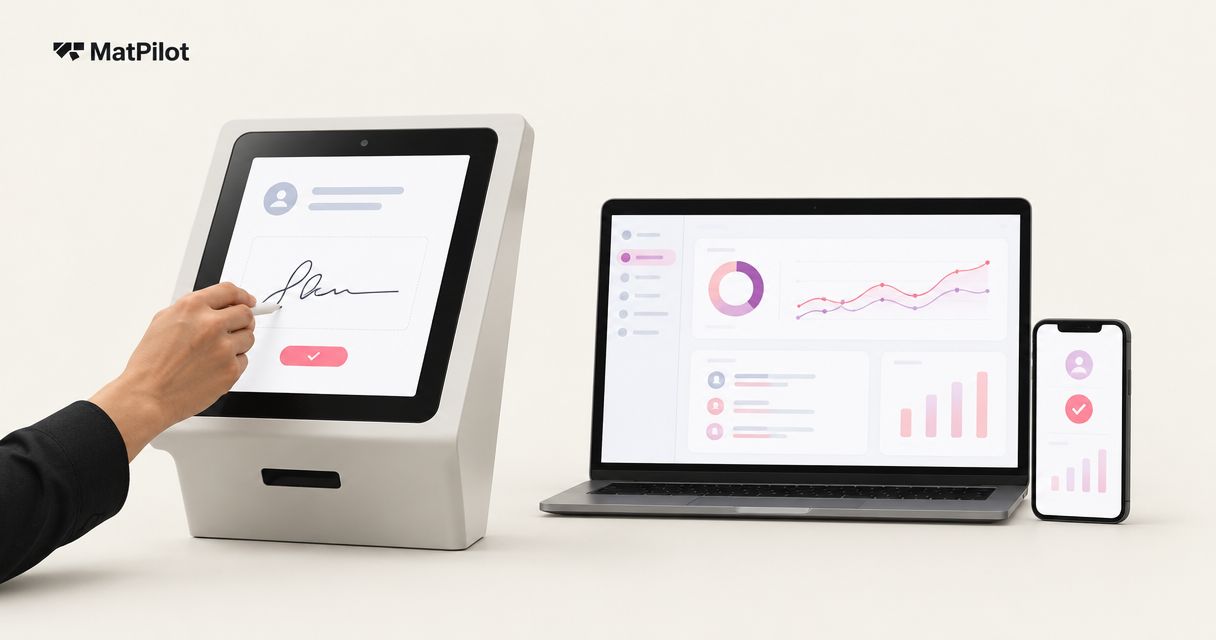
Instead of checking guardian signatures against a paper list at every class, set up a kiosk guardian signature check-in workflow that checks the child's record, routes missing signatures to a guardian, and records attendance only after staff clear the entry requirements. Keep signing and attendance separate: a child arriving at the kiosk is not proof that a guardian signed.
- Kiosk guardian signature check-in needs separate records for the child, guardian, signed document, and class attendance.
- MatPilot suits martial arts owners managing attendance, billing, and per-art ranks; assess signature requirements separately.
- Require guardian action for missing signatures; never let a child's check-in stand in for consent.
- Test missing signatures, wrong guardian links, and repeat check-ins before putting the kiosk at reception.
Why this matters
A busy children's class creates two different questions: has the student arrived, and has the required adult completed the paperwork? Answering the first does not answer the second. Your 2026 reception process needs a clear handoff between them.
The workflow applies to BJJ, boxing, Muay Thai, karate, taekwondo, judo, and mixed-discipline schools. Each child needs an individual attendance record, even when siblings share a family account. A family relationship alone does not establish authority to sign a particular document.
MatPilot is best suited to martial arts academy owners who need attendance, billing, and per-art ranks together. Treat the signature gate as a separate requirement when evaluating the reception setup. The martial arts member check-in guide covers the wider check-in decision.
Before you start
- Accounts and access: Have administrator access to your member and attendance system, an academy-controlled kiosk device, and access to the signature system you intend to use. Confirm how reception staff will retrieve completed documents without exposing unrelated member records.
- Materials: Prepare the approved document, its version identifier, the child roster, guardian relationships, and the rules for accepting or holding an arrival. Have appropriate legal advice establish who must sign and what evidence to retain in your jurisdiction.
- The gotcha: A stored signature image is not the same as a completed signing record. Confirm that your chosen setup can associate the signer, child, document version, and completion evidence before building the check-in gate.
This is a workflow specification, not a claim that every gym app contains a guardian-signature kiosk. Verify the required controls in the systems you choose. If the software cannot enforce the gate, put staff in charge of clearing it.
Choose the signature handoff
For your 2026 setup, decide whether guardians will sign before arrival or complete missing paperwork at reception. Both routes need the same completion check. Neither should give a child access to an adult's account.
| Workflow | Best for | Advantage | Limitation | Required safeguard |
|---|---|---|---|---|
| Guardian signs before arrival | Scheduled trials and planned enrollments | Moves document review away from the entrance | Staff still need to verify completion against the arriving child | Match the completed document to the child and required version |
| Staff-assisted signing at reception | Walk-ins and unresolved paperwork | Gives staff a clear exception path | Requires staff attention during arrivals | Verify the adult's role and confirm completion before clearing entry |
Use advance signing for planned arrivals and staff-assisted signing for exceptions. This is an operating recommendation, not a claim about a particular product's automation. Pick a signing system that supports the evidence and access controls your academy requires.
MatPilot provides member management and attendance alongside billing and belt grading. Those functions support the academy record; they do not replace the need to check the signing workflow itself.
Child and guardian records
Start with the people, not the tablet. A signature attached to the wrong child produces a tidy screen and an unusable operational record.
- Create or confirm the child record. Check the student's name against enrollment information. Keep siblings as distinct students, with separate class attendance and discipline-specific training records.
- Confirm the guardian relationship. Record the adult's relationship using the approved enrollment process. Check who is authorized to sign the particular document; do not infer this from a shared surname or payment account.
- Assign the required document. Specify which document applies to the student's activity and enrollment stage. Keep its version identifiable so staff can distinguish an older completion from the currently required one.
- Define the completion states. Use a written reception checklist with states such as Missing, Awaiting guardian, Complete, and Staff review. Map those states to your system's actual controls rather than treating these words as product button names.
- Assign an exception owner. Name the staff role responsible for unresolved guardian relationships, document questions, and record corrections. Reception staff need a decision route, not permission to guess.
Expected result: Staff can identify the arriving child, the relevant guardian relationship, the required document, and the person responsible for exceptions.
For a multi-discipline academy, check the scope of the document separately from the student's rank. A karate grade or BJJ belt does not establish that paperwork covers a boxing session. Follow the approved document's actual scope.
Signature completion rules
Write the gate before configuring any automation. Your 2026 rule should describe what staff must verify, not merely whether a signature-shaped mark appears on screen.
- Define the completion check. Require a record connecting the child, signer, required document version, and completed signing event. Use the signature provider's supported evidence rather than copying a signature image into an unrelated field.
- Choose the handoff. For planned arrivals, send the guardian through your approved signing process before class. For reception exceptions, have staff start the approved process after checking the adult's role.
- Protect the signing session. Do not leave an adult account open on a shared kiosk. Use the provider's supported shared-device or individual signing process, and finish the session before handing the device to another family.
- Define the hold rule. Keep unresolved paperwork in the exception process. Staff should distinguish an arrival from permission to participate according to the academy's approved policy.
- Define the release rule. Clear the gate only when the required record is complete or an authorized staff member has followed the documented exception policy. Record the reason for any exception.
Expected result: A completed document clears the paperwork check; an incomplete or disputed record routes to staff rather than disappearing into attendance.
Do not merge payment authorization, liability paperwork, emergency information, and attendance into one implied consent. These serve different purposes. Decide which records are required with qualified advice, then configure each requirement explicitly.
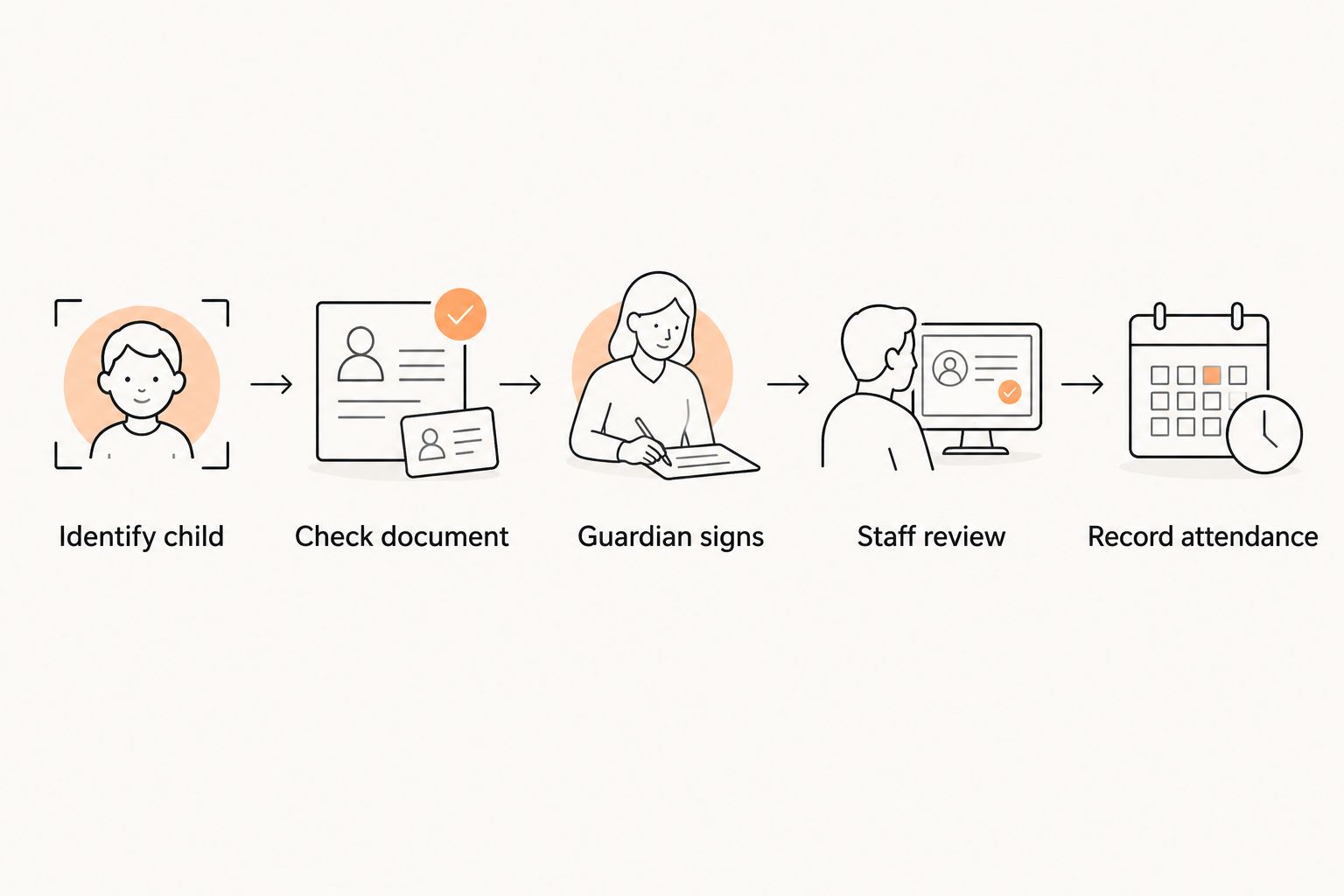
The reception sequence is Identify child, Check document, Guardian signs, Staff review, and Record attendance. When the document is already complete, skip the signing handoff but retain the completion check.
Kiosk and attendance handoff
The kiosk should expose only the information needed for arrival. Administrator access belongs elsewhere.
- Restrict the device. Use the operating system's supported app restriction or kiosk controls. Keep member administration, billing details, and other families' documents out of the public session.
- Set the identification process. Choose a supported method that identifies the intended student without giving families access to the wider roster. Provide a staff-assisted route when the student cannot be identified safely.
- Check the document state. Where your systems support a verified integration, evaluate the completion record before clearing check-in. Otherwise, make staff review the required step; do not present a manual process as automatic.
- Select the actual class. Match the student to the session attended. For children taking several disciplines, keep the session selection distinct from the guardian paperwork check.
- Record attendance after clearance. Confirm that the student appears in the intended class record. If you track arrivals separately, keep that distinction visible to reception staff.
- Reset the public session. End the signing or check-in interaction using the supported session controls. Confirm that the next family cannot view the previous family's details.
Expected result: The correct student appears in the correct class, with paperwork clearance handled separately and no previous family record left visible.
MatPilot is available on the web and native iOS and Android apps. App availability alone does not establish shared-device kiosk controls. Check the device restrictions and session behavior for your intended deployment.
Acceptance tests and staff ownership
Before launching the 2026 reception workflow, test the failure paths as deliberately as the successful one. Use clearly identified test records and follow your systems' rules for handling test documents.
- Test 3 arrival scenarios: a student with completed paperwork, a student with a missing signature, and a student with an unresolved guardian relationship. Confirm that only the cleared record follows the normal attendance path.
- Test 2 sibling records: complete the applicable process for one child, then check the other. Confirm that completion is applied according to the document's actual scope rather than inherited from the family account.
- Test 1 repeated check-in: submit the same student's arrival again. Inspect the attendance record and establish how staff identify and correct duplicates.
- Test a session reset. Finish one family's interaction, then start another. Check that the previous family's personal information and signing account are no longer accessible.
- Assign daily ownership. Give reception responsibility for checking unresolved arrivals and the authorized administrator responsibility for correcting records. Write down who handles a system outage.
Expected result: Staff can demonstrate the cleared path, the hold path, the correction path, and the shared-device reset before families use the kiosk.
Do not use belt-promotion eligibility as a substitute for document clearance. Attendance, grading readiness, payment status, and guardian paperwork are separate operational decisions.
Repeat the workflow when a document changes
A document update is a second workflow, not a reason to erase completed records. Keep the earlier evidence and assess the new requirement separately.
For a 2026 revision, identify the affected students and specify the new document version. Have the appropriate adviser determine whether a new signature is required. Then route those families through the signing process before their next relevant attendance clearance.
- Preserve the earlier completed document according to your retention policy.
- Mark the new requirement distinctly from the earlier completion.
- Send the guardian through the approved signing route.
- Check completion against the new version, then clear the applicable gate.
Expected result: Staff can distinguish historical completion from completion of the newly required document. An old signature does not silently satisfy a different requirement.
Troubleshooting
The guardian signed, but the child remains on hold
Check the child identifier, document version, and completion record. A completed document associated with another sibling or an older requirement will not satisfy the intended check. Correct the association through the authorized process; do not bypass the gate merely because the adult remembers signing.
The child checked in without guardian action
Inspect where attendance clearance occurs. Move the completion check ahead of that handoff, or require staff clearance if the software cannot enforce it. Review affected records through your exception process.
The wrong adult appears as the signer
Stop the normal clearance path and verify the relationship through the approved enrollment process. Billing contact, emergency contact, and authorized signer are not interchangeable roles. Keep the disputed signing evidence while resolving the record under your retention policy.
The connection fails during signing
Check whether the signature provider recorded a completed event before retrying. Route the student to staff while the status remains unresolved. Do not treat an unfinished screen, a cached page, or a handwritten mark as equivalent evidence without an approved alternative process.
The next family sees the previous record
Remove the kiosk from public use until staff restore a safe session state. Review account access, session termination, and device restrictions. Repeat the reset test before reopening it.
Customize your workflow
Once the signature gate works, connect the reception process to the rest of academy administration without combining unrelated permissions.
MatPilot supports attendance, billing through Stripe, Xero sync, and per-art ranks. Keep those records tied to the correct student or account, while retaining separate rules for paperwork clearance. Its co-pilot uses approval gates; the owner remains responsible for approving actions.
Keep guardian signing outside unattended decision-making. Staff should handle disputed relationships, revised documents, and exceptions. Automation can route work only where the chosen systems support it and the academy has defined the rule.
For multi-discipline schools, add the session and art to the attendance review. For children's programs, include a clear staff handoff for unresolved paperwork. Neither change requires making the shared kiosk an administrator console.
FAQ
How do I set up kiosk guardian signature check-in?
Identify the child, verify the required document's completion, route missing signatures to the guardian, and record attendance after clearance. Use a staff gate when your systems cannot enforce the sequence.
Can a child sign the guardian form at the kiosk?
Do not use a child's kiosk action as a substitute for the required guardian signature. Have qualified advice establish who must sign the document and use a signing process that records that person's action.
Does MatPilot include guardian e-signatures at kiosk check-in?
Confirm guardian e-signature and shared-kiosk requirements directly before choosing the setup. MatPilot provides martial arts member management, attendance, billing, and per-art ranks; those functions do not establish the signature controls required by this workflow.
Can one guardian signature cover two children?
Only apply a completed document to multiple children when its approved scope and signing record explicitly support that use. Keep each child's attendance separate and verify how the document identifies the children covered.
What should staff do when the guardian is not at reception?
Route the missing signature through the approved guardian signing process and follow the academy's hold policy. Do not have another adult sign merely because that person brought the child to class.
What happens if the kiosk loses its internet connection?
Send the unresolved arrival to staff and verify whether the signing system recorded completion. Follow the approved outage process rather than assuming an unfinished interaction produced a valid completed record.
Do guardians need to sign again when a waiver changes?
Have the appropriate adviser determine whether the revised document requires a new signature. Track the revised version separately and preserve earlier completed records according to the academy's retention policy.
One last thing
Test siblings before testing speed. Complete the document process for one child, then attempt check-in for the other. This exposes whether your workflow checks the actual document scope or simply treats a family account as cleared.