How do I migrate member data from Mindbody to new software?
To migrate member data from Mindbody, inventory your records, confirm the destination’s import requirements, obtain the available exports, and test the field mapping before switching live operations. Treat saved payment methods, recurring billing, waivers, and attendance history as separate transfer questions—not automatic parts of a member import. Keep access to the original records until you have reconciled the new system and resolved every exception.
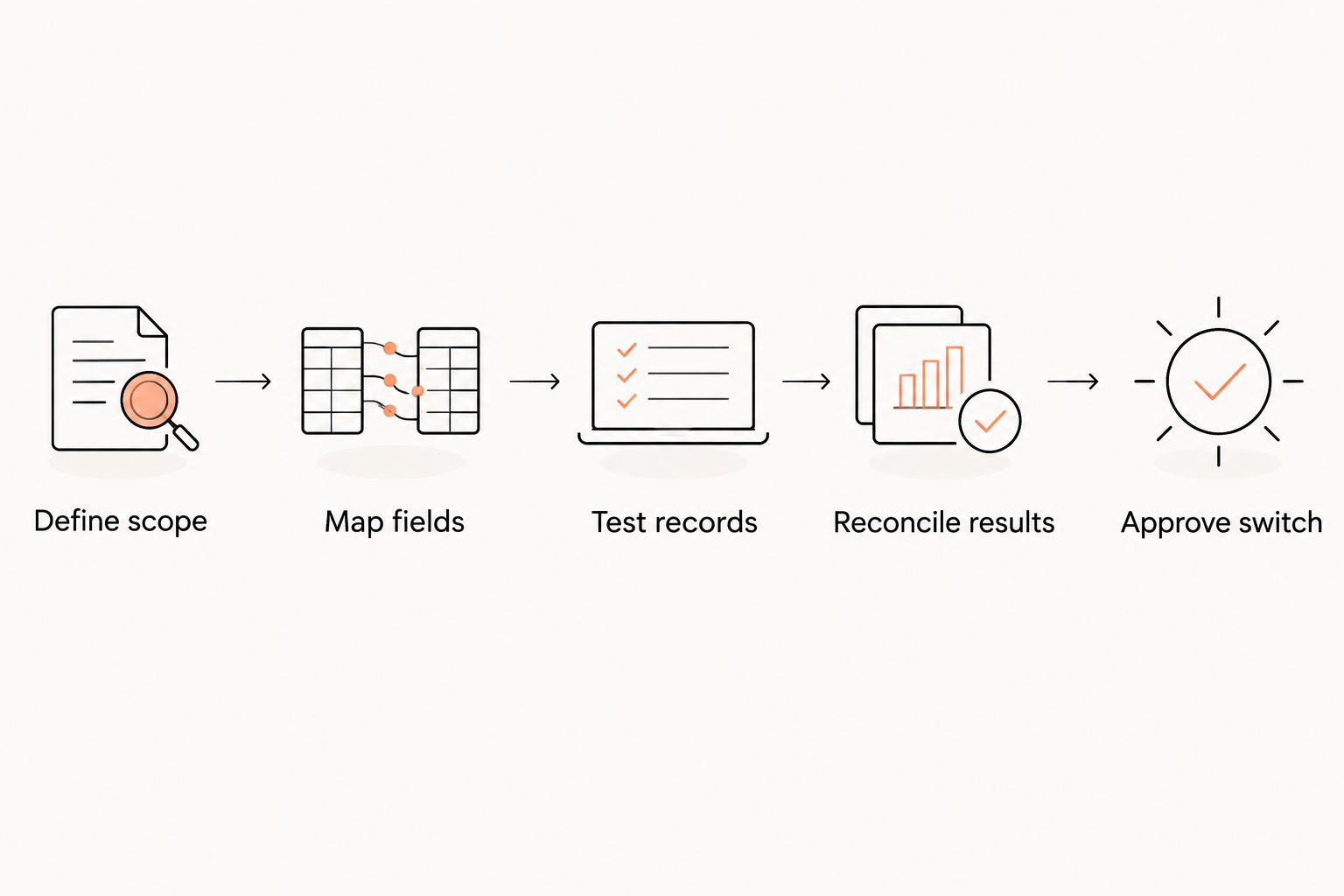
- How to migrate member data from Mindbody: confirm scope, map fields, test records, reconcile results, then switch.
- A member import does not prove that recurring billing or saved payment methods have transferred.
- Keep household payers separate from students, and preserve ranks separately for each martial art.
- MatPilot suits martial arts owners seeking member management, scheduling, billing, attendance, and per-art grading; confirm migration scope before committing.
Why this matters: A contact list is not an operating gym. You also need to know who can train, who pays, what happens at renewal, and which records support grading decisions. Use the guide to switching gym software alongside this checklist to organize the handover around confirmed dependencies rather than an arbitrary launch date.
How do I migrate member data from Mindbody to new software?
Build your 2026 migration plan around a verified sequence: define the scope, obtain the records, map them, test the import, reconcile the results, and approve the switch. Do not cancel access to Mindbody merely because the new member list looks complete.
1. Define what must move
List the records your school uses to operate. Include member profiles, membership status, household relationships, attendance, class bookings, billing arrangements, waivers, and grading records wherever you hold them.
Separate essential launch data from historical records you only need to retain. A student’s current membership status belongs in the launch checklist; an older attendance record might belong in an accessible archive if the destination cannot import it.
Give each data category an owner. The person responsible for billing should approve billing records, while the instructor responsible for promotions should approve ranks and grading history. A successful file upload is not approval of the information inside it.
2. Confirm the destination’s import requirements
Ask the receiving provider for its current import template and a written description of the supported fields. Confirm accepted file formats, required columns, date formats, duplicate handling, and the process for correcting a failed import.
Ask separately about historical attendance, documents, household links, membership balances, and per-art ranks. Do not infer import support from a feature list: software that records attendance does not necessarily import attendance history from another system.
Keep the answers with your migration checklist. Mark each category as supported, requiring manual setup, or retained outside the destination. Resolve unknowns before scheduling the live switch.
3. Obtain and preserve the source records
Ask Mindbody support or your account administrator which exports and reports are available for your account and permissions. Request the records needed for the agreed scope rather than assuming a single export contains everything.
Save an untouched copy of each source file. Record when it was obtained, what it contains, and which filters were applied. Work from separate copies so cleanup does not overwrite your reference records.
Restrict access to the people handling the migration. Member files can contain personal and financial information; use the transfer method agreed with the receiving provider rather than distributing attachments across staff inboxes.
4. Map each field before changing the data
Create a 2026 field map that connects each source field to a destination field or an explicit retention decision. Include a short explanation wherever the meaning changes.
| Record | Mapping decision | Check before approval |
|---|---|---|
| Member identity | Preserve the source identifier in the migration record | Students remain distinguishable even when names match |
| Contact details | Separate student and guardian details | Messages reach the intended person |
| Household payer | Link the payer to the correct students | Shared contact details do not merge siblings |
| Membership status | Match the meaning of each status | Frozen and canceled memberships stay distinct |
| Martial art and rank | Map rank within its discipline | A rank in one art does not overwrite another |
| Attendance date | Confirm date format and time zone | Visits appear on the intended training date |
| Billing record | Separate billing history from future collection setup | An imported record is not treated as authorization to charge |
| Waiver or agreement | Confirm document and acceptance-record handling | Evidence remains accessible after the switch |
Map meanings, not just column names. A field labeled membership can describe a plan, a status, or an agreement. Ask what the destination expects before assigning it.
5. Clean duplicates without merging different people
Review duplicate candidates using more than names or email addresses. A parent can use the same email for several children, and unrelated students can share a name.
Check the source identifier, contact information, household relationship, and membership record together. Keep an exception list for uncertain matches instead of forcing a merge to make the file pass validation.
Standardize formatting only where the destination requires it. Preserve meaningful distinctions such as an inactive membership versus a frozen membership. Cleanup should improve consistency without rewriting the member’s history.
6. Test representative records
Use the destination’s agreed test process before importing the full dataset. Include the situations that make your school different: siblings sharing a payer, a student training in multiple arts, a frozen membership, and a member with an unresolved payment issue.
Open the resulting records and inspect them. Check names, statuses, household links, dates, and rank placement against the source. If a field is absent, determine whether the import rejected it, ignored it, or placed it somewhere unexpected.
Avoid live charges and member messages during testing. Agree with the provider how those actions will be prevented before running a test in an environment connected to real members.
7. Separate payment transfer from member import
Confirm who holds the saved payment credentials and whether an approved provider-to-provider transfer is available. Ask the current and receiving payment providers to explain the process, responsibilities, and any required member action.
Do not request raw card details in a spreadsheet. If payment credentials cannot transfer through an approved process, arrange for members to enter their details through the new provider’s payment flow.
For your 2026 billing cutover, document the last collection handled by the old setup and the first collection assigned to the new setup. Review pending charges, refunds, balances, and recurring instructions separately. Importing a member must not become an accidental instruction to charge that member.
8. Reconcile the full import
Compare the source records with the destination by category, not just by total membership. Check active members, frozen members, canceled members, households, and any other status your school uses.
Match records using the migration identifier or another agreed reference. Then inspect exceptions: missing members, unexpected duplicates, blank fields, rejected dates, and unlinked payers. Where financial records are in scope, reconcile their totals separately from member totals.
Keep a 2026 reconciliation log showing the discrepancy, its owner, the correction, and the approval. A matching total can conceal a missing student and an unwanted duplicate. Resolve the underlying records, not just the headline count.
9. Approve the operational switch
Set a final update point for changes made after the original export. Agree how new registrations, cancellations, payments, and attendance entered during the migration will reach the destination.
Tell staff which system becomes authoritative for each task and when. Tell members what they need to do, including any account activation or payment-detail entry confirmed by the provider. Do not promise that passwords, bookings, or payment methods will carry over unless that has been verified.
Keep the original records accessible under your retention plan. Remove unnecessary working copies after approval and according to that plan, rather than leaving member exports scattered across devices.
Why migration work varies between martial arts schools
The work depends on the records you hold and the destination’s confirmed import scope. These factors deserve separate decisions:
- Household structure: Shared guardian contact details need explicit student-to-payer relationships. Treating each email as a unique member identifier risks combining different students.
- Multiple disciplines: BJJ, boxing, Muay Thai, judo, karate, and taekwondo records need the correct program context. Where ranks apply, preserve them within the relevant art.
- Membership exceptions: Freezes, cancellations, outstanding balances, and future starts need definitions that match between systems.
- Payment arrangements: Credential transfer, recurring instructions, and future collections require confirmation beyond the member file.
- Historical evidence: Attendance, grading records, waivers, and agreements need either a supported import or a documented archive.
- Changes during migration: Registrations and updates made after export need a final reconciliation process.
Do not judge migration readiness by how simple the contact list looks. Judge it by whether staff can answer the operational questions correctly in the destination.
What should I check when moving to MatPilot?
MatPilot is best for martial arts owners seeking member management, scheduling, billing, attendance, and per-art grading in one operating system. Its scope includes BJJ and multi-discipline academies, with access through the web and native iOS and Android apps.
The relevant benefit is keeping martial arts administration connected: members, classes, payments, attendance, and rank records. The migration limitation is separate: those live product functions do not establish which Mindbody records can be imported or how payment credentials will move.
Ask MatPilot to confirm the import scope against your actual records before choosing a switch date. Request explicit answers for household links, historical attendance, grading history, documents, and payment setup. Keep unsupported categories in your archive plan rather than assuming they will appear after import.
Can I move members without moving their saved payment methods?
Yes. Member records and saved payment methods are separate migration tasks; completing the first does not establish that the second is complete.
Ask the payment providers whether an approved transfer is available. If members must enter payment details again, explain the required action before their next scheduled collection and track completion without copying payment credentials into your working files.
When should I stop using Mindbody after migration?
Stop using Mindbody for live operations only after approving the destination records, the billing handover, and the treatment of changes made during migration. Access termination is a separate decision governed by your agreement and retention needs.
For a 2026 handover, keep a written record of the operational switch and the archive arrangements. Verify the applicable cancellation process directly rather than treating data export as cancellation notice.
FAQ
How do I migrate member data from Mindbody without losing records?
Preserve untouched source exports, map each field, test representative records, and reconcile the destination before switching. Keep an exception log and retain access to records that cannot be imported.
Can I upload a Mindbody export directly into my new gym software?
Use a direct upload only when the receiving provider confirms that the file matches its import requirements. Check required fields, date formats, duplicate handling, and unsupported categories first.
Will my members’ saved payment methods move automatically?
Do not assume saved payment methods move with member profiles. Confirm the transfer process with the payment providers and arrange secure re-entry if an approved transfer is unavailable.
How do I keep siblings and family payers linked during migration?
Map students and household payers separately, then verify their relationships after import. A shared email address is not sufficient evidence that records belong to the same person.
Can I bring attendance and belt history into the new system?
Import attendance and belt history only where the destination confirms support for those historical records. Otherwise, preserve an accessible archive and document how instructors will consult it.
What should I ask MatPilot before switching from Mindbody?
Ask MatPilot to confirm supported imports, required files, field mapping, payment setup, and the approval process for your records. Product features alone do not establish migration compatibility.
How do I prevent duplicate membership charges during the switch?
Assign each scheduled collection to either the old billing setup or the new setup before enabling live billing. Review pending transactions and recurring instructions separately from the member import.
One last thing
Matching member totals do not prove a correct migration. A missing student and a duplicate student can cancel each other out in the count. Before signing off, match identities and relationships, then ask staff to verify the records they depend on for billing, check-in, and grading.