How do you set up a kiosk tablet for gym check-in?
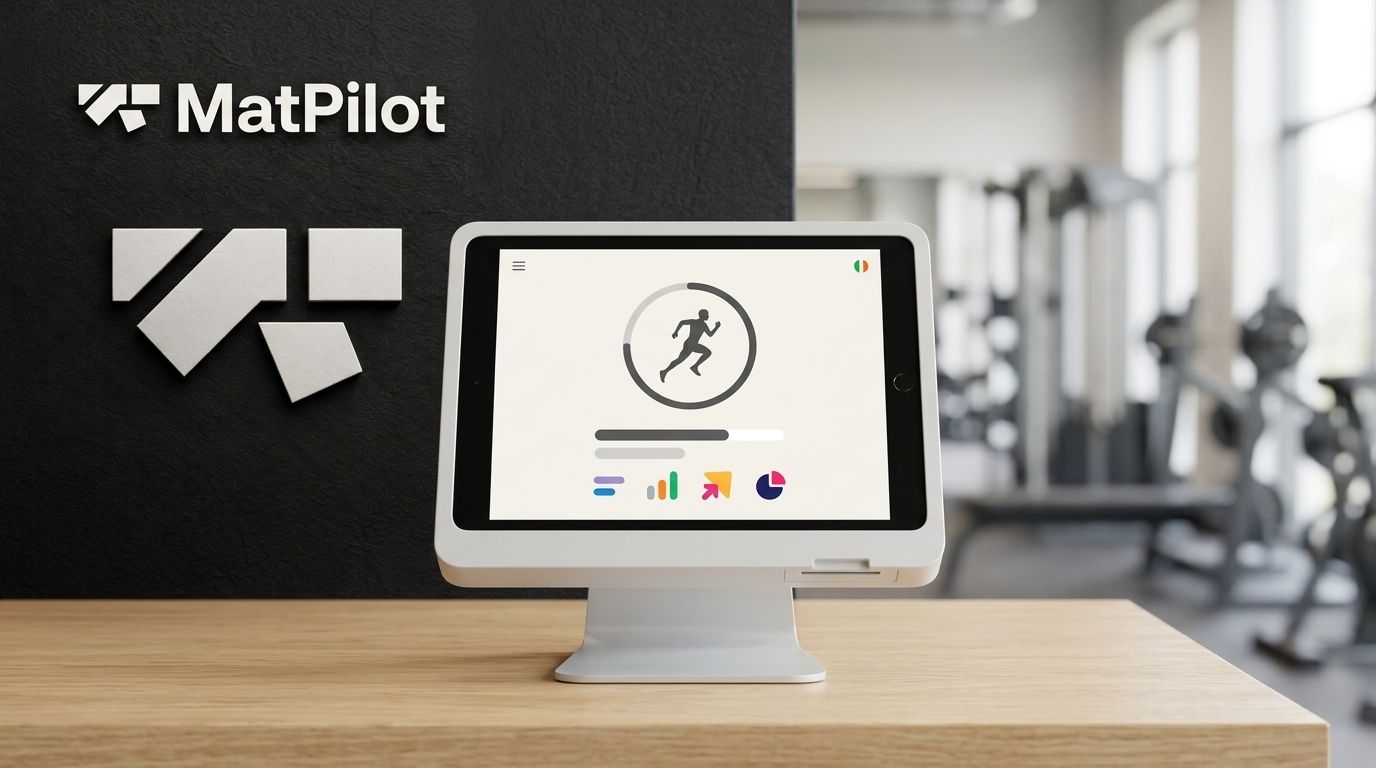
Set up a kiosk tablet for gym check-in by connecting a supported tablet to power and Wi-Fi, opening your attendance software’s dedicated check-in screen, and restricting access to that screen. Then test whether each check-in reaches the correct student and class before leaving the tablet at reception. For a 2026 setup, confirm shared-device support with your software provider; a normal staff login is not a safe substitute for a member-facing kiosk.
- How to set up a kiosk tablet for gym check in: configure attendance first, restrict device access, then test.
- Use iPad Guided Access or Android screen pinning as a device restriction, not a replacement for software permissions.
- MatPilot suits martial arts owners who need attendance, scheduling, billing, and per-art grading together.
- Keep payment details and staff controls off the public check-in screen.
How do you set up a kiosk tablet for gym check-in?
Configure the attendance workflow before mounting the tablet. A secure device still produces bad records if students select the wrong class or check in under a sibling’s name. Compare check-in apps for martial arts gym members around that workflow, not just the appearance of the screen.
Use this setup order:
- Confirm support. Ask your software provider which tablets, browsers, and shared-device check-in methods it supports.
- Prepare attendance. Review student records, disciplines, class times, and instructor assignments.
- Prepare the tablet. Update the device, connect power, and test reception Wi-Fi.
- Restrict access. Open the dedicated check-in interface and apply device restrictions.
- Test records. Submit controlled check-ins and inspect the resulting attendance entries.
- Assign responsibility. Name the staff member who checks the tablet before classes and handles exceptions.
Do not start public use until the check-in confirmation matches the attendance record staff see. A success message alone does not establish that the student reached the right class roster.
Why this matters
Your check-in record should answer a practical question: who attended which session? For a multi-discipline academy, that means distinguishing BJJ attendance from boxing, Muay Thai, judo, karate, or taekwondo attendance where your records require it.
The 2026 setup decision is not just about replacing a paper register. You are choosing how students identify themselves, how instructors correct mistakes, and what information a stranger can see on an unattended screen. Write those rules before choosing the tablet.
Choose a tablet your attendance software supports
Best for reliable operation: a supported device with a tested check-in workflow. Do not buy hardware on the assumption that any mobile app works as a shared kiosk. A member app, a staff app, and a public check-in interface serve different purposes.
Ask the provider whether you need a browser, a native app, or a separate kiosk session. Confirm how that session is authorized and what happens when it expires.
| Device option | Best for | Useful restriction | Limitation to check |
|---|---|---|---|
| iPad | Academies whose check-in provider supports iPadOS | Guided Access restricts the device to one app | Device restrictions do not remove permissions inside the app |
| Android tablet | Academies whose provider supports the selected Android device | Screen pinning keeps an app in view | Controls and settings vary by device and Android version |
Neither option fixes an attendance interface that exposes member records or staff controls. Test the actual software on the actual device before committing to a reception setup.
For an existing tablet, check that it still receives operating-system security updates and runs a supported browser or app version. Reusing hardware makes sense only when those requirements are met.
Prepare your member records and timetable
Start with the schedule students will use today. Check the class name, start time, discipline, and location if you operate more than one site. Similar labels need enough detail for a student to choose correctly.
Use explicit names such as adult BJJ fundamentals and adult boxing rather than a repeated label such as evening class. These are naming examples, not required software fields. Keep your public timetable and staff register consistent.
Before enabling self-service check-in:
- Review duplicate student records and decide which record staff should use.
- Give siblings separate student records even when a parent handles payment.
- Confirm how students with the same name identify the correct account.
- Check how a student attending different disciplines selects a session.
- Decide who handles trial visitors who do not yet have a student record.
A family payment account is not an individual attendance record. A parent paying for several children does not tell you which child entered the class. Test that distinction explicitly.
For your 2026 timetable, also check the tablet’s date, time, and time zone. A device set incorrectly makes troubleshooting class selection harder, especially when the interface filters sessions by the current time.
Connect power and test the reception network
Place the tablet where arriving students can reach it without blocking the entrance or stepping onto the training area. Keep it visible to staff. Route the charging cable away from walking routes and secure the device against accidental movement.
Start with 1 tablet at the intended check-in position. Test the network there rather than at the office desk. Open the check-in screen, complete a test entry, and confirm that the staff attendance view receives it.
Check these practical details before fixing the mount:
- The screen is readable from the normal approach to reception.
- Children and adults can reach the controls safely.
- The charging cable reaches without tension or an exposed trip hazard.
- The tablet stays connected when students gather near the entrance.
- Staff can remove or service the device without dismantling the reception area.
Use a screen lock for periods when the kiosk is not operating. Public access during class arrivals does not require leaving the device accessible overnight.
Restrict the tablet without exposing staff access
Open only the check-in interface intended for shared use. Do not leave a staff dashboard signed in and assume that hiding the navigation makes it safe. Test what a student can reach through back buttons, menus, search results, and session controls.
On an iPad, Guided Access provides a way to restrict use to one app. On Android, screen pinning provides an app restriction, with settings that depend on the device. Follow the current operating-system instructions and require authentication to exit the restricted session where supported.
Device restrictions and software permissions solve different problems. The tablet restriction limits movement between apps. The software permission determines which member information and actions remain accessible inside the check-in interface.
For a 2026 security review, test the public screen for access to:
- Payment details and outstanding balances.
- Student contact information and guardian details.
- Private staff notes or grading assessments.
- Member exports, billing controls, and account settings.
- Other open browser tabs or saved staff sessions.
If the interface exposes those areas, stop and ask the provider for the correct shared-device setup. Do not work around the problem by asking students to avoid certain buttons.
Test the complete check-in sequence
Run 3 test check-ins before opening the kiosk to members: a normal entry, an immediate repeat, and an entry with a deliberately wrong class selection. These are setup tests, not a claim about the number every academy needs.
Inspect the staff attendance view after each test. Check the student, class, date, and any recorded attendance status. Then establish how staff correct mistakes without deleting valid attendance.
Use this sequence for each test:
- Identify student. Select the intended student through the supported check-in method.
- Choose class. Confirm the discipline and session before submitting.
- Submit check-in. Complete the action and read the confirmation.
- Verify attendance. Open the staff view separately and inspect the resulting record.
- Reset screen. Confirm the next visitor cannot see the previous student’s private information.
The sequence ends at a clean public screen, not at the confirmation message. That final reset is part of the test.
Also test 2 classes with overlapping arrival times. Use sessions that genuinely exist in your timetable. Confirm that students can distinguish them and that the software does not silently place everyone into the same class.
If your workflow uses QR codes, test the full route from scan to attendance entry. The QR-code check-in to attendance workflow covers that separate process.
Why kiosk setup varies between academies
The hardware setup stays simple. The attendance rules create the differences.
- Class selection. A single-session club has fewer choices to present than an academy running overlapping disciplines.
- Student identification. Name search, personal codes, and QR-based workflows require different checks where the provider supports them.
- Family participation. Parents need to identify the attending child, not merely the household account.
- Reception coverage. A staffed desk can resolve an unfamiliar name immediately; an unattended station needs a clear exception route.
- Connectivity. Your fallback depends on whether the software explicitly supports offline entries and later synchronization.
- Software permissions. A dedicated public interface needs different access from an instructor or owner account.
Do not add complexity without an operational reason. Start with the supported method your members can complete correctly, then address the exceptions you actually encounter.
What should you do when Wi-Fi drops?
Stop relying on the kiosk until you know whether the entry reached attendance. A screen that remains open does not prove that new check-ins are being saved. Do not assume offline storage or later synchronization unless the provider documents that behavior.
Keep a staff-controlled fallback register. Record the student, class, and attendance date, then reconcile those entries when service returns. Mark each reconciled entry so another staff member does not enter it again.
If the tablet disconnects repeatedly, test the network before changing attendance settings. Separate a connection failure from a student-record or class-selection problem.
Should attendance automatically count toward belt promotion?
Attendance should support a promotion review, not replace the academy’s grading decision. First establish whether the attendance belongs to the correct discipline. Then apply your academy’s syllabus and instructor assessment.
For BJJ, judo, karate, and taekwondo, keep the rank record distinct from a simple visit total. For boxing, Muay Thai, and MMA classes, record attendance according to the academy’s own progression structure rather than forcing every discipline into belt labels.
Correct a mistaken class entry before using that attendance in a grading review. A kiosk does not establish technical competence.
Where MatPilot fits in this setup
MatPilot is best for martial arts owners who need attendance, scheduling, billing, and per-art grading together. MatPilot gym management software supports those functions through web, iOS, and Android access.
That connected scope is useful when an owner needs attendance alongside member administration rather than a separate register. The boundary is equally important: mobile access alone does not establish shared-device kiosk support. Before choosing MatPilot gym management software for a reception tablet, confirm the supported public check-in method, device restrictions, and correction process.
FAQ
Can I use an old iPad for gym check-in?
Use an old iPad only if it still meets your software provider’s supported device and operating-system requirements. Check security updates, charging reliability, and the actual check-in workflow before mounting it.
Is an iPad better than an Android tablet for a gym kiosk?
Neither platform is automatically better for a gym kiosk. Choose the device your attendance provider supports, then test its restrictions and public check-in screen.
Do I need a separate login for the check-in tablet?
Use the provider’s designated kiosk authorization or shared-device session. Do not expose an owner or staff dashboard to members as a substitute.
Can parents check in more than one child?
Confirm that the supported workflow records each child separately. A shared family billing account should not replace individual student attendance records.
Will gym check-in work without Wi-Fi?
Offline check-in depends on the software’s documented behavior. Unless offline recording and synchronization are confirmed, use a staff-controlled fallback register and reconcile it after service returns.
How do I stop students leaving the check-in screen?
Apply the tablet’s supported app restriction and protect the exit controls. Also test software permissions, because restricting the app does not hide private information within it.
How do I know the kiosk is recording the right class?
Submit a controlled check-in and inspect the resulting staff attendance record. Repeat the test with overlapping classes and verify the student, discipline, session, and date.
One last thing
Test the tablet as the next student, not just the student who checked in. Complete an entry, then inspect what remains visible and what another visitor can change. For your 2026 opening checklist, make a clean reset and a verified attendance entry the conditions for putting the kiosk into service.