QR code check-in to real-time attendance: complete 2026 workflow

Instead of copying a register after every class, set up QR code check-in for martial arts gym attendance so each accepted scan records the correct member and session. This 2026 workflow covers identity checks, class assignment, duplicate prevention, live verification, and the staff fallback when scanning fails.
- QR code check-in for martial arts gym attendance needs verified member identity, class assignment, and duplicate prevention.
- MatPilot suits martial arts owners who need attendance, scheduling, billing, and per-art ranks together.
- Test accepted scans against the staff attendance view before replacing your class register.
- Keep coach-assisted check-in available for children, missing phones, and connection failures.
Why this matters
A successful scan is not proof of a correct attendance record. The workflow must identify who attended, which class they joined, and whether the record was saved. A page opening on a phone proves none of those things by itself.
Start with the attendance behavior you need, not the printed code. The guide to check-in apps for martial arts gym members covers the broader selection question; this guide focuses on getting the workflow right.
For BJJ, separate gi, no-gi, and open mat when those are separate sessions on your timetable. Apply the same discipline to boxing, Muay Thai, karate, and taekwondo. A member entering the building is not automatically attending every class that evening.
MatPilot is best for martial arts owners who need attendance, scheduling, billing, and per-art ranks together. Treat QR scanning as an entry method within that wider process, not as a substitute for accurate member and class records.
Before you start
- Access and permissions: Have staff access to member records, the timetable, and attendance. Confirm that your chosen check-in system supports the scanning method you intend to use before printing anything.
- Materials and records: Prepare a scanning device or member-facing code, a working connection, the current class schedule, and identifiable member records. Keep a staff-operated attendance route available.
- The family-account gotcha: A parent or billing contact is not necessarily the student attending. Establish how the workflow selects the individual child before testing family check-in.
Do not assume a generic QR generator connects to your attendance database. A code can open a destination, but the destination must handle identity, session selection, and saving attendance. Establish that connection first.
Choose the scan direction
There are two common workflow designs. Choose the one your check-in system actually supports; neither design alone guarantees accurate attendance.
| Workflow | Best for | Advantage | Limitation |
|---|---|---|---|
| Member scans a gym or class code | Adult classes where members bring phones | Members initiate check-in without handing over a device | Identity and session selection still need verification |
| Staff scans a member code | Staffed entrances and supervised youth classes | Staff can confirm the person and class together | Requires someone to operate the scanning device |
| Coach-assisted check-in | Children, missing phones, and scan failures | Keeps attendance recording possible without a member device | Adds manual work and needs consistent staff handling |
Keep coach-assisted check-in as the fallback, not a competing register. All entry methods should feed the same attendance record. Otherwise, someone must reconcile separate lists after class.
Member identity and session configuration
Establish the record being written
- Open the member roster using an account authorized to review attendance. Check that each test participant has one identifiable student record.
- Inspect the timetable for the class you will test. Confirm the martial art, date, start time, and location where relevant.
- Decide whether a scan selects a specific class or asks the member or staff to choose one. Follow the supported workflow rather than assuming that the nearest start time determines attendance.
- Establish the unit of attendance: one member attending one scheduled session. Keep a second class separate, even when it follows immediately afterward.
- Check family records using an individual student, not just the payer. Confirm that siblings can be distinguished before testing at the entrance.
Expected result: You can name the exact member and session that an accepted scan should update. No ambiguous family identity or class assignment remains.
Set the acceptance rules
For your 2026 setup, write down how staff will handle early arrivals, late arrivals, trials, and members taking consecutive classes. These are operating rules, not assumptions to leave inside a scanner.
Decide who can correct an attendance mistake. Keep the correction process narrow enough that staff do not create a second record while trying to fix the first.
Do not use attendance as a shortcut for payment enforcement. If payment status affects entry at your academy, document that policy separately and confirm the software behavior. A failed payment and a missed class are different events.
QR check-in configuration
Connect the code to the supported workflow
- Use the QR check-in destination or member credential supplied by your attendance system. Do not substitute the gym homepage for a check-in destination.
- For a member-scanned workflow, verify what happens when a signed-out person opens the destination. Confirm that identity is established before attendance is saved.
- For a staff-scanned workflow, verify that the code resolves to the intended member record. Confirm the class selection before recording attendance.
- Test the code on the device that will actually be used at the entrance. Check camera access and whether the destination opens correctly.
- Place the code where a member or staff operator can scan it without blocking entry. Keep the full code visible and avoid reflections across its surface.
Expected result: The scan reaches the supported check-in process and identifies the intended student. Merely opening a website is not a passing result.
Verify confirmation behavior
Inspect what the person scanning sees after submission. The confirmation should distinguish an accepted check-in from an unresolved identity, an unavailable session, or a connection problem.
Do not instruct members to keep scanning until something changes. Repeated scans make troubleshooting harder when the system does not prevent duplicates. Ask staff to inspect the attendance record first.
For a shared entrance code, do not treat possession of the destination as proof of physical presence. A code can be photographed or forwarded. Use supervision or another supported presence check when that distinction matters to your academy.
Live attendance verification
Run the acceptance test
Use a controlled test before replacing the register. The following counts are test instructions, not performance claims about any product.
- First scan: Check in one test member to one scheduled session. Open the staff attendance view and verify the name and session.
- Repeat scan: Scan again for the same member and session. Confirm that the workflow does not add a second attendance credit.
- Second class: Check the member into a different session. Confirm that the second class creates its own valid attendance record.
- Family check: Use two student records linked to the same family contact. Confirm that attendance stays separate for each student.
- Connection check: Interrupt the connection during a test. Inspect the record before retrying, so you know whether the first submission saved.
Expected result: One valid check-in produces one attendance record for the intended member and session. A repeated submission does not create additional attendance credit.
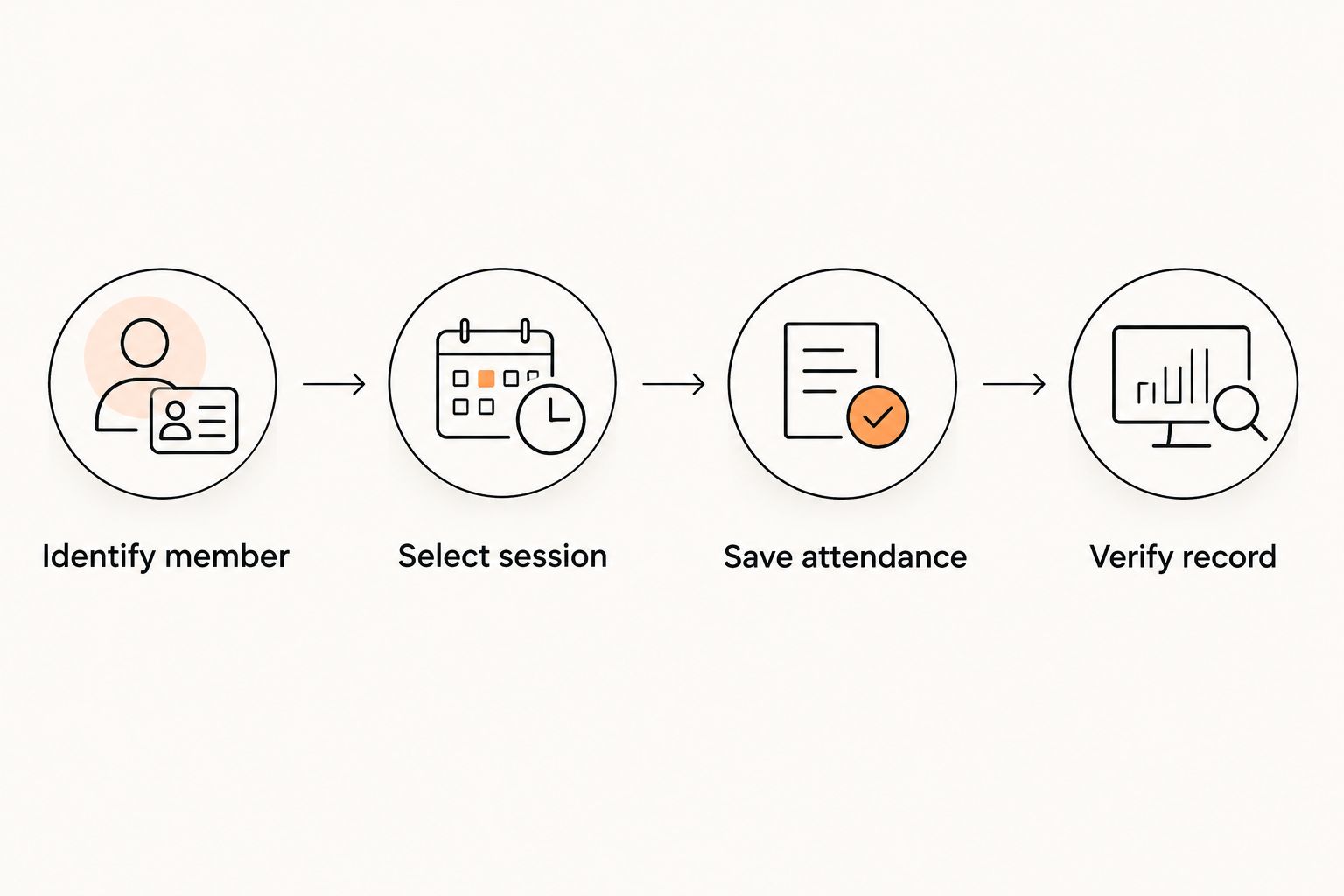
The core sequence is Identify member, Select session, Save attendance, Verify record. Keep those checks visible in your 2026 staff procedure, even if the software handles several of them automatically.
Define what real-time means at your entrance
Real-time attendance means the accepted check-in becomes visible in the staff attendance view during the operational workflow. It does not establish a particular refresh interval or offline capability.
Check whether the staff view updates automatically or requires a refresh. Record the observed behavior in your procedure. Do not advertise an instant update unless the actual workflow supports that claim.
Run the same test with the devices and connection used during classes. A successful office test does not verify the entrance setup.
Second workflow: check in to consecutive classes
Members who attend consecutive sessions need class-level attendance, not just a daily visit record. This applies equally to gi followed by no-gi, boxing followed by conditioning, or separate youth classes.
- Complete the first session check-in and verify its attendance record.
- At the next class, select the new session through the supported check-in route.
- Record attendance for that session without changing the earlier record.
- Inspect both sessions from the staff view. Confirm that each contains the member once.
Expected result: The member has separate attendance records for separate classes, without duplicate credit inside either session.
A single entrance scan cannot prove participation in every later class. Use the session-level workflow when class attendance informs coaching or promotion review.
The martial arts class scheduling software guide covers the timetable decisions behind this process. Resolve overlapping sessions before asking members to choose between them at check-in.
Troubleshooting
The camera will not read the code
Check lighting, reflections, focus, and whether the entire code is visible. Try the original code on another device to separate a damaged print from a camera problem.
Replace a blurred or cropped print. Do not edit the code's pattern to fit a sign.
The scan opens a page but records nothing
Inspect the destination and the identity step. Opening a page is not the same as submitting attendance.
Use the supported check-in destination and complete the required member and session selection. Then verify the saved record from the staff view.
The wrong sibling receives attendance
Check which student record the workflow selected. A shared parent account does not identify the child standing at the entrance.
Correct the mistaken attendance record through the supported staff process. Require explicit student selection for subsequent family check-ins.
A repeated scan creates duplicate attendance
Inspect whether duplicate prevention works for the same member and session. Confirm that the repeated scan did not select a different session with a similar name.
Correct the duplicate and keep staff-assisted check-in in place until the repeat-scan test passes. Do not let inflated attendance feed a promotion review.
The member sees confirmation but staff see no record
Check the selected date, session, location, and staff-view refresh behavior. Then inspect the original submission before retrying.
If the connection failed, use the staff fallback and reconcile the record afterward. Never assume that an error means nothing saved, or that a confirmation means the correct class received attendance.
Customize your workflow
Use attendance to support decisions, not to make every decision automatically. MatPilot martial arts gym management includes attendance, billing, scheduling, and per-art ranks; accurate check-in records give those processes a clearer starting point.
For your 2026 operating procedure, assign responsibility for unresolved check-ins. The entrance operator handles identity problems; the coach checks the class roster; the owner reviews recurring exceptions.
Keep belt or rank decisions separate from the scan itself. Attendance can inform a review, but it does not demonstrate technique, readiness, or instructor approval.
MatPilot's co-pilot uses approval gates for actions involving areas such as at-risk members, trial follow-ups, and promotion readiness. That owner-control model is distinct from the QR entry method. Do not assume that a scan triggers a message, promotion, or payment action without verifying the configured workflow.
Review attendance patterns only after resolving duplicates and incorrect class assignments. Clean records come first. Automation built on a confused register repeats the confusion.
FAQ
How do I set up QR code check-in for a martial arts gym?
Connect a supported QR check-in route to identifiable member records and scheduled sessions, then verify the saved attendance. Test repeat scans, consecutive classes, family identities, and connection failures before replacing your register.
Can I use any QR code generator for gym attendance?
A generic QR code generator does not create an attendance workflow by itself. The destination must establish identity, select the session, and save the record in your attendance system.
Should members scan a gym code or should staff scan member codes?
Choose the scan direction your system supports and your entrance can supervise. Member scanning suits phone-equipped adults; staff scanning offers direct identity checks for supervised classes.
How do I prevent double attendance from repeated scans?
Verify that repeated submissions for the same member and session do not create additional attendance credit. Test that behavior before rollout and correct any duplicates through the supported staff process.
Can children check in without their own phones?
Children can use a staff-operated attendance route when your system supports it. Select the individual student rather than treating the parent or family billing account as the attendee.
Does real-time attendance mean check-in works offline?
No, real-time visibility does not establish offline support. Test connection failures separately and retain a staff fallback for unresolved submissions.
Can QR attendance decide when a student gets promoted?
QR attendance alone cannot establish promotion readiness. Use accurate class attendance alongside your syllabus, rank criteria, and instructor review.
One last thing
The most revealing 2026 check-in test is not the first successful scan. It is the second scan for the same student and class.
Test duplicates before opening the workflow to members. A scanner that appears to work while counting attendance twice creates a quieter problem than a scanner that visibly fails.