Sync your class schedule to your website automatically: complete 2026 workflow
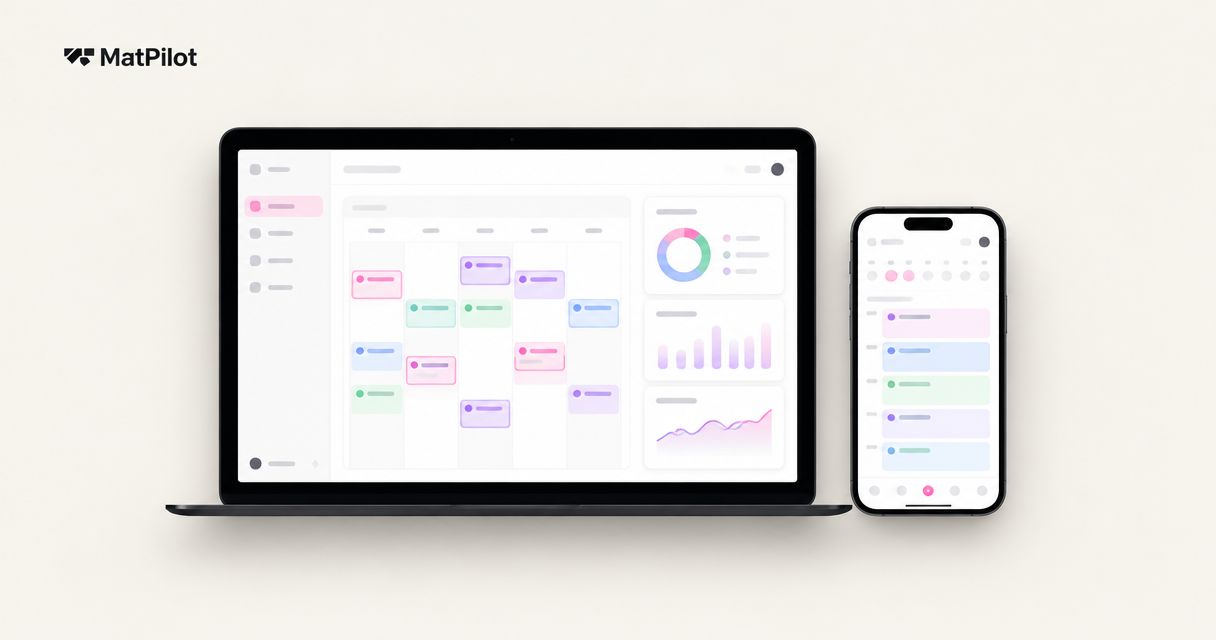
Instead of manually copying every class change onto your website, connect the public timetable to one authoritative schedule so approved changes reach visitors without a second edit. To sync class schedule to gym website, use a supported live embed or documented data connection, then test times, cancellations, public access, and mobile display before publishing.
- To sync class schedule to gym website, publish from one authoritative timetable rather than maintaining two schedules.
- MatPilot suits martial arts owners who need class scheduling alongside attendance, billing, and per-art ranks.
- Confirm a supported website connection before treating any scheduling system as an automatic publishing source.
- Test cancellations, time zones, and mobile timetable views before releasing the public schedule.
Why this matters
A website timetable and an internal timetable become separate records when you edit them independently. Moving a boxing session in the management system does not change a website image. Someone must make the second edit.
Automatic publishing means the website reads from the schedule you maintain, not from another manually maintained copy. Start with the source, then decide how the website will display it.
MatPilot is best for martial arts owners who need class scheduling alongside attendance, billing, and per-art ranks. It also provides website-building tools. Treat those capabilities separately from the publishing connection: verify the supported connection before planning an automatic website update.
The martial arts class scheduling software guide covers the scheduling side of that decision. This guide covers the publishing workflow, including what must happen when an existing class changes.
Before you start
- Get access to both systems. You need permission to maintain the academy timetable and edit the website page that displays it. Identify who approves changes and who can publish them.
- Choose the authoritative schedule. Prepare class names, disciplines, levels, locations, local times, and recurring days. Review the full 7-day week, not just your busiest evening.
- Confirm public access before implementation. A member-only timetable is not automatically a public timetable. Check whether the scheduling provider supports a public embed, public schedule page, or documented website data connection. Never expose a private account credential in page code.
The non-obvious gate is access. A timetable that loads while you are signed in can still fail for a prospective student. Test the public version while signed out before spending time on its layout.
Choose the publishing method
Use the method your scheduling provider actually supports. Do not assume that a website builder, booking calendar, and management system share schedule data simply because they belong to the same account.
| Publishing method | Best for | Advantage | Limitation |
|---|---|---|---|
| Supported live embed | Owners who want the provider's timetable inside an existing website | Displays the provider's public schedule without rebuilding its presentation | Layout and controls depend on the embed |
| Documented data connection | Academies that need a custom timetable presentation | Separates schedule data from website design | Requires implementation, error handling, and maintenance |
| Link to a public live timetable | Owners who need a simpler publishing route | Sends visitors directly to the maintained schedule | Visitors leave the current page to view classes |
A screenshot or manually typed table is a static display, not synchronization. Use one only with a named person responsible for every change. It does not meet the automatic-update goal of this workflow.
Authoritative timetable configuration
Build the public view from a timetable that staff can trust. Do not connect the website first and clean up conflicting class records afterward.
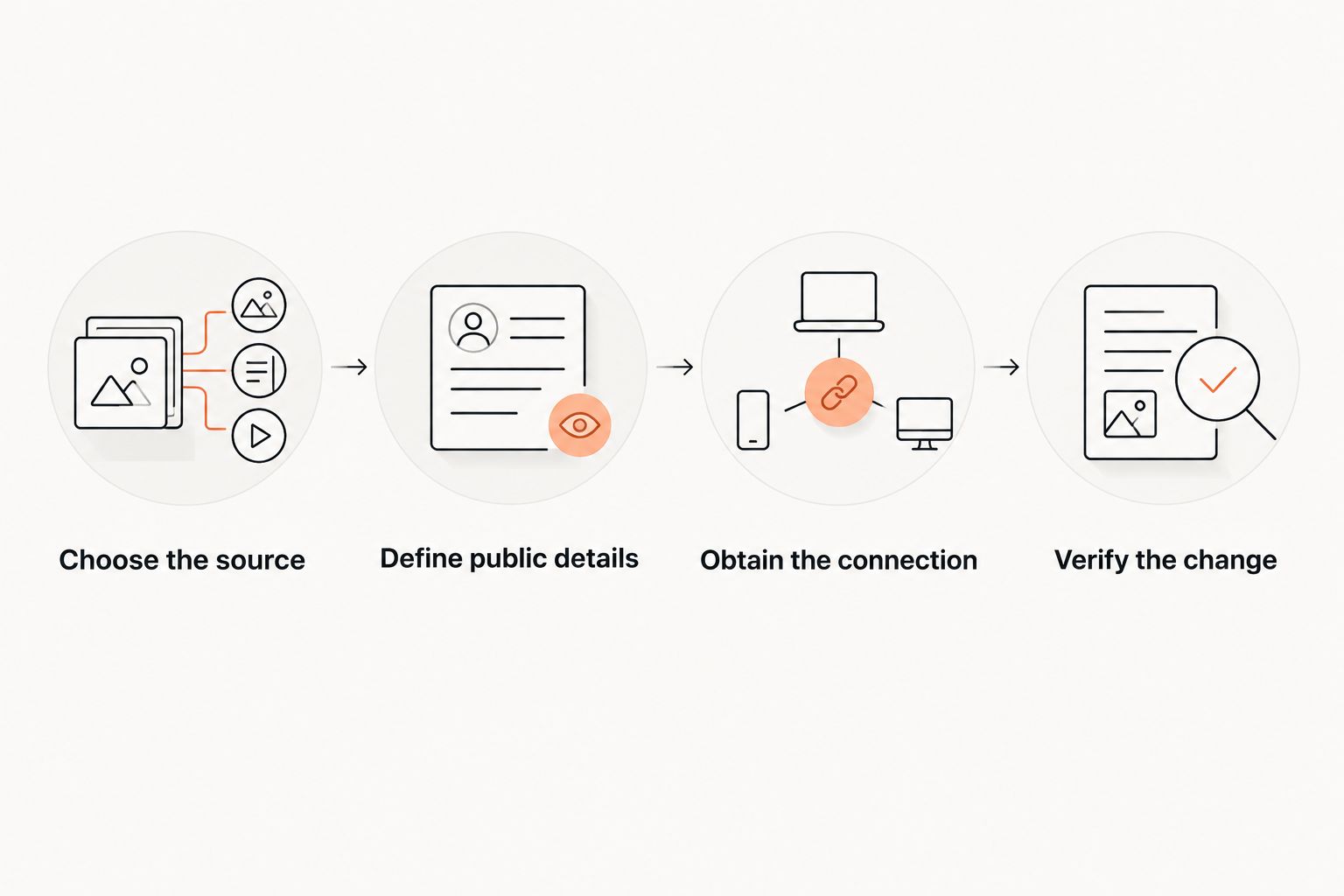
- Choose the source. Name the scheduling system that owns class times. Record that choice in your staff instructions and stop treating the website as a second schedule editor.
- Define public details. Decide which information visitors need: discipline, class level, day, start time, end time, and location. Keep member identities, attendance records, and internal instructor notes out of the public feed.
- Standardize class names. Distinguish BJJ fundamentals from advanced BJJ. Give boxing and Muay Thai equally clear labels. For children's classes, state the relevant group rather than using an unexplained internal abbreviation.
- Confirm the time zone. Set the academy's local time zone in the source and check how the public display interprets it. A local in-person timetable should not silently become the visitor's device time.
- Review exceptions. Separate recurring sessions from one-off classes and closures. Check your 2026 closure dates against the timetable before connecting the website.
Expected result: one approved timetable contains the public class details and the exceptions that affect attendance. Staff know where to make changes.
Do not add belt requirements simply because a class is labeled advanced. Publish the actual admission rule approved by the instructor. For a multi-discipline academy, keep each art's level descriptions clear rather than translating every level into a BJJ belt.
Website connection configuration
Connect the website through the scheduling provider's documented publishing route. Follow its current interface instructions for controls and settings; do not substitute a guessed integration procedure.
- Obtain the connection. Retrieve the supported public embed or documented data access method from the scheduling provider. Confirm which timetable it exposes and whether it includes schedule exceptions.
- Place the display. Add the supported component to the website's timetable area. For a custom connection, have the implementation read the documented source rather than scrape a private management screen.
- Apply public filters. Show the intended location, disciplines, and class groups. Confirm that filters do not hide a session that prospective students need to see.
- Protect credentials. Keep private credentials out of browser-delivered code. If the connection requires a private secret, handle it on the server rather than inserting it into a public page.
- Define failure behavior. Decide what visitors see when the source cannot be reached. Use a clear unavailable message or a supported public timetable link, not an apparently current schedule with unknown freshness.
Expected result: the website displays the approved timetable while you are signed out, without revealing private account access or member data.
For a MatPilot scheduling workflow, confirm the supported connection before implementing this step. Website-building and class-management capabilities do not, by themselves, establish how a public timetable updates.
Keep the 2026 publishing workflow simple: edit the source, review the change, and verify the public result. Do not introduce another editable timetable between the source and the website.
Change verification configuration
A timetable that appears correctly once has not yet proved that it synchronizes. Verify a change from its source through to the public page.
- Prepare representative cases. Select 3 test classes covering different needs, such as adult BJJ, boxing, and a children's session. Use a staging environment where available; otherwise choose controlled edits and restore them after testing.
- Verify the change. Update an approved public detail at the source. Check that the website reflects it without a separate website edit. Record the provider's documented refresh behavior rather than promising an instant update.
- Test the exception. Confirm how a single canceled occurrence appears. It must not look like an ordinary session that visitors can still attend.
- Check both views. Use 2 browser sessions: one signed in for administration and one signed out for the public timetable. Repeat the public check on a phone.
- Inspect the details. Confirm the day, local time, class name, discipline, level, and location. Open any booking action and check that it leads to the same class occurrence.
Expected result: an approved source change reaches the public timetable, exceptions remain clear, and the display works without a member login.
Use your 2026 launch checklist to record what passed and what needs correction. Keep unresolved failures out of the published workflow. A working desktop view does not excuse a phone view that cuts off class times.
Publishing ownership and handoff
Automation removes duplicate edits. It does not remove responsibility for the underlying schedule.
- Assign the editor. Identify who changes recurring classes and who handles temporary substitutions. Give access according to those responsibilities.
- Assign the approver. Decide which changes require owner or head-instructor approval before becoming public. If the system lacks a draft stage, approve the change before editing the live source.
- Set the review routine. Check the public timetable after significant changes and before announcing a new training block. Include closures and classes that cross into the next calendar period.
- Document recovery. Record how to restore an incorrect class occurrence, where connection errors are handled, and who can repair the website integration.
Expected result: staff can change the timetable without guessing where to edit, who approves it, or how to correct a mistake.
Keep this handoff short enough to use. A staff instruction such as “change the source, check the public view, then announce the update” is more useful than a document nobody opens during a class change.
Update one occurrence without changing the weekly timetable
A recurring timetable and a date-specific exception are adjacent workflows. Use the recurring schedule for your normal week. Use an occurrence-level change for a closure, replacement instructor, or temporary room move when the source supports it.
- Identify the exact class date and local start time.
- Confirm that you are editing the single occurrence, not the recurring series.
- Apply the approved cancellation or replacement details.
- Check that the public timetable shows the exception and that the following week's session remains correct.
- Handle member communication separately unless the system explicitly connects it to the schedule change.
Website synchronization is not a member-notification system. A changed timetable does not prove that booked students received a message. Confirm the communication route before relying on it.
For a 2026 holiday closure, check each affected discipline. Canceling BJJ does not establish what happens to boxing, Muay Thai, or children's classes sharing the same venue.
Troubleshooting
The timetable works only when you are signed in
The website is using a private view or access-dependent connection. Replace it with the provider's supported public publishing route. Verify it again in a signed-out browser session before releasing the page.
A changed class still shows the old time
Check the source record first, then the connection's filters and documented refresh behavior. Inspect website or integration caching where applicable. Do not patch the public page manually; that recreates the second timetable this workflow removes.
Class times shift for some visitors
Check whether the display converts times to the visitor's device time zone. Use the source's documented local-time configuration and label the academy's time zone clearly. Test daylight-saving transitions using real class dates rather than a fixed offset.
A cancellation removes the whole recurring series
Restore the approved series and apply the exception to the intended occurrence. Check the next scheduled session afterward. Give staff explicit instructions distinguishing an occurrence edit from a series edit.
The phone view hides essential details
Inspect the timetable at narrow screen widths. Keep day, time, discipline, and level readable without depending on hover controls. Use the provider's supported responsive presentation or adjust the custom implementation; verify booking actions separately.
Customize your workflow
Expand the public timetable only after the basic update path works. Add discipline filters for a mixed academy, location labels for separate venues, or clear distinctions between children's and adult sessions. Each added filter needs its own public-view check.
MatPilot provides martial arts scheduling alongside attendance, billing, and rank tracking. Keep the public timetable focused on class discovery while private operational records remain private.
For presentation decisions, use the martial arts website builders guide. Evaluate the timetable as part of the visitor's route from finding a suitable class to understanding how to attend it.
FAQ
How do I sync a class schedule to my gym website automatically?
Connect the website to one authoritative timetable through a supported live embed or documented data connection. Test an actual source change, public access, cancellations, and local class times before publishing.
Does MatPilot automatically publish my timetable to my website?
Confirm the supported publishing connection before relying on automatic updates. MatPilot provides class scheduling and website-building tools, but the workflow must establish how timetable changes reach the public page.
Is an embedded timetable better than a screenshot?
A supported live embed is better for automatic updates because it displays the maintained schedule rather than a static image. Its layout and controls depend on the provider's implementation.
Can I show BJJ, boxing, and Muay Thai on the same timetable?
Use a shared public view if your scheduling source supports those classes and the required filters. Label each discipline and level clearly, then check that filtering does not hide relevant sessions.
Will a website timetable update notify booked students?
A website update does not establish that booked students receive a notification. Confirm the separate member-communication workflow and test it before relying on it for cancellations.
What should I test before publishing a gym timetable in 2026?
Test source changes, single-occurrence cancellations, public access, local time zones, and mobile display. Check any booking action against the same class date, time, and location.
Should a public timetable show member attendance or belt records?
A public timetable should show class information, not individual member attendance or rank records. Publish class-level eligibility rules while keeping personal operational data private.
One last thing
Test a cancellation before testing a new class. Adding a session proves that data can appear. Canceling one occurrence tests whether the publishing route handles exceptions without damaging the recurring schedule.
Make that your final 2026 release check. The website should answer what visitors can attend, not merely reproduce what the timetable looked like when you first connected it.