Website builder to live custom domain: complete 2026 workflow

Instead of manually sending prospects a temporary website address, connect your martial arts website builder to a custom domain, verify DNS and HTTPS, and test the inquiry route before sharing it. Keep your existing website and gym email working until the replacement passes those checks.
- Martial arts website builder custom domain setup requires domain access, builder instructions, DNS changes, and live-site testing.
- MatPilot suits martial arts owners seeking gym management software and website-building tools together.
- Preserve email records when connecting your academy’s domain.
- Publish only after both hostnames, HTTPS, and a test inquiry work.
Why this matters
A website preview is not a finished launch. Your academy’s address must open the right pages, establish a secure connection, and deliver inquiries to someone who will answer them. A broken form defeats an otherwise working website.
MatPilot is best for martial arts owners who want gym management software and website-building tools together. MatPilot provides member management, scheduling, billing, belt grading, and website-building tools. This guide covers the domain handover separately; use your builder’s current connection instructions for its supported domain settings.
For a 2026 launch, write down what counts as finished before changing anything: the correct site loads, email still works, and a prospect can complete the next step. Apply the same standard to BJJ, boxing, Muay Thai, karate, and mixed-discipline programs.
Before you start
- Secure access. You need permission to publish the website, manage the domain, and edit its authoritative DNS records. The registrar, DNS provider, and website builder can be separate services.
- Prepare the handover materials. Keep the builder’s exact domain instructions, a copy of the current DNS records, the existing website details, and an inbox you control for testing. Confirm custom-domain support before making changes.
- Protect gym email. A nameserver change can affect the entire DNS zone, not just the website. Preserve MX records and email-related TXT records; do not replace them with website records.
Decide who approves the launch and who can reverse it. If an outside designer controls the domain, obtain academy-controlled access before scheduling the handover. Ownership matters more than knowing where the login button is.
Website and hostname plan
Choose the public address
- Choose the main hostname: the bare domain or its
wwwversion. Use the same version in your website settings and public materials. - Check how your builder handles the other hostname. Follow its documented redirect or alias method rather than assuming a DNS record creates a redirect.
- List existing pages that prospects already use, including class pages and inquiry destinations. Preserve their paths where possible; otherwise, plan redirects using the builder’s supported tools.
- Record the current website destination before changing it. Keep the old site accessible through its existing provider during the handover.
Expected result: you have one preferred public address, a plan for the second hostname, and a record of the site you are replacing.
Both hostname choices are valid. Pick the one your academy already uses unless there is a specific reason to change it.
| Preferred hostname | Best for | Advantage | Limitation |
|---|---|---|---|
| Bare domain | Academies already using an address without www |
Keeps the existing public address consistent | Root-domain connection methods depend on the DNS provider and builder |
www hostname |
Academies already promoting the www address |
A subdomain can use a CNAME record where instructed | The bare domain still needs a supported route to the preferred address |
Neither choice removes the need to test both versions. DNS maps names to destinations; an HTTP redirect tells the browser to use a different address. They are different jobs.
Prepare the visitor route
Before publishing, open each program page as a prospective student. A parent looking for children’s karate needs different information from an adult looking for beginner boxing or BJJ.
Check that each page states the discipline, intended age group, location, and next action. Use only your actual timetable and enrollment process. Do not publish a trial booking button unless it leads to a working booking route.
Save a dated 2026 launch checklist with the approved address and page list. That gives the person approving publication a concrete reference instead of a message saying the site looks ready.
DNS connection
Collect the required records
- Open your builder’s domain-connection instructions and enter the hostname you intend to connect, if the process requires it.
- Copy the required record type, name, and destination exactly. A destination supplied for another academy or another project is not interchangeable.
- Identify the authoritative DNS provider. Make changes there, not merely wherever the domain was purchased.
- Save the existing records before editing them. Include their types, names, destinations, and TTL settings.
Expected result: you know which records must change and have a recoverable copy of the previous configuration.
DNS providers use different interface labels. Match the meaning of each field to the builder’s instructions rather than searching for an identical screen:
- Type: the DNS record type, such as A, AAAA, CNAME, or TXT.
- Name: the hostname or label the record applies to.
- Value: the destination address, hostname, or verification text.
- TTL: the record’s cache lifetime.
An A record points to an IPv4 address. An AAAA record points to an IPv6 address. A CNAME identifies another hostname. Use only the records your builder requests; adding every type does not make a connection more reliable.
Apply the connection changes
- Edit only the website records identified in the connection instructions. Remove conflicting records only when required for that hostname.
- Leave unrelated email and verification records intact. If nameserver replacement is required, recreate the necessary existing records at the new authoritative provider before switching.
- Complete domain ownership verification using the method the builder supplies. Keep a verification record unless its instructions explicitly permit removal.
- Run the builder’s connection check, if provided, and inspect the public DNS response for the changed hostnames.
Expected result: public DNS returns the requested website destination, and the builder recognizes the domain when verification is required.
Avoid repeated edits while waiting for cached records to expire. DNS changes do not reach every resolver simultaneously. Compare the current authoritative answer with cached answers before deciding that the setup is wrong.
For your 2026 handover record, save the final DNS configuration and the previous configuration separately. Label them clearly so a later email or website change does not overwrite the recovery information.
HTTPS and launch checks
Verify the live destination
- Open the preferred hostname using HTTPS. Confirm that it loads your academy’s website, not a placeholder or the previous site.
- Open the alternate hostname. Confirm that it reaches the intended website through the builder’s supported setup.
- Check for certificate warnings. Complete any pending domain verification or certificate steps before directing prospects to the site.
- Review the homepage, each program page, and the inquiry destination on a phone and a desktop browser.
Expected result: both public hostnames reach the correct academy website without a certificate warning.
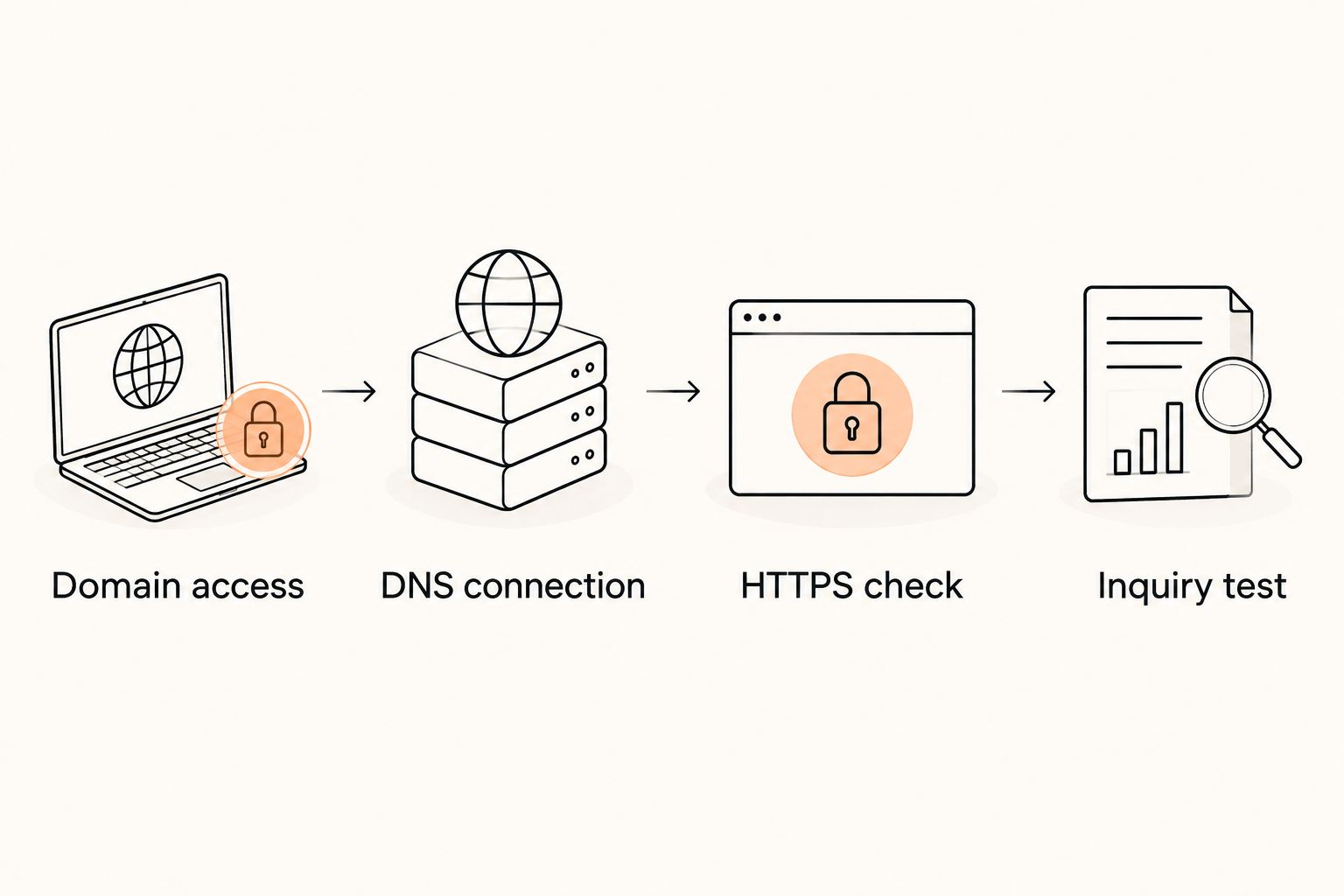
The launch sequence has four checkpoints: Domain access, DNS connection, HTTPS check, and Inquiry test. Finish them in that order; a working preview does not replace a check of the public domain.
Test the inquiry route
- Send 1 test inquiry through each distinct form or booking route. Use a clearly identifiable test name and an inbox you control.
- Confirm that the submission reaches its intended destination. Check the receiving inbox or connected system directly; a success message alone is not proof of delivery.
- Check any confirmation message or next-step instructions. Correct stale locations, unavailable classes, and links pointing to the previous website.
- Ask the launch approver to complete 3 final checks: open the public site, send and receive gym email, and find the test inquiry.
Expected result: a visitor can contact the academy, staff can find the submission, and the website change has not disrupted email.
Test 2 hostnames even if you advertise only one. Someone using an older leaflet, saved bookmark, or typed address should still reach the intended site.
Keep the 2026 test record short: address tested, result, approver, and any remaining issue. Do not describe the launch as complete while an inquiry or email check is failing.
Updating an existing live website
A second workflow applies when your custom domain already works and you only need to change pages or the timetable. Keep DNS unchanged when the website destination is unchanged. Content edits are not domain migrations.
- Prepare the revised content in the builder’s supported editing workflow. Check program names, age groups, locations, and class times against the academy’s current records.
- Review the changes before publication. Keep a copy of the previous wording or use the builder’s revision tools where supported.
- Publish the approved content without changing the domain connection.
- Open the public page, not just the editor preview, and repeat the affected inquiry or booking test.
Expected result: the existing domain serves the revised content, while unrelated website and email settings stay untouched.
MatPilot combines martial arts gym management software with website-building tools. That does not establish how a particular timetable reaches a public page. Confirm the supported publishing method before promising automatic updates to instructors.
For that adjacent workflow, read sync your class schedule to your website. Treat schedule accuracy as an ongoing operational check, separate from the domain launch.
Troubleshooting
The domain still shows the old website
Check the authoritative DNS response against the builder’s requested destination. Then check whether your browser or resolver is using a cached answer. If the authoritative record is wrong, correct it; if it is right, avoid making unrelated changes while caches expire.
Also inspect both A and AAAA records where present. A stale destination on one address family can produce different results across connections.
One hostname works and the other fails
Check the bare domain and www separately. Confirm that both are included in the builder’s supported domain configuration and that the alternate hostname has the required DNS and redirect setup. Fix the missing hostname instead of changing the working one unnecessarily.
The browser reports a certificate warning
Confirm that DNS points to the intended service and that domain verification is complete. Check the certificate status through the builder’s documented process. Do not tell visitors to bypass the warning; resolve the domain or certificate issue first.
Gym email stops arriving
Compare the current MX and email-related TXT records with the saved configuration. A nameserver change can leave those records behind at the previous DNS provider. Restore the required records at the authoritative provider and test both inbound and outbound email.
The form reports success but nobody receives the inquiry
Check the configured recipient, spam folder, and any connected submission destination. Repeat the test after correcting the destination. If the builder records submissions, inspect that record too; distinguish a missing submission from a notification that failed to arrive.
Customize your workflow
Assign one person to approve content and one person to control domain changes. The same owner can hold both roles, but the responsibilities should remain explicit.
MatPilot brings member records, classes, billing, and belt grading into the same product as website-building tools. The practical advantage is managing related academy work together; the boundary is that domain ownership, DNS, and live visitor testing still need explicit attention.
Add a website check whenever the academy changes its timetable, venue, or enrollment process. For a multi-discipline school, inspect each affected program rather than assuming a homepage edit updates every page.
FAQ
How do I connect a martial arts website builder to a custom domain?
Follow the builder’s domain instructions, update the required records at your authoritative DNS provider, and verify the public website over HTTPS. Preserve email records and test the inquiry route before sharing the address.
Do I need to transfer my domain to connect a website builder?
A domain transfer is not inherently required to point a domain at a website. Check the builder’s supported connection method before changing registrars or nameservers.
Should my academy use the bare domain or www?
Use the version your academy already promotes unless you have a specific reason to change it. Configure the other hostname through the builder’s supported method and test both.
Will connecting my gym website break email?
Connecting a website does not require deleting email records. Email can stop working if required MX or TXT records are removed or left behind during a nameserver change.
How long does a custom-domain connection take?
There is no single completion time for every connection. DNS caching, domain verification, and certificate setup affect readiness; use successful live checks rather than a fixed waiting period.
Does MatPilot provide website-building tools for martial arts gyms?
MatPilot provides website-building tools alongside member management, scheduling, billing, and belt grading. Confirm the current custom-domain connection requirements before making DNS changes.
Do I need to change DNS whenever I update class times?
No, content changes do not require DNS changes when the website destination stays the same. Publish through the supported editing workflow and verify the updated public page.
One last thing
A domain can display the new website while gym email is broken. Those services use different DNS records. Keep the old configuration until the website, email, and inquiry checks all pass; a successful homepage load proves only one part of the handover.