Help Center › Classes & Scheduling
End-of-class photos
The post-class team photo gets a home: attached to the class, visible to who was there.
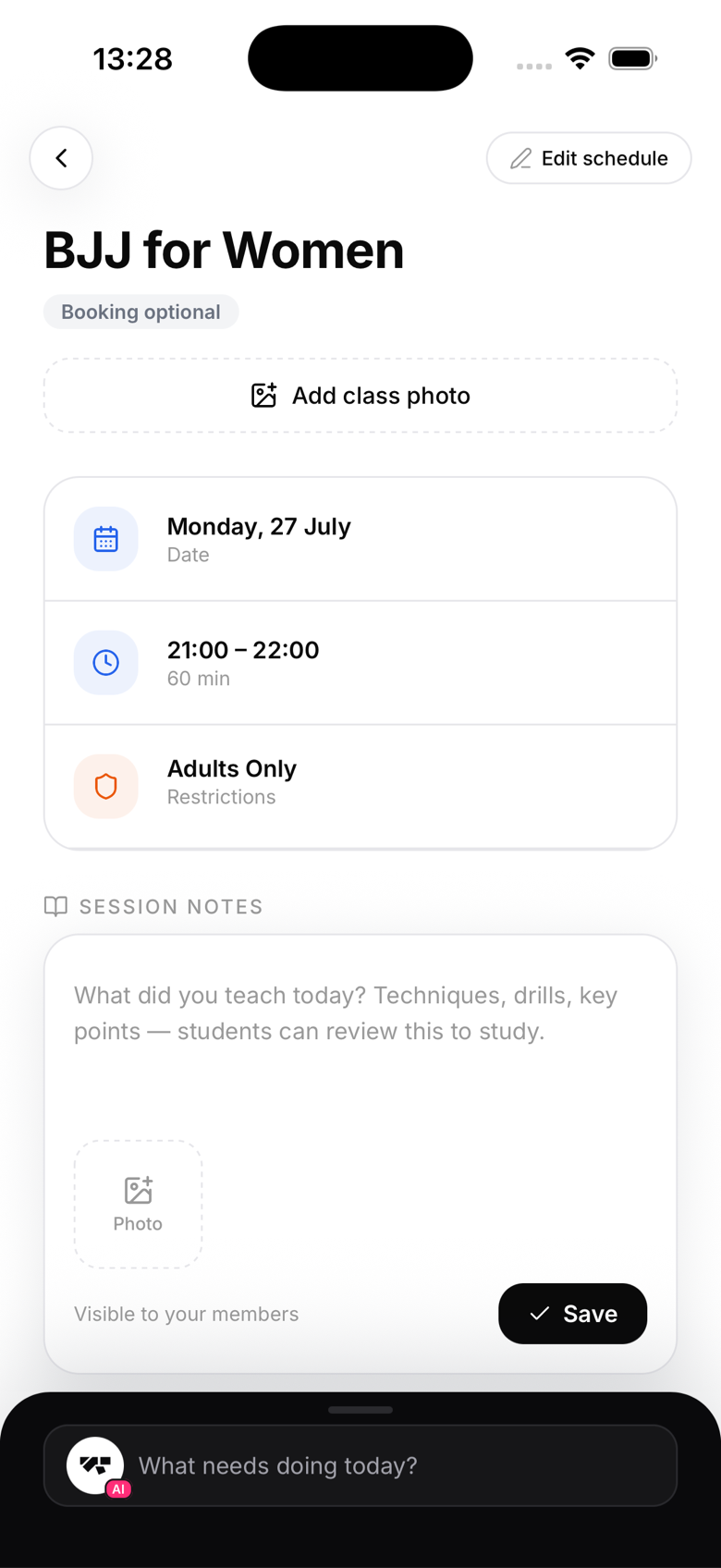
Take or attach a photo
- Open the class from the schedule
- Tap Add class photo
- Shoot or pick the photo. It attaches to that session
Members who attended see the photo on the class, and it shows up in their training history. One more reason to check in properly.
Privacy and kids classes
Some gyms, especially those with kids programs, don't want photos at all. Turn the feature off for your whole gym: Settings, edit your academy, Class photos. The toggle note says it directly: turn off for privacy, e.g. kids classes.
Photo consent is also part of kiosk walk-in enrolment, so new members state their preference the day they join.
Notes
- Only staff can attach photos, members can't upload to a class
- Deleting a class photo removes it for everyone