The kiosk check-in flow, tap by tap
1. Find your name
Tap I'm a member and type a few letters. Each match shows a first name and surname initial, belt and stripes, age and the last 30 days of training.
2. Pick your class
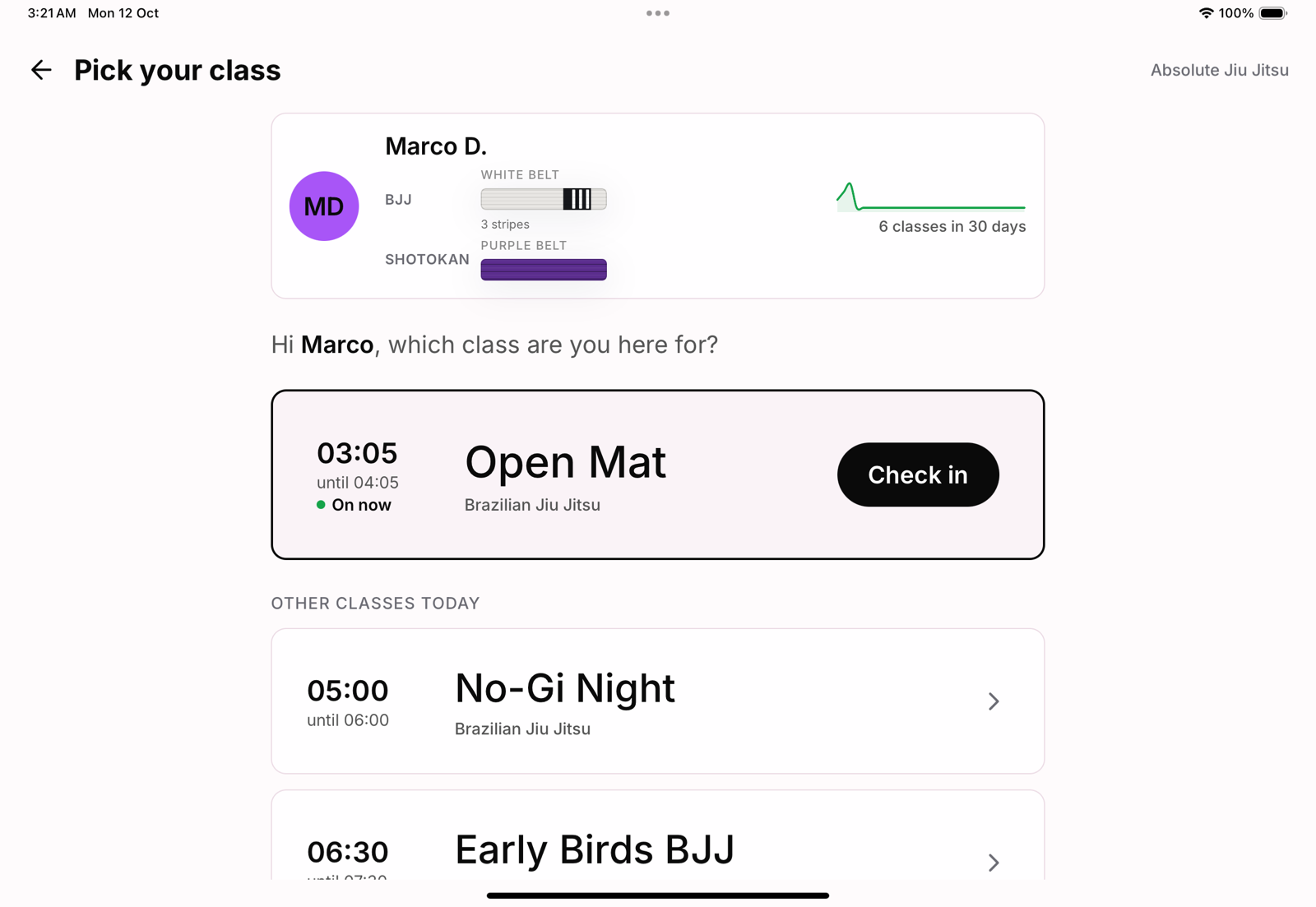
The member's card stays at the top. When one class is on now or starting soon, it is first with a big Check in button; the rest of today's classes follow, with any the member booked marked Booked.
3. Documents, if any
Anyone who owes a document is asked to sign it before training, on the tablet. See Waivers at the kiosk.
4. You're in
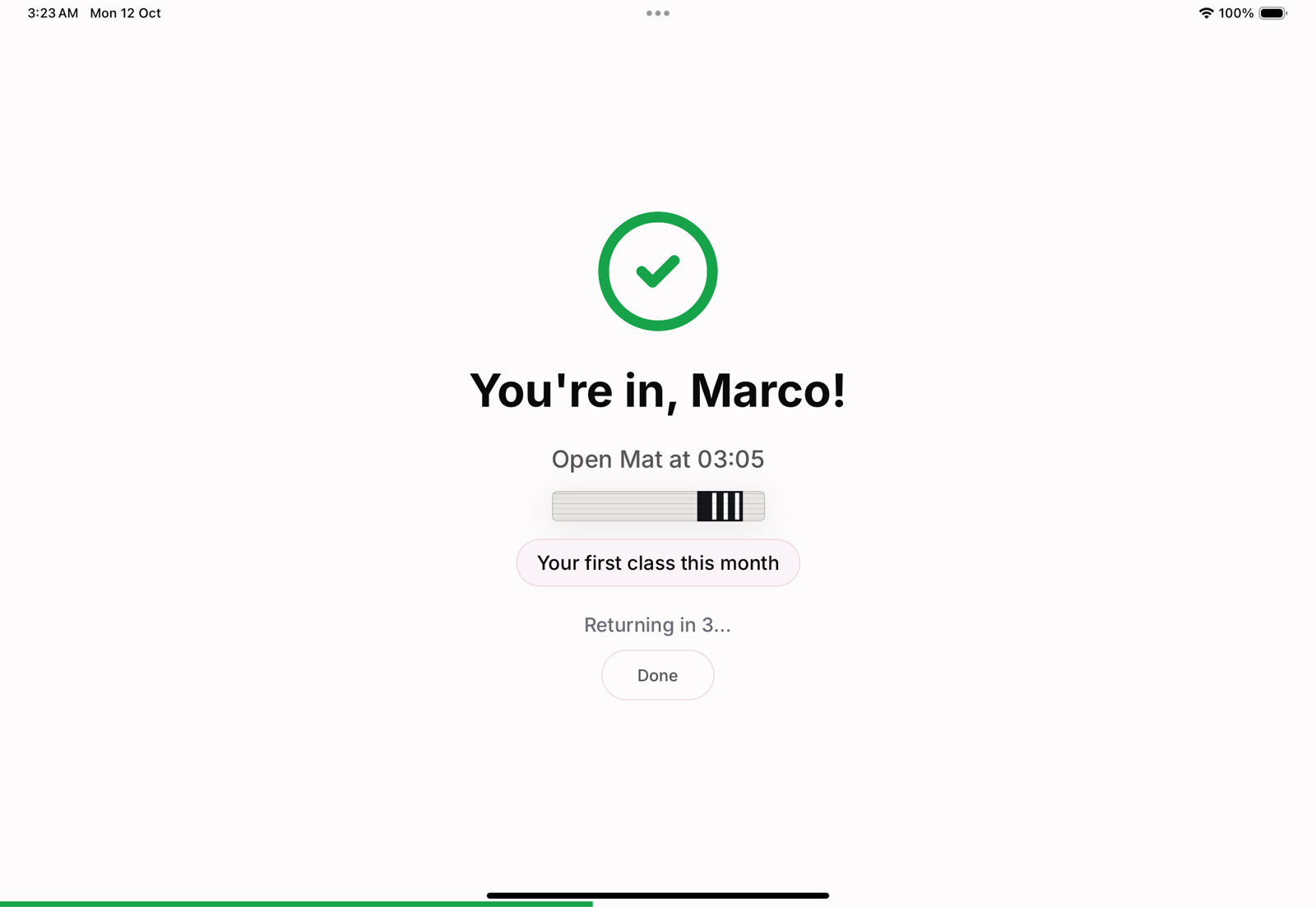
A green tick, their first name, the class and its time, their belt, and one line about their training: how many classes this month, the free classes left on a trial, or the date the trial ends. The kiosk goes back to the start by itself after a few seconds.
Already checked in
Tapping the same class twice does not count twice. The kiosk says You are already checked in with the class and time.
When the academy says no
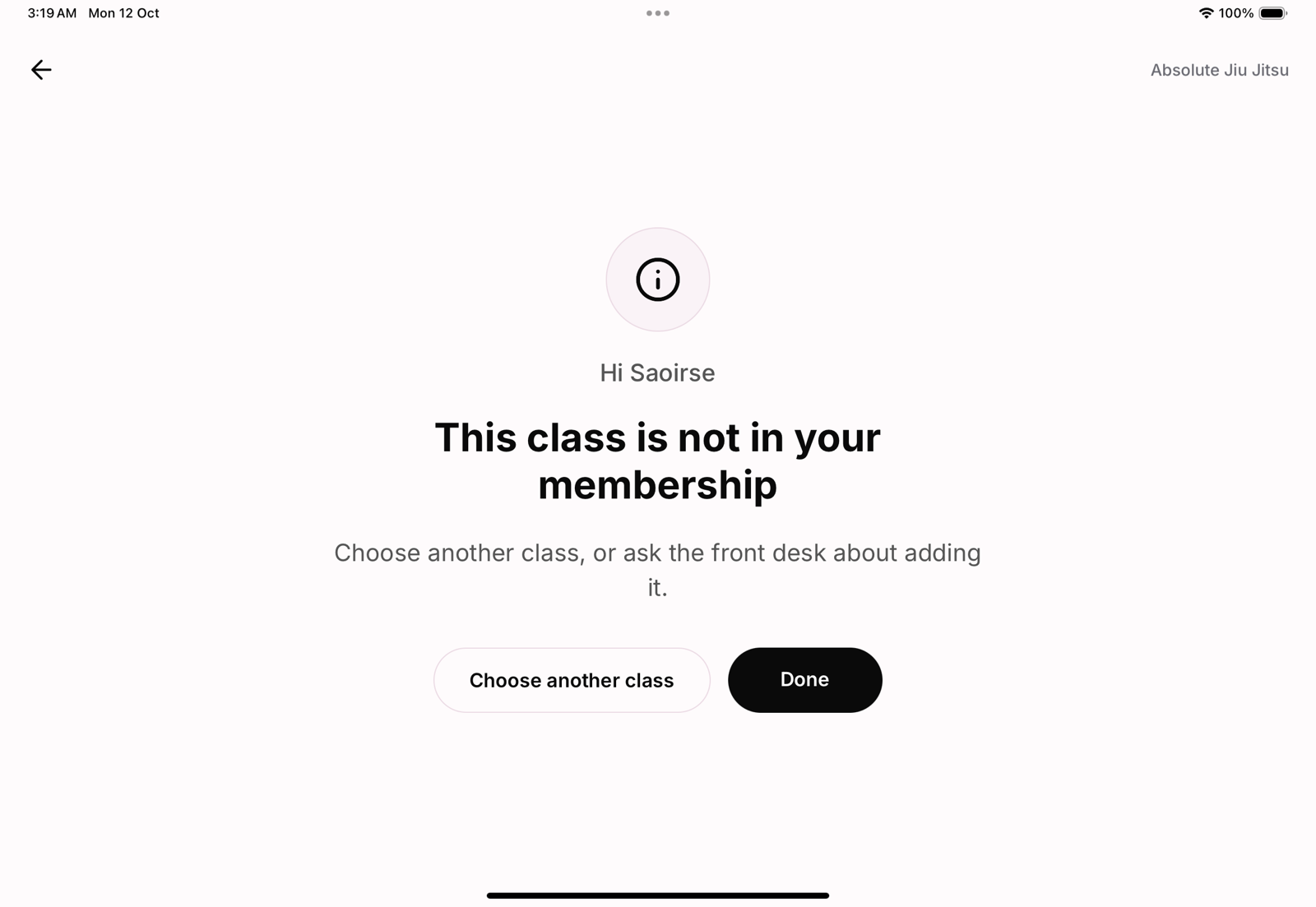
The kiosk names the reason in plain words: a membership on hold, a payment overdue, a trial that has ended, a class their plan does not include, a class for another age group. Where another class could work, it offers Choose another class; otherwise it asks them to see the front desk.
No connection
The check-in is saved on the tablet and sent when the connection is back. See When the kiosk loses its internet connection.